
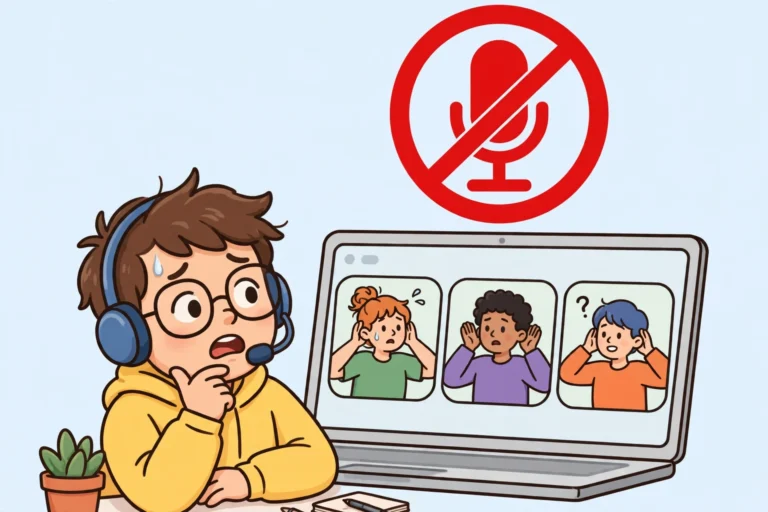

You join a video call, you say hello, and everyone stares back at you in silence. Your lips move, but nobody hears a word. Your microphone is not working, and the meeting moves on without you. It is embarrassing in a work call and frustrating in a class. It is infuriating when it happens in the middle of a game with friends. The good news is that a microphone not working problem is usually a mute button or a wrong setting. It is often a tired driver, not a broken microphone. This microphone not working fix walks through the checks in order. It starts with the 10 second mute check and ends with the deeper driver fix. Your voice comes back fast.
Work through the fixes below in order, and test the microphone after each one. Most microphones start working again at Fix 1, 2, or 3. In addition, keep a spare headset or a cheap USB microphone nearby while you work. If the spare microphone works and yours does not, you will know at once. The problem sits in your microphone and not in your computer. If you use a laptop, plug in the charger too. Some laptops limit the microphone and other devices when the battery runs low.
Why Your Microphone Is Not Working
When your microphone is not working, your voice never reaches the computer. Sometimes the computer picks the wrong microphone and listens to silence. The microphone itself may be fine. It may be muted, unplugged, blocked by a privacy setting, or held back by a broken driver. As a result, your call app hears nothing and the recording stays flat. The test bar in your sound settings never moves. The most common causes are a mute button left on, the wrong microphone picked as the default, an app blocked from the microphone, a volume level set to zero, an old or broken audio driver, or a loose or faulty cable. A microphone not working problem is usually a settings or connection problem. It is not a hardware problem, and that is why the fixes below work so often.
Microphone Not Working Fix 1: Check the Mute Button and the Cable
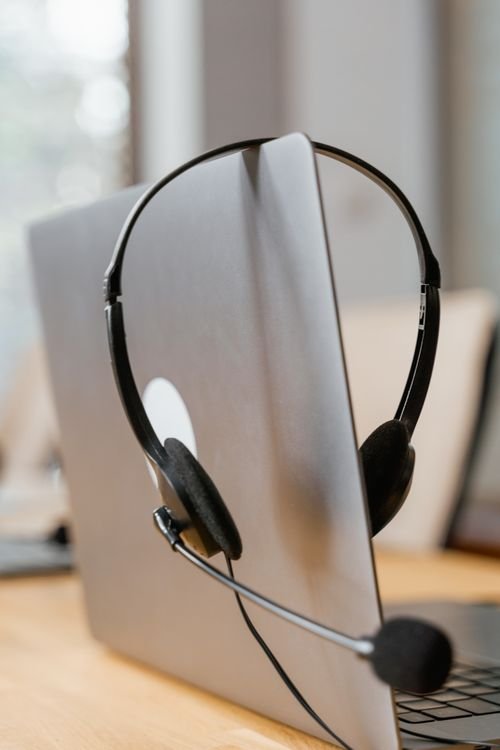
A microphone not working error often starts with the simplest cause of all. Many headsets have a small mute button on the cable or on the ear cup, and many USB microphones have a mute button on the body. One accidental press silences the microphone completely. The cable can cause the same problem. Check both first, because it takes seconds and fixes the problem often.
Check the Mute Button and Cable Step by Step
- Unmute the microphone in your call app: Look for the microphone icon in Zoom, Teams, Meet, or Discord. If it has a line through it or shows red, click it once to unmute. Say a few words and watch the icon to confirm it stays unmuted.
- Check the mute button on the headset or microphone: Look for a small button on the headset cable, on the ear cup, or on the microphone body. If it glows red or shows a mute symbol, press it once to turn the microphone back on.
- Move the boom microphone closer to your mouth: A boom microphone that hangs down by your chin or points away from your mouth picks up almost nothing. Bend the boom so the microphone sits about two finger widths from the corner of your mouth.
- Push the plug in firmly: Unplug the headset or microphone cable, then plug it back in until it sits tight. A plug that is only halfway in can carry sound out to the headphones while the microphone stays dead.
- Use the right jack: On many computers the pink jack is for the microphone and the green jack is for the headphones. A microphone plug in the headphone jack will not work at all. If your headset uses one combined plug, use the headset jack marked with a headset symbol.
- Try a different USB port: Unplug a USB microphone and plug it into a different USB port, ideally one on the opposite side of the laptop or on the back of a desktop computer. A worn or loose port can drop the microphone connection.
More Mute and Cable Tips for Your Microphone Not Working Fix
- Check the mute switch on a Bluetooth headset: Some Bluetooth headsets mute when you lift the boom microphone up or flip it away from your mouth. Lower the boom back into place and test again.
- Try the microphone on another device: Plug the headset or USB microphone into a phone or another computer. If it works there, the microphone is fine and the fault sits in your computer settings.
- Check for a damaged cable: Bend the cable gently near the plug while you speak. If your voice cuts in and out as the cable moves, the wire inside is broken and the headset or microphone needs replacing.
Microphone Not Working Fix 2: Pick the Right Microphone in Your Sound Settings
A microphone not working problem can also mean the computer is listening to the wrong microphone. Most computers have more than one microphone, such as a built-in laptop microphone, a headset microphone, and a webcam microphone. If the computer listens to a microphone that is not connected, it hears nothing at all. Open the sound settings next and pick the microphone you actually use.
Windows 11 and Windows 10: Pick the Right Microphone
- Open the sound settings: On Windows 11, open Settings, then System, then Sound. On Windows 10, open Settings, then System, then Sound.
- Find the Input section: Look for Input near the middle of the page. You will see a list that says Choose a device for speaking or recording.
- Pick your microphone: Click the list and choose your headset, USB microphone, or built-in microphone. If you do not see your microphone in the list, unplug it and plug it back in. Then check the list again.
- Speak and watch the volume bar: Say a few words at your normal voice. The volume bar under the microphone name should move as you speak. If it moves, the microphone works and the problem sits in your call app, so move on to Fix 3.
- Open the microphone properties: On Windows 11, click your microphone name, then look for Input volume and set it above 80. On Windows 10, click Device properties under the microphone name and raise the volume slider there.
- Test the microphone: On Windows 11, click Start test under Test your microphone, speak for a few seconds, then click Stop test. Windows will show a result as a percentage. A result above zero means the microphone hears you.
Windows 7 and Windows 8.1: Pick the Right Microphone
- Open the Sound settings: Open the Control Panel, then open Sound. On Windows 7, click Start, then Control Panel. On Windows 8.1, right-click the Start button, then click Control Panel.
- Open the Recording tab: Click the Recording tab at the top. You will see a list of every microphone the computer knows about.
- Set your microphone as the default: Right-click your headset or USB microphone in the list, then click Set as Default Device. A green tick will appear next to it.
- Speak and watch the green bar: Say a few words and watch the green level bar next to your microphone. The bar should rise as you speak. If it stays flat, right-click the microphone, click Properties, open the Levels tab, and raise the Microphone slider above 80.
Mac: Pick the Right Microphone
- Open the sound settings: On macOS Ventura and later, open System Settings, then Sound, then Input. On older macOS versions, open System Preferences, then Sound, then Input.
- Pick your microphone: Click your headset, USB microphone, or built-in microphone in the list. For example, speak a few words and watch the Input level bar move.
- Raise the input volume: If the bar barely moves, drag the Input volume slider to the right until your voice makes the bar reach about three quarters of the way across.
More Microphone Choice Tips for Your Microphone Not Working Fix
- Unplug microphones you do not use: If a webcam microphone and a headset microphone are both plugged in, the computer may keep switching between them. In addition, unplug the one you do not use and test again.
- Check the microphone in your call app too: Even with the right microphone set in Windows, Zoom, Teams, or Meet may use a different one. Open the app settings and pick the same microphone there. Fix 3 shows you how.
- Restart the call app after changing the microphone: Some apps only read the microphone list when they start. Close the app completely, then open it again after you pick the right microphone.
Microphone Not Working Fix 3: Let Your Apps Use the Microphone
When your microphone is not working only in one app, such as Zoom or Teams, the app may be blocked by a privacy setting, or the app itself may be set to the wrong microphone. Windows and macOS both ask you to give each app permission to use the microphone, and a single denied permission silences the app completely. Give the app permission next, then check the microphone choice inside the app.

Windows 11 and Windows 10: Turn On Microphone Permission
- Open the microphone privacy settings: On Windows 11, open Settings, then Privacy and security, then Microphone. On Windows 10, open Settings, then Privacy, then Microphone.
- Turn on microphone access: Make sure Microphone access is turned on. Then turn on Let apps access your microphone on Windows 11, or Allow apps to access your microphone on Windows 10.
- Allow your call app: Scroll down the app list and turn on the switch next to Zoom, Teams, Meet, or Discord. If your app is a desktop app, also turn on Let desktop apps access your microphone at the bottom of the page.
- Restart the app: Close the call app completely, then open it again. The app reads the permission when it starts, so a restart is needed before the change takes effect.
Windows 7 and Windows 8.1: Check the App Microphone Setting
- Open the app audio settings: Windows 7 and 8.1 have no app privacy switch, so open the settings inside your call app instead. In Skype, open Tools, then Options, then Audio settings. In Zoom, open Settings, then Audio.
- Pick your microphone in the app: Choose your headset or USB microphone from the Microphone list in the app. For example, speak and watch the input level bar in the app move.
- Test the call: Most apps offer a test call or a test sound. Run it and listen to the playback. If you hear your own voice, the app microphone works.
Mac: Turn On Microphone Permission
- Open the privacy settings: On macOS Ventura and later, open System Settings, then Privacy and Security, then Microphone. On older macOS versions, open System Preferences, then Security and Privacy, then Privacy, then Microphone.
- Allow your call app: Tick the box next to Zoom, Teams, Meet, or your browser. If the box is greyed out, click the lock at the bottom and enter your Mac password first.
- Restart the app: Quit the call app fully, then open it again so it picks up the new permission.
More App Permission Tips for Your Microphone Not Working Fix
- Check the microphone inside Zoom: In Zoom, open Settings, then Audio, and pick your microphone from the Microphone list. Click Test Mic and speak, then listen to the playback.
- Check the microphone inside Teams: In Teams, click the three dots, open Settings, then Devices, and pick your microphone from the Microphone list. Make a test call to hear yourself back.
- Check the microphone inside Discord: In Discord, open User Settings, then Voice and Video, and pick your microphone from the Input Device list. Speak and watch the input volume bar move.
- Check the browser permission for Meet: If you use Google Meet in a browser, click the padlock icon in the address bar and make sure Microphone is set to Allow. A blocked browser permission silences every call on that site.
Microphone Not Working Fix 4: Turn Up the Volume and Run the Troubleshooter
If your microphone is not working but the computer does detect it, the volume may be set so low that nobody can hear you. A microphone volume of zero acts just like a mute button. Windows also has a built-in troubleshooter that can find and fix common microphone faults on its own. Raise the volume first, then let the troubleshooter take a look.
Windows 11 and Windows 10: Raise the Microphone Volume
- Open the sound settings: On Windows 11, open Settings, then System, then Sound, then click your microphone under Input. On Windows 10, open Settings, then System, then Sound, then click Device properties under Input.
- Raise the input volume: Drag the Input volume slider to at least 80. Speak and watch the volume bar move as you talk.
- Check the boost if your voice is still quiet: In the microphone properties, look for Additional device properties, then open the Levels tab. Raise the Microphone Boost slider to plus 10 dB if it is there, then click OK.
- Run the troubleshooter: On Windows 11, open Settings, then System, then Troubleshoot, then Other troubleshooters, then click Run next to Recording Audio. On Windows 10, open Settings, then Update and Security, then Troubleshoot, then Recording Audio. Follow the steps the troubleshooter shows you.
Windows 7 and Windows 8.1: Raise the Microphone Volume
- Open the Recording tab: Open the Control Panel, then Sound, then the Recording tab.
- Open the microphone properties: Right-click your microphone, click Properties, then open the Levels tab.
- Raise both sliders: Drag the Microphone slider to at least 80, and raise Microphone Boost to plus 10 dB if it is there. Click OK, then speak and watch the green bar move.
Mac: Raise the Microphone Volume
- Open the Input settings: On macOS Ventura and later, open System Settings, then Sound, then Input. On older macOS versions, open System Preferences, then Sound, then Input.
- Raise the input volume: Drag the Input volume slider to the right until your voice moves the Input level bar to about three quarters of the way across.
More Volume Tips for Your Microphone Not Working Fix
- Turn off audio enhancements for a test: In the microphone properties on Windows 11 and 10, turn off Audio enhancements. An enhancement that does not suit your microphone can silence it completely.
- Check the volume in the call app too: Zoom, Teams, and Discord each have their own microphone volume. If the system volume is high but the app volume is low, nobody will hear you. Raise both.
- Speak closer to the microphone: A laptop built-in microphone needs you within about an arm length. If you sit far back from the laptop, move closer and test again before you blame the settings.
Microphone Not Working Fix 5: Update or Reinstall the Microphone Driver
If your microphone is not working even after the settings look right, the audio driver may be the cause. The driver carries your voice from the microphone to the computer, and when it crashes or goes out of date, the microphone can vanish from the list or stay silent. A bad driver is also the most common cause when the microphone stopped working right after a Windows update. Update the driver first, then reinstall it if the update changes nothing.
- Open Device Manager: On Windows 11 and 10, right-click the Start button and click Device Manager. On Windows 7 and 8.1, open the Control Panel, then Device Manager.
- Find your microphone: Click Audio inputs and outputs to open the list. You will see your microphone, such as Microphone, Headset, or USB Audio Device.
- Update the driver: Right-click your microphone, then click Update driver, then click Search automatically for drivers. Install any driver Windows finds, then restart the computer.
- Update the sound card driver too: In Device Manager, open Sound, video and game controllers, right-click your sound card, such as Realtek Audio, and click Update driver. A broken sound card driver can silence the microphone as well.
- Reinstall the microphone if the update fails: Right-click your microphone in Device Manager, click Uninstall device, tick Delete the driver software if you see it, then restart the computer. Windows will install the microphone again when it starts up.
- Download the latest driver from the maker: If Windows finds nothing, go to the website of your computer maker or headset maker, such as Dell, HP, Lenovo, Logitech, or Realtek, and download the latest audio driver for your exact model. Install it, then restart the computer.
Mac: Update macOS to Fix the Microphone Driver
- Open Software Update: On macOS Ventura and later, open System Settings, then General, then Software Update. On older macOS versions, open System Preferences, then Software Update.
- Install any update: Mac microphone drivers come with macOS updates, so install any update offered. Then restart the Mac and test the microphone.
More Driver Tips for Your Microphone Not Working Fix
- Save the driver to a USB stick: If you cannot hear yourself well enough to follow a download, download the driver on another computer or a phone, copy it to a USB stick, and run it from the stick. That way a faulty microphone cannot stop the download.
- Use the maker driver, not a generic one: The driver from your computer or headset maker matches your exact microphone. A generic Windows driver may install, but it often misses features and can leave the microphone silent.
- Roll back the driver if the problem started after an update: In Device Manager, right-click your microphone, click Properties, open the Driver tab, and click Roll Back Driver if the button is active. This returns the driver to the version that worked before.
Microphone Not Working Fix 6: Try a Different Microphone or Port
If the first five fixes do not help, the fault may sit in the microphone itself. A microphone that works on nothing, or one that only works when you hold the cable a certain way, has usually worn out. These tests tell you whether the microphone needs replacing or just a different port on your computer.
- Try a different microphone: Plug in a different headset or USB microphone and test it in the same call app. If the new microphone works, your old one has failed and needs replacing.
- Try the built-in laptop microphone: Unplug your headset completely, then pick the built-in microphone in your sound settings and speak. If the built-in microphone works, the fault sits in your headset, not in the computer.
- Try a USB microphone instead of a jack microphone: A USB microphone uses its own sound chip and skips the computer audio jack completely. If the audio jack on your computer is worn out, a cheap USB microphone brings your voice back at once.
- Try a USB adapter for a jack headset: If your headset uses a 3.5 mm jack and the jack is faulty, a small USB to 3.5 mm adapter, often under 10 dollars, gives the headset a fresh connection through a USB port.
- Use your phone as a temporary microphone: Most call apps let you join the audio from your phone while you watch the screen on your computer. In Zoom or Teams, join the meeting on your phone too and pick Phone Audio. Your voice will come through the phone while you fix the computer microphone.
More Hardware Tips for Your Microphone Not Working Fix
- Clean the microphone hole: A laptop built-in microphone sits behind a tiny hole that can fill with dust. Blow gently across the hole or use a soft brush to clear it, and never poke a pin into it.
- Check for a broken headset adapter: If you use a splitter that turns one headset plug into two plugs, try the headset without it. A faulty splitter can cut the microphone signal while the headphones keep working.
- Test with a voice recorder: Open Voice Recorder on Windows or Voice Memos on a Mac, record a few seconds, and play it back. If the recording is silent, the fault is in the microphone or the system. If the recording is clear, the fault sits in your call app.
Troubleshooting
The microphone works in a test but not in a call: That points to the call app, not the microphone. Check the microphone choice inside the app as in Fix 3, and check the app permission in your privacy settings. Also check that you are not muted in the meeting itself, because the app mute and the system mute are two separate switches.
The microphone works on one app but not another: Each app keeps its own microphone choice and its own permission. Open the audio settings in the app that stays silent and pick the same microphone that works in the other app. On Windows, also check the app list in the microphone privacy settings.
The microphone stopped working after a Windows update: The update may have replaced your audio driver with one that does not work well, or it may have reset your privacy settings. Turn the microphone permission back on as in Fix 3, then update or roll back the driver as in Fix 5.
More Troubleshooting for Your Microphone Not Working Fix
The microphone volume is very low even at full volume: The microphone may be too far from your mouth, or the boost may be off. Move the boom microphone closer, then raise the Microphone Boost to plus 10 dB in the microphone properties as in Fix 4. If the sound is still faint, try a USB microphone, which usually has a stronger built-in amplifier.
The microphone makes a buzzing or humming sound: For example, a buzz often comes from a faulty cable or a nearby power source. Move the microphone cable away from power bricks and chargers, try a different USB port, and test the microphone on another computer. If the buzz follows the microphone, the cable or the microphone itself is faulty.
The microphone is not listed at all: The computer does not see the microphone, so check the connection as in Fix 1 and try another port. If it still does not appear, open Device Manager and look for an unknown device, then reinstall the driver as in Fix 5. If you can hear sound but your microphone stays silent, our no sound on laptop fix covers the speaker side of the same problem, and if your Bluetooth headset connects but the microphone stays dead, our Bluetooth not connecting fix walks through the pairing side.
FAQ
Why is my microphone not working on Zoom? A microphone not working on Zoom most often means Zoom is muted, Zoom is set to the wrong microphone, or Windows has blocked Zoom from the microphone. Unmute yourself in the meeting, open Zoom Settings, then Audio, and pick your microphone. Then turn on the Zoom switch in your microphone privacy settings as in Fix 3.
How do I fix my microphone not working on Windows 11? First, check the mute button on your headset. Then open Settings, then System, then Sound, and pick your microphone under Input. Turn on the microphone permission in Settings, then Privacy and security, then Microphone, and raise the input volume above 80. Those steps fix most cases, and Fix 5 covers the driver if they do not.
Why can nobody hear me on Teams but I can hear them? Your speakers work, so the fault sits in your microphone side only. Check that you are not muted in Teams, then open Teams Settings, then Devices, and pick your microphone. Also check the Windows microphone privacy setting for Teams, because Teams needs its own permission switch turned on.
More Microphone Not Working Fix Questions
Can a loose cable make my microphone stop working? Yes. A loose headset plug or USB cable can drop the microphone signal while the headphones keep working, so you hear everyone and nobody hears you. Push the plug in firmly, try a different USB port, and try the microphone on another device as in Fix 1.
Why does my microphone work on my phone but not my laptop? A microphone that works on a phone is healthy, so the fault sits in the laptop settings. The laptop may be listening to the wrong microphone, the privacy setting may block your call app, or the audio driver may be broken. Work through Fix 2, Fix 3, and Fix 5 in that order.
Should I buy a new microphone or fix this one first? Fix it first, because most microphone faults cost nothing to repair. A mute button, a wrong setting, a blocked permission, or a tired driver covers almost every case. Only buy a new microphone after Fix 6 shows that a different microphone works and yours fails on every device you try.
Final Words
A microphone not working problem feels like a dead microphone, but the microphone is almost always fine. A mute button switched off, the right microphone picked, a permission turned on, and a fresh driver bring your voice back in most cases. Work through the fixes in order, test after each one, and most microphones start working again without a repair shop or a new purchase. If you want a second opinion on the Windows steps, this Microsoft microphone fix guide covers the same checks, including the privacy settings and the driver reinstall. And if your laptop plays no sound at all, our no sound on laptop fix is the next place to look.