
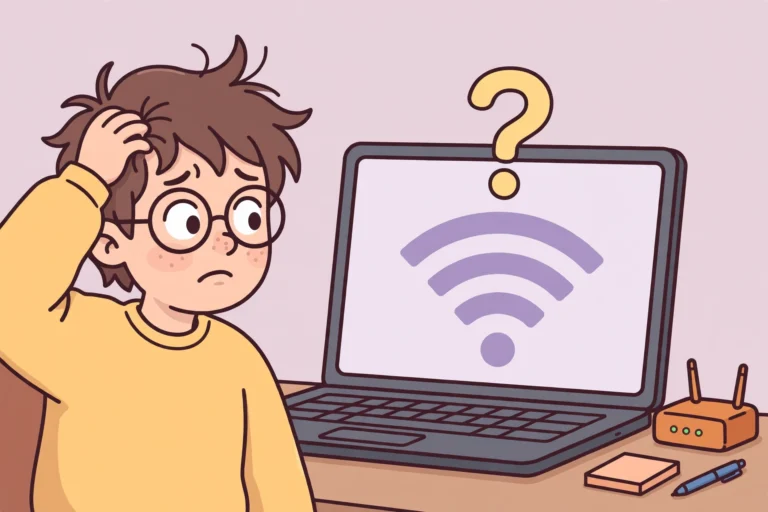

You need the Wi-Fi password for a new phone, a guest asks for it, or your laptop forgot the network after an update. You know you typed it once, but the exact letters are gone from your memory. The good news is that your devices still remember it. This forgot Wi-Fi password fix shows you where it hides on Windows, Mac, iPhone, Android, and your router, so you can find it in seconds and get back online.
Start with the device that connects to the network most often, because that device holds the password in plain text. A Windows PC or a Mac is the best place to start, since a computer lists every network it has ever saved. A phone works too, but it usually shows only the network it is on right now. Work through the fixes below in order, and write the password down as soon as you see it.
Why Your Wi-Fi Password Is Still Saved on Your Devices
Every device saves the Wi-Fi password the first time it joins a network, so it can reconnect on its own later. Windows keeps a list of every network profile, macOS stores the password in its keychain, and phones keep it in their saved networks. As a result, a forgot Wi-Fi password problem is almost never a lost password. It is only a hidden one. The password sits in a settings screen or a short command away from you. The only time no device can help is when every device was reset or the network was never saved, and even then the router itself has the answer.
Forgot Wi-Fi Password Fix 1: Find It on Windows
Windows is the fastest place to look, because one command lists every network your PC has ever joined. Use the settings screen if you only need the network you are on now. Use the command if you need an old network from months ago.

Windows 11 and Windows 10: Show the Password in Settings
- Open the network connections window: Press the Windows key and R together, type ncpa.cpl, then press Enter.
- Open the Wi-Fi status: Right-click the Wi-Fi adapter, then click Status.
- Open the wireless properties: Click Wireless Properties in the status window.
- Show the password: Open the Security tab, then tick the Show characters box.
- Read the password: The password appears in the Network security key field. Write it down right away.
Windows 7 and Windows 8.1: Show the Password in Network and Sharing Center
- Open Network and Sharing Center: Open the Control Panel, then open Network and Sharing Center. On Windows 7, click Start, then Control Panel. On Windows 8.1, right-click the Start button, then click Control Panel.
- Open your network: On Windows 7, click Manage wireless networks in the left menu, right-click your network, then click Properties. On Windows 8.1, click the name of your Wi-Fi connection next to Connections.
- Open the Security tab: Click the Security tab in the properties window.
- Show the password: Tick the Show characters box, then read the password in the Network security key field.
All Windows Versions: Find Any Saved Password With One Command
This command works the same on Windows 7, Windows 8.1, Windows 10, and Windows 11, and it finds networks your PC joined years ago. It is the strongest route in this whole forgot Wi-Fi password fix.
- Open Command Prompt as administrator: Press the Windows key, type cmd, right-click Command Prompt, then click Run as administrator.
- List every saved network: Type netsh wlan show profiles and press Enter. You will see a list of every saved network under User profiles.
- Show one network password: Type netsh wlan show profile name=”Your Network Name” key=clear and press Enter. Use quotes if the network name has spaces.
- Read the password: Scroll to the Security settings block and read the Key Content line. That line is your password in plain text.
More Windows Tips for Your Forgot Wi-Fi Password Fix
- Run as administrator matters: On a standard user account the Key Content line may come back empty. Sign in with an administrator account and try again.
- Save a backup on a USB stick: Type netsh wlan export profile key=clear folder=E: and press Enter, replacing E: with your USB drive letter. That saves every password to the stick. Keep the stick somewhere safe.
- Copy it exactly: Wi-Fi passwords are case sensitive, so capital letters and small letters must match exactly.
Forgot Wi-Fi Password Fix 2: Find It on a Mac
A Mac keeps every Wi-Fi password in its keychain, and newer versions of macOS also show it in Settings. Either route takes under a minute, and both need your Mac administrator password.
macOS Ventura and Later: Use System Settings
- Open System Settings: Click the Apple menu, then click System Settings.
- Open the Wi-Fi page: Click Wi-Fi in the left sidebar.
- Open your network details: Find your network in the list, then click the three dots or the Details button next to it.
- Copy the password: Click Copy Password, then paste it somewhere safe. On macOS Sequoia and later you can also open the Passwords app and look under Wi-Fi.
Older macOS Versions: Use Keychain Access
- Open Keychain Access: Open Finder, go to Applications, then Utilities, then open Keychain Access.
- Search for your network: Type your network name in the search box at the top right.
- Open the network entry: Double-click the network entry in the results.
- Show the password: Tick the Show password box, enter your Mac administrator password, then read the password.
More Mac Tips for Your Forgot Wi-Fi Password Fix
- Try System Settings first: Keychain Access is the older route, and the newer Settings screen is faster on most Macs.
- Check the right keychain: If the network does not appear, switch between the login and System keychains in the left sidebar of Keychain Access.
Forgot Wi-Fi Password Fix 3: Find It on iPhone and iPad
An iPhone or iPad shows the password in plain text, but only on iOS 16 or iPadOS 16 and later. The phone will ask for Face ID, Touch ID, or your passcode first, so nobody else can peek at it.
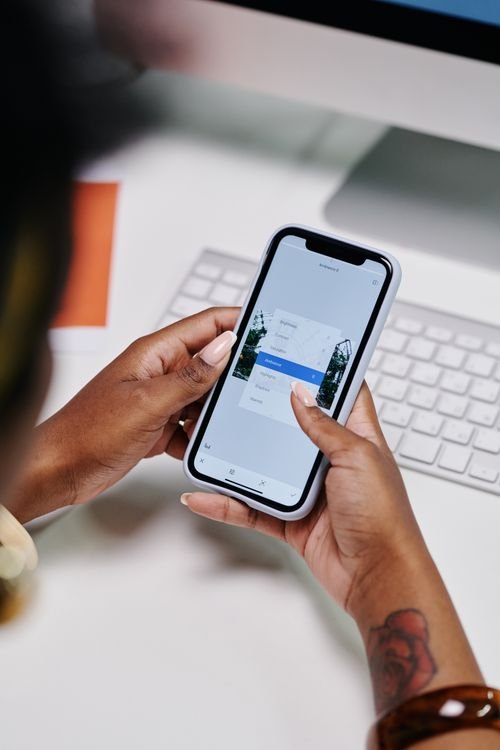
- Open the Wi-Fi settings: Open Settings, then tap Wi-Fi.
- Pick your network: Tap the name of the network you are connected to. To see a saved network you are not near right now, tap Edit at the top right, then tap the network.
- Reveal the password: Tap the Password field. Your iPhone will ask for Face ID, Touch ID, or your passcode.
- Copy it: Read the password, then tap Copy if you want to paste it somewhere safe.
More iPhone Tips for Your Forgot Wi-Fi Password Fix
- Share it with a nearby Apple device instead: On the Wi-Fi screen, tap Share Password when another iPhone or iPad asks to join. The password moves across without anyone typing it.
- Update first if the field is missing: The Password field only exists on iOS 16 and later. On older versions, use a Windows PC or a Mac to find it.
Forgot Wi-Fi Password Fix 4: Find It on Android
Android does not always show the password in plain text. Most Android phones share it as a QR code instead, which another phone can scan to join. Many phones also print the password in plain text under the code.
- Open the Wi-Fi settings: Open Settings, then tap Network and internet, then tap Wi-Fi. On Samsung phones, open Settings, then Connections, then Wi-Fi.
- Pick your network: Tap the network you are connected to, or open Saved networks and pick the one you need.
- Share the network: Tap Share, then unlock the phone with your PIN, fingerprint, or pattern.
- Read the password or scan the code: Read the password under the QR code if your phone shows it. If it does not, point another phone camera at the code to join without typing.
More Android Tips for Your Forgot Wi-Fi Password Fix
- Samsung phones show the code too: Tap the gear icon next to the network, then tap QR code.
- A second phone helps: If your phone only shows a QR code, scan it with a friend phone camera to connect that phone at once.
Forgot Wi-Fi Password Fix 5: Check the Router
If no device remembers the password, the router itself still knows it. The sticker on the router shows the password it shipped with, and the router settings page shows the current one.
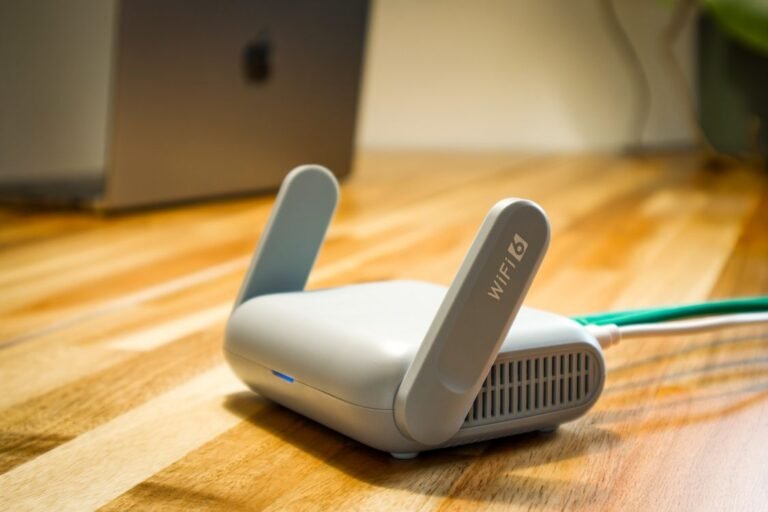
- Read the router sticker: Turn the router over and read the sticker on the bottom or back. Look for Wireless Password, Network Key, or WPA Key.
- Open the router settings page: If that password fails, the password was changed after setup. Open a browser on a device that is already connected to the network.
- Type the router address: Type 192.168.1.1 or 192.168.0.1 in the address bar and press Enter. If neither opens the login page, check the router manual for its address.
- Log in to the router: Log in with the admin username and password. Both are often printed on the same router sticker.
- Read the current password: Open the Wireless or Wi-Fi settings page and read the password next to your network name.
More Router Tips for Your Forgot Wi-Fi Password Fix
- The sticker only shows the original password: If someone changed the password after the router was set up, the sticker password will not work. Use the settings page instead.
- Try a cable if Wi-Fi is down: A network cable from the router to a laptop opens the settings page even when Wi-Fi will not connect.
What to Do If No Device Remembers Your Wi-Fi Password
When no device and no sticker can help, reset the router. This is the last step, because it wipes every custom setting and disconnects every device in the house.
- Find the reset button: Find the small reset hole or button on the back of the router.
- Hold the reset button: Press and hold it with a paperclip for about 10 seconds, until the lights blink and the router restarts.
- Connect with the sticker password: Wait two minutes, then connect with the password printed on the router sticker.
- Set a password you will remember: Set a new password you will remember, then write it on paper and keep it near the router.
After the Reset, Keep the Password Safe
- Write it down this time: A note stuck under the router or saved in a password manager stops the next forgot Wi-Fi password hunt before it starts.
- Save an offline backup: Export your Windows profiles to a USB stick with the command in Fix 1, so a reset never leaves you locked out again.
Troubleshooting
The Command Prompt shows a blank Key Content line: You need an administrator account. Sign in as an administrator and run Command Prompt as administrator again.
Your network is not in the list: The device never joined that network, or the saved network was removed. Try another device, or check the router.
The iPhone has no Password field: Your iPhone runs iOS 15 or older. Update to iOS 16 or later, or find the password on a computer instead.
The router page will not open: Check that the device is connected to the router, try the other address, or connect with a network cable.
The sticker password does not work: Someone changed the password after setup. Use the router settings page, or reset the router as a last step.
Wi-Fi connects but pages will not load: That is a different problem from a lost password. Our Wi-Fi connected but no internet fix walks through that problem step by step.
FAQ
Can I find my Wi-Fi password if my laptop is not connected right now? Yes. The netsh command on Windows and Keychain Access on a Mac list networks the computer joined in the past, even if it is not connected to them now.
Is it safe to show my Wi-Fi password on screen? Yes, on your own device in your own home. Keep other people from watching the screen, and close the window when you are done.
Why does the password on the router sticker not work? The sticker shows the password the router shipped with. If anyone changed the password after setup, the sticker is out of date, and the current password lives in the router settings page.
Can I see the password on an iPhone with iOS 15 or older? No. The Password field arrived with iOS 16. Update the phone, or find the password on a Windows PC or a Mac.
What if I forgot the router admin password too? Reset the router with the button on the back. That restores the admin login and the Wi-Fi password printed on the sticker, but it also wipes every custom setting.
Can I share the password without saying it out loud? Yes. iPhones can share it with a nearby Apple device, and Android phones can share it as a QR code. Both ways connect the other device without showing the password.
Final Words
A forgot Wi-Fi password moment feels like a lockout, but the password is almost always one screen away. A computer finds it fastest, a phone finds it in seconds, and the router always has the final answer. Once you have it back, write it down and save it somewhere safe, so the next guest never has to wait. For a second device by device reference, TeamViewer also walks through the same steps for every system.