


You plug in the second monitor, you turn it on, and nothing happens. Your main screen works fine, but Windows acts like the second monitor does not exist. This second monitor not detected fix walks through the causes in order, from a loose cable to a tired driver, so you can find your cause and get your extra screen back.
A second monitor that Windows cannot see is rarely a dead monitor. Most of the time the cable is loose, the monitor is listening on the wrong input, Windows is set to use one screen only, or the graphics driver broke after an update. Work through these fixes in order, and test after each change. Most second monitors appear again in minutes without a repair shop.
Why Your Second Monitor Is Not Detected
A second monitor needs a short chain to work. The monitor needs power, the cable needs to carry a signal, the port needs to send video, Windows needs to look for the display, and the graphics driver needs to pass the picture along. If any link in that chain breaks, Windows reports that no second monitor is detected. For example, a monitor set to HDMI 2 while the cable sits in HDMI 1 shows nothing, even though every part is healthy. In addition, a laptop USB-C port without video support sends no picture at all, no matter which cable you use. As a result, a second monitor not detected fix has to check the chain from the start, not guess at one part of it. The second monitor not detected fix below finds which link broke, then repairs it.
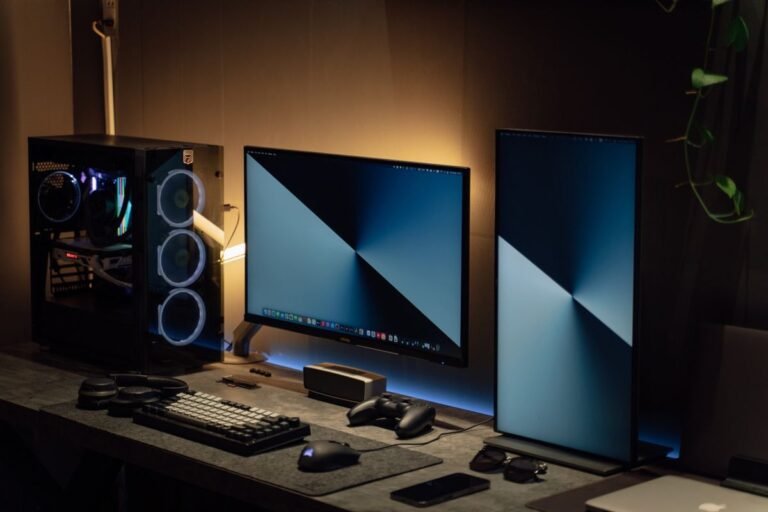
Before you change anything, run one quick check. Look at the second monitor and its power light. If the light is on, the monitor has power and the fault is likely the cable, the input, or Windows. On the other hand, if the light is off, start with the power cable and the wall outlet in Fix 1. That detail points you at the right fix, so keep it in mind as you work through the steps below.
Second Monitor Not Detected Fix 1: Check the Cable, Power, and Input
Start here, because most second monitor not detected cases end with the cable or the input. A loose plug, a cable in the wrong port, or a monitor listening on the wrong input all look like a dead monitor. Check the physical chain before you touch any setting.
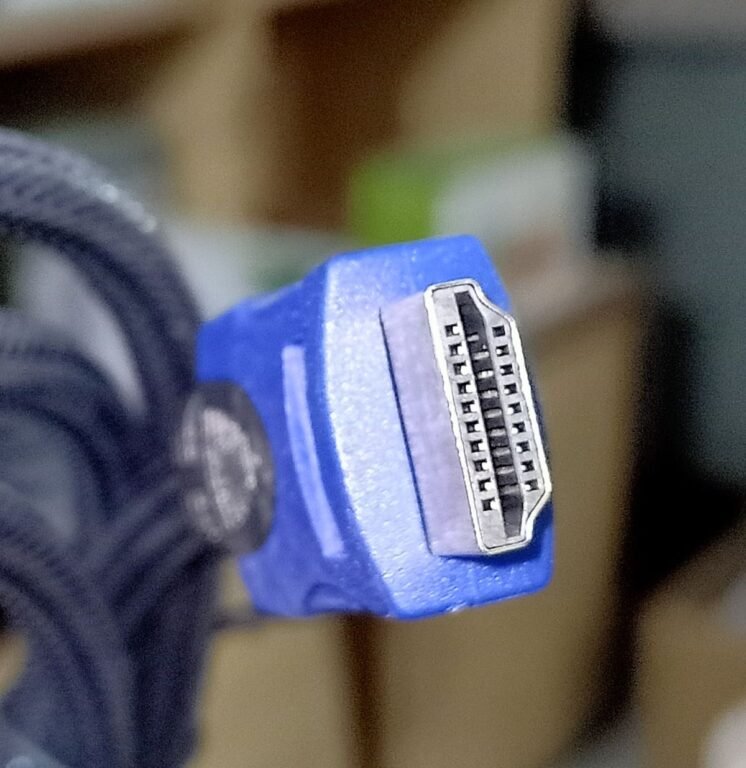
Check the Cable and the Monitor Power First
- Check the monitor power light: Look for a small light on the front or the bottom edge of the second monitor. If there is no light, push the power cable firmly into the monitor and into the wall outlet, then press the monitor power button.
- Try a different wall outlet: Plug the monitor power cable into an outlet you know works, such as the one your lamp uses. A dead outlet or a switched off power strip fools many people into blaming the monitor.
- Unplug the video cable at both ends: Remove the HDMI, DisplayPort, DVI, or VGA cable from the monitor and from the computer. Check both plugs for bent pins, dust, or damage.
- Plug the cable back in firmly: Push each plug fully into its port until it seats with no wobble. A half seated plug is a classic cause of a second monitor not detected problem.
- Pick the right input on the monitor: Use the buttons on the monitor to open its input menu, then pick the port your cable uses, such as HDMI 1, HDMI 2, or DisplayPort. A monitor on the wrong input shows No signal even when everything else is right.
- Try a different cable: If you have a spare cable, swap it in and test for a few minutes. Cables fail invisibly, and a broken wire inside looks exactly like a good cable from the outside.
- Restart the computer after reseating the cable: Click Start, click Power, then click Restart. A restart makes Windows scan for displays again, so do not skip this simple step.
More Cable and Input Checks for Your Second Monitor Not Detected Fix
- Use the graphics card ports on a desktop: On a desktop with a dedicated graphics card, plug the monitor into the card ports lower on the back panel, not into the motherboard ports near the top. The motherboard ports may not carry a signal at all on such a computer.
- Check that your USB-C port carries video: A USB-C port can carry video only if it is marked with a DisplayPort or Thunderbolt symbol. A plain USB-C port will not work for a monitor, and no cable can change that.
- Skip docks, hubs, and adapters for the test: Connect the monitor straight to the computer with one cable and no dock, splitter, or adapter in between. If the monitor appears, the dock or adapter was the problem.
- Remember that a splitter only duplicates: A passive HDMI splitter sends the same picture to two screens. It cannot create a second independent screen, so it will never fix a second monitor not detected problem.
Second Monitor Not Detected Fix 2: Tell Windows to Detect the Display
If the cable and the input are right, make Windows look for the monitor again. Windows sometimes misses a display that was plugged in while the computer was asleep, or after a restart. The Detect button forces a fresh scan. This second monitor not detected fix takes less than a minute, and it solves the problem whenever Windows simply missed the new screen.
Windows 11 Detection Steps
- Open Display settings: Press the Windows key and I together to open Settings, then click System, then Display. You can also right click an empty part of the desktop and click Display settings.
- Expand Multiple displays: Scroll down the Display page until you see Multiple displays, then click it to expand the section.
- Click Detect: Click the Detect button next to Detect another display. Windows scans every video output for a connected monitor.
- Watch for a second numbered box: If Windows finds the monitor, a second numbered box appears at the top of the Display page. Click Identify to flash a number on each screen and confirm which physical monitor is which.
- Choose Extend these displays: Under Multiple displays, pick Extend these displays from the drop-down list, then click Keep changes. Your desktop now spreads across both screens.
Windows 10 Detection Steps
- Open Display settings: Click Start, then Settings, then System, then Display. You can also right click an empty part of the desktop and click Display settings.
- Find the Multiple displays section: Scroll down the Display page until you see Multiple displays.
- Click Detect: Click the Detect button under Multiple displays. Windows scans every video output for a connected monitor.
- Watch for a second numbered box: If Windows finds the monitor, a second numbered box appears at the top of the Display page. Click Identify to flash a number on each screen.
- Choose Extend these displays: Under Multiple displays, pick Extend these displays from the drop-down list, then click Keep changes.
Windows 7 and 8 Detection Steps
- Open Screen resolution: Right click an empty part of the desktop, then click Screen resolution. A window opens with a picture of your displays.
- Click Detect: Click the Detect button in the Screen resolution window. Windows scans for a connected monitor.
- Watch for a second numbered box: If Windows finds the monitor, a second numbered box appears in the window. Click Identify to flash a number on each screen.
- Choose Extend these displays: Click the Multiple displays drop-down list, pick Extend these displays, then click Apply and OK.
More Detection Tips for Your Second Monitor Not Detected Fix
- Drag the display boxes to match your desk: Once both displays appear, drag their numbered boxes in Display settings so they sit in the same order as the real monitors on your desk. Then your mouse moves smoothly from one screen to the other.
- Wake the monitor before you click Detect: Press a key on the keyboard or move the mouse first, so the computer is fully awake. A sleeping computer can miss a display during the scan.
- Try Detect twice: If the first scan finds nothing, click Detect a second time after a few seconds. The first scan can run before the monitor finishes waking up.
- Check the monitor on its own menu: If Detect still finds nothing, the fault is almost certainly the cable, the port, or the driver. Go back to Fix 1, then move on to Fix 4 below.
Second Monitor Not Detected Fix 3: Pick the Right Display Mode with Windows P
Sometimes Windows sees the second monitor but is told to ignore it. The display mode may be set to PC screen only, which switches the second monitor off on purpose. Pressing Windows key and P opens a small menu with four modes, and picking the right one wakes the second screen at once. This is the fastest second monitor not detected fix when the monitor is connected but dark. If you want the full setup walkthrough instead, see our guide to setting up two monitors on Windows next.
Windows 11 and 10 Display Mode Steps
- Press Windows key and P together: A narrow panel opens on the right side of the screen with four options.
- Pick Extend: Click Extend. Your desktop now spreads across both screens, and you can drag windows between them.
- Test the second monitor: Move your mouse to the right edge of the main screen. It should cross onto the second monitor. Open a window and drag it across to confirm.
- Check the other modes if Extend fails: Try Duplicate to see whether the second monitor lights up at all. If Duplicate works but Extend does not, the display settings in Fix 2 need another look.
Windows 7 and 8 Display Mode Steps
- Press Windows key and P together: The display switcher opens with the same four options as newer Windows versions.
- Pick Extend: Click Extend, or press the arrow keys to highlight it and press Enter.
- Use Screen resolution if the shortcut fails: Right click the desktop, click Screen resolution, open the Multiple displays drop-down list, pick Extend these displays, then click Apply and OK.
- Test the second monitor: Move your mouse across the edge of the main screen and watch it appear on the second monitor.
More Display Mode Tips for Your Second Monitor Not Detected Fix
- Know the four modes: PC screen only uses the main screen alone. Duplicate shows the same picture on both screens. Extend spreads your desktop across both screens. Second screen only turns the main screen off and uses the second monitor alone.
- Both screens showing the same picture means Duplicate: If both monitors show the same desktop, the mode is Duplicate, not Extend. Press Windows key and P again and pick Extend.
- A laptop lid can hide the mode: On some laptops, closing the lid while a second monitor is connected changes the display mode. Keep the lid open while you test, then change the lid setting later if you want it closed.
Second Monitor Not Detected Fix 4: Reset and Update the Graphics Driver
If the cable is fine and Windows still cannot see the monitor, the graphics driver is the next suspect. The driver is the software that talks to your graphics card, and a broken or old driver can hide a healthy monitor. A quick reset clears many driver glitches in seconds. This second monitor not detected fix also covers the update and the reinstall, with a USB stick alternative when you have no internet on the problem computer.

Reset the Graphics Driver in Ten Seconds
- Press Windows key plus Ctrl plus Shift plus B: Hold all four keys together for a second, then let go. The screen goes black for a moment, and you may hear a beep.
- Wait for the picture to return: Give the screen a few seconds to come back. Then watch whether the second monitor wakes up.
- Run Detect again: Open Display settings and click Detect, as in Fix 2. A reset driver often finds a monitor it missed before.
- Note the Windows version limit: This shortcut works on Windows 8, 8.1, 10, and 11. It does not work on Windows 7, so Windows 7 users should skip to the driver update below.
Update the Graphics Driver
- Open Device Manager: Press the Windows key and R together, type devmgmt.msc, then press Enter. Device Manager opens on every Windows version from 7 to 11.
- Expand Display adapters: Click the small arrow next to Display adapters. You will see your graphics card, such as Intel, NVIDIA, or AMD.
- Update the driver: Right click your graphics card, then click Update driver. Pick Search automatically for drivers and let Windows look for a newer one.
- Restart the computer: Click Start, click Power, then click Restart. Then open Display settings and click Detect again.
- Get the driver from the maker if Windows finds none: Visit the site of your graphics card maker or your laptop maker and download the newest driver for your exact model. Install it, restart, then click Detect again.
Reinstall the Driver When the Update Fails
- Open Device Manager again: Press the Windows key and R together, type devmgmt.msc, then press Enter.
- Uninstall the graphics device: Expand Display adapters, right click your graphics card, then click Uninstall device. If Windows offers a checkbox to remove the driver software, tick it.
- Restart the computer: Windows installs a fresh copy of the driver during the restart. Then open Display settings and click Detect.
- Roll back instead if the problem started after an update: In Device Manager, right click the graphics card, click Properties, open the Driver tab, then click Roll Back Driver. This returns the previous driver that worked.
- Use a USB stick when you have no internet: Download the driver on another computer or a phone, copy the installer to a USB stick, plug the stick into the problem computer, and run the installer from the stick. No internet is needed on the problem computer itself.
More Driver Tips for Your Second Monitor Not Detected Fix
- Fix the display adapter, not the monitor entry: In Device Manager, the graphics card sits under Display adapters, and that is the driver that matters. The Generic PnP Monitor entry under Monitors almost never causes a second monitor not detected problem.
- Watch for a yellow warning sign: If the graphics card in Device Manager shows a small yellow triangle, the driver is broken or missing. Update or reinstall it using the steps above.
- Update only one driver at a time: Change the graphics driver, restart, and test. If you update several drivers at once, you will not know which change fixed the monitor.
Second Monitor Not Detected Fix 5: Try Another Port, Cable, or Adapter
If the monitor is still missing, the fault may sit in one port or one adapter rather than in Windows. Ports wear out, adapters fail, and some ports never carried video in the first place. This second monitor not detected fix swaps one part at a time until the weak link shows itself.
- Try another video port on the computer: Move the cable to a different HDMI or DisplayPort output on the same computer. One bad port on the computer can hide a monitor on its own.
- Try another input on the monitor: Move the cable to a different input on the monitor, then pick that input from the monitor menu. One bad input on the monitor can do the same.
- Try a different cable type: If you use HDMI, try DisplayPort or DVI instead, if your computer and monitor both have that port. A cable type that works proves the first cable or port was at fault.
- Remove every adapter and dock: Unplug the monitor from any docking station, USB hub, or adapter, and connect it straight to the computer with one cable. If it appears, the dock or adapter was the problem.
- Lower the refresh rate if the monitor is found but stays dark: Open Settings, then System, then Display, then Advanced display. Pick the second monitor, then set the refresh rate to 60 Hz. An older cable can fail the handshake at a high refresh rate.
- Test the monitor with a TV or a laptop: Plug the second monitor into a laptop or use a TV as a test screen on the same computer. This tells you whether the fault follows the monitor or the computer, and Fix 6 below makes that test complete.
More Port and Adapter Tips for Your Second Monitor Not Detected Fix
- Check the cable version for high refresh rates: An old HDMI 1.4 cable can fail at 4K or at a high refresh rate, while the monitor itself is fine. A newer HDMI 2.0 or DisplayPort cable often fixes that case.
- Count your video outputs: A computer with only one video output supports only one external monitor by default. A second external monitor needs a second output, a docking station, or a USB graphics adapter.
- Do not trust a loose port: A port that only works when you hold the cable at an angle is worn out. Move the cable to a different port and leave the worn one alone.
Second Monitor Not Detected Fix 6: Test the Monitor on Another Computer
This last test settles the question for good. If the monitor works on another computer, the monitor is fine and the fault sits in the first computer. If it stays dark everywhere, the monitor or its cable is likely faulty. Run this test before you spend money on a repair or a new screen.
- Plug the second monitor into another computer or laptop: Use the same cable first, so you test the monitor and the cable together.
- Pick the right input and wake the monitor: Use the monitor buttons to pick the matching input, then move the mouse on the second computer.
- Read the result: If the monitor lights up, the monitor and the cable are fine. Go back to Fix 4 and focus on the driver of the first computer.
- Swap the cable and test again: If the monitor stays dark, try a different cable on the second computer. If it still stays dark, the monitor itself is the likely fault.
- Test the first computer with a known good screen: Plug a TV or a working monitor into the first computer. If that screen works, the first computer is fine and the second monitor is the problem.
Common Mistakes That Waste Your Time
A second monitor not detected problem tempts people into big fixes first. Skip these common myths. None of them fix a missing monitor, and some waste your money.
- Buying a new monitor first: A new monitor hits the same missing display if the cause sits in the cable, the port, or the driver. Work through Fix 1 and Fix 6 before you spend anything.
- Buying a splitter to add a second screen: A splitter duplicates one picture onto two screens. It cannot create a second independent screen, so it will never make Windows detect another monitor.
- Reinstalling Windows: A fresh Windows install is the last step, not the first. The six fixes above solve nearly every case, and a reinstall costs hours of setup.
- Installing a driver updater app: Most updater apps install the wrong driver or bundle extra software you do not want. Get the driver from the graphics card maker or the laptop maker, as in Fix 4.
- Updating every driver at once: Changing the graphics driver, the monitor driver, and the chipset driver together hides which change fixed the monitor. Change one driver, restart, and test.
- Assuming the monitor is dead because the screen is black: A black screen can mean the wrong input, the wrong display mode, or a sleeping computer. Check the input in Fix 1 and the mode in Fix 3 before you blame the monitor.
FAQ: Second Monitor Not Detected
Why is my second monitor not detected even though it is plugged in? The chain from the monitor to Windows is broken somewhere. The cable may be loose, the monitor may be on the wrong input, the port may not carry video, or the graphics driver may be broken. Check the cable and input in Fix 1 first, then click Detect in Fix 2, then update the driver in Fix 4.
Why does my second monitor say No signal? The monitor is on, but it sees no picture on the input it is listening to. Use the monitor buttons to pick the input your cable uses, such as HDMI 1 or DisplayPort. If the message stays, reseat the cable at both ends, then try a different cable and a different port.
Why does Windows detect my second monitor but show nothing on it? Windows sees the monitor, but the display mode is set to PC screen only, or the resolution and refresh rate do not suit the monitor. Press Windows key and P and pick Extend, then open Display settings, pick the second monitor, and set its recommended resolution. If the screen stays dark, lower the refresh rate to 60 Hz as in Fix 5.
More Second Monitor Questions
Can a bad HDMI cable stop Windows from detecting a monitor? Yes. A cable with a broken wire inside sends no signal, so Windows sees nothing at all. The cable can look perfect from the outside. Swap in a spare cable, as in Fix 1, before you blame the monitor or the computer.
Why did my second monitor stop working after a Windows update? The update may have replaced your graphics driver with one that does not fit your hardware. Roll back the driver using Fix 4, or download the driver from your graphics card maker. Microsoft also lists the Detect and display mode steps on its official how to use multiple monitors in Windows page.
Should I buy a new monitor? Not before the test in Fix 6. Plug the second monitor into another computer or laptop first. If it works there, the monitor is fine and the fault is in the first computer. If it stays dark everywhere with two cables, the monitor is the likely fault.
More Answers About Monitors and Displays
Does this second monitor not detected fix work without the internet? Yes, almost all of it. The cable checks, the input check, the Detect button, the display mode, the driver reset, and the monitor test all work offline. Only downloading a new driver needs a connection, and the USB stick alternative in Fix 4 covers that.
Why is my second monitor detected but stuck at a low resolution? The graphics driver may be old, or the cable may not carry enough bandwidth for the monitor’s native resolution. Update the graphics driver using Fix 4, then pick the recommended resolution in Display settings. A newer HDMI 2.0 or DisplayPort cable also helps at high resolutions.
What if my second monitor flickers once Windows finds it? That is a different fault from detection, and it usually means a loose cable, a wrong refresh rate, or a tired driver. See our guide to a monitor that keeps flickering next, and work through its cable and refresh rate steps.
Final Words
This second monitor not detected fix works because it follows the signal itself. First, check the power, the cable, and the input. Next, make Windows detect the display and pick Extend with Windows key and P. Then, reset and update the graphics driver. After that, try another port, cable, or adapter. Finally, test the monitor on another computer. Work through those steps in order, test after each change, and most second monitors appear again in minutes without a repair shop.