

You tap your earbuds, you open the Bluetooth settings, and the device just never shows up. Or it shows up, you tap Connect, and nothing happens. This bluetooth not connecting fix walks through the causes in order, from a device that never entered pairing mode to a tired driver, so you can find your cause and pair again.
Bluetooth not connecting is rarely one single fault. Most of the time it is a mix of a device that is not discoverable, an old pairing record, a stuck service, or a driver that broke after an update. Work through these fixes in order, and test after each change. Most Bluetooth devices pair again in minutes without a repair shop.
Why Bluetooth Won’t Connect
Bluetooth pairs two devices with a short radio link, and the link only works when both sides agree. The device must be on, charged, and discoverable. The computer or phone must have Bluetooth on, with a working driver and a running service. In addition, the two devices must sit close together, because walls, distance, and other radios on the same 2.4 GHz band all weaken the signal. A device that is still linked to another host will not pair with a new one either. So bluetooth not connecting is usually a settings or software problem, not a broken device. The bluetooth not connecting fix below finds which cause is yours, then stops it.
Bluetooth Not Connecting Fix 1: Put the Device in Pairing Mode
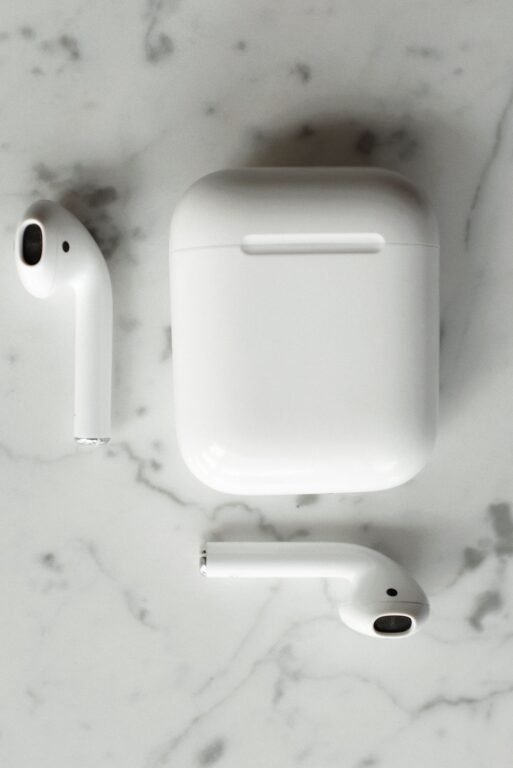
Most bluetooth not connecting cases end here. A Bluetooth device only shows up in the list while it is in pairing mode, and most devices leave pairing mode after a minute or two. If the device never appears, it is probably not in pairing mode at all.
- Charge the device first: A low battery can stop pairing completely. Charge the earbuds, headphones, or speaker for at least 15 minutes, then try again.
- Turn the device off and on again: Hold the power button until the device turns off, wait ten seconds, then turn it back on. A restart clears a stuck Bluetooth radio on the device side.
- Enter pairing mode the right way: For most earbuds, hold the button on the case or the earbud for 3 to 5 seconds until the light blinks blue or white. For most speakers, hold the Bluetooth button until you hear a tone or see a blinking light. Check the manual if the light never blinks.
- Disconnect it from the other device: A Bluetooth device usually connects to only one host at a time. If your earbuds are still linked to your phone, your laptop cannot see them. Turn off Bluetooth on the other device, or unpair it there first.
- Bring the device close: Hold the device within 1 metre, about 3 feet, of the computer or phone while you pair. Move away from the microwave, the router, and thick walls for this step.
- Try pairing from the other side: If the earbuds will not pair to the laptop, try pairing them to your phone first. If they pair to the phone, the earbuds are fine and the laptop is the problem. That tells you which fix to use next.
Bluetooth Not Connecting Clues: Is It in Pairing Mode?
- A blinking light means pairing mode: A solid light usually means the device is already connected to something else. A fast blinking light means it is waiting to pair.
- The pairing window is short: Most devices stay discoverable for only one or two minutes. If the list is empty, put the device in pairing mode again and look at once.
Bluetooth Not Connecting Fix 2: Forget the Device and Pair It Again
If the device shows in the list but says Couldn’t connect, or it pairs and then drops at once, the old pairing record is usually corrupt. Deleting it and pairing fresh clears the stale keys and fixes the problem.
Windows 11
- Open Bluetooth settings: Click Start, then Settings, then Bluetooth and devices. You will see the list of paired devices.
- Remove the device: Click the three dots next to the device name, then Remove device, then Yes.
- Add it again: Click Add device, then Bluetooth. Put the device in pairing mode, wait for its name to appear, then click it.
- Check the discovery setting: In Bluetooth and devices, click Devices, then set Bluetooth devices discovery to Advanced if your device still does not appear.
For Windows 10
- Open Bluetooth settings: Click Start, then Settings, then Devices, then Bluetooth and other devices.
- Remove the device: Click the device name, then Remove device, then Yes.
- Add it again: Click Add Bluetooth or other device, then Bluetooth. Put the device in pairing mode and click its name when it appears.
On Windows 8 and 8.1
- Open PC settings: Press the Windows key and C together to open the Charms bar, then click Settings, then Change PC settings, then PC and devices, then Bluetooth.
- Remove the device: Click the device name, then Remove device.
- Add it again: Turn Bluetooth on in the same screen, put the device in pairing mode, and click the device name when it appears.
Fix It on Windows 7
- Open Devices and Printers: Click Start, then Devices and Printers.
- Remove the device: Right click the device, then Remove device, then Yes.
- Add it again: Click Add a device at the top. Put the device in pairing mode and follow the wizard.
Android
- Open Bluetooth settings: Open Settings, then Connected devices, then Bluetooth. On Samsung phones, open Settings, then Connections, then Bluetooth.
- Forget the device: Tap the gear icon next to the device name, then Forget or Unpair.
- Pair again: Put the device in pairing mode, tap Pair new device, then tap its name when it appears.
iPhone
- Open Bluetooth settings: Open Settings, then Bluetooth.
- Forget the device: Tap the small i next to the device name, then Forget This Device, then Forget Device.
- Pair again: Put the device in pairing mode and tap its name under Other Devices.
- Restart both devices after forgetting: A restart clears the stuck Bluetooth stack on both sides, so the fresh pairing starts clean.
- If only one earbud pairs, the fix is different: If one earbud connects and the other stays silent, see our guide to only one earbud working next. That problem sits in the earbuds, not in the pairing.
Bluetooth Not Connecting Fix 3: Run the Bluetooth Troubleshooter and Restart the Service
If fresh pairing still fails on Windows, the problem sits inside Windows itself. The built in troubleshooter checks the radio, the driver, and the settings, and it fixes what it can. The Bluetooth Support Service handles discovery and pairing, so a stopped service means Windows cannot find new devices at all.
Troubleshoot Windows 11
- Run the troubleshooter: Click Start, then Settings, then System, then Troubleshoot, then Other troubleshooters. Click Run next to Bluetooth and follow the prompts. On newer builds, Windows opens the same troubleshooter in the Get Help app instead.
- Restart the Bluetooth Support Service: Press the Windows key and R together, type services.msc, then press Enter. Find Bluetooth Support Service, right click it, then click Restart. If it is stopped, click Start instead.
- Check the startup type: Double click Bluetooth Support Service and make sure Startup type is not Disabled. Manual is the normal setting. Click OK, then restart the service again.
- Restart your computer: Click Start, then Power, then Restart. A restart clears a stuck Bluetooth stack more often than any setting change.
For Windows 10
- Run the troubleshooter: Click Start, then Settings, then Update and Security, then Troubleshoot, then Additional troubleshooters, then Bluetooth, then Run the troubleshooter.
- Restart the Bluetooth Support Service: Press the Windows key and R together, type services.msc, then press Enter. Find Bluetooth Support Service, right click it, then click Restart. If it is stopped, click Start instead.
- Restart your computer: Click Start, then Power, then Restart.
On Windows 8, 8.1, and 7
- Restart the Bluetooth Support Service: Press the Windows key and R together, type services.msc, then press Enter. Find Bluetooth Support Service, right click it, then click Restart.
- Restart your computer: Click Start, then Power, then Restart. These versions have no built in Bluetooth troubleshooter, so the service restart and the driver fix below do the heavy work.
- A greyed out Bluetooth toggle means the service or driver is at fault: Fix 3 and Fix 4 below cover both. A missing toggle can also mean Airplane mode is on, so check that first.
- A full shutdown beats a restart here: Hold Shift, click Start, then Power, then Shut down. Wait ten seconds, then turn the computer on again. A full shutdown clears hardware states that a fast restart keeps.
Bluetooth Not Connecting Fix 4: Update or Reinstall the Bluetooth Driver
A Windows update often replaces or resets the Bluetooth driver, and a driver made for an older Windows version can stop pairing completely. This is the most common cause when Bluetooth worked fine yesterday and broke after an update.
Windows 11 and Windows 10
- Open Device Manager: Right click Start, then click Device Manager.
- Find your Bluetooth adapter: Expand Bluetooth. Right click your adapter, which is usually named Intel Wireless Bluetooth, Realtek Bluetooth, or Qualcomm.
- Update the driver: Click Update driver, then Search automatically for drivers. Install anything Windows finds, then restart the computer.
- Reinstall the driver if updating does not help: Right click the adapter again, then Uninstall device. Tick Delete the driver software for this device if you see the box, then click Uninstall. Restart the computer, and Windows installs a fresh driver on its own.
- Get the driver from the maker if Windows cannot find one: Visit your laptop or adapter maker’s support site and download the latest Bluetooth driver for your exact model. Install it, then restart.
For Windows 8, 8.1, and 7
- Open Device Manager: Press the Windows key and R together, type devmgmt.msc, then press Enter.
- Find your Bluetooth adapter: Expand Bluetooth Radios or Network adapters and look for the Bluetooth entry.
- Update the driver: Right click the adapter, then Update Driver Software, then Search automatically for updated driver software.
- Get the driver from the maker: On Windows 7 especially, Windows Update rarely carries the right driver. Download it from your computer maker’s support site for your exact model and install it, then restart.
Offline alternative, no internet needed for the reinstall: If the computer has no internet, download the driver on another computer, copy it to a USB stick, then plug the stick into the problem computer and run the installer. The uninstall and restart steps in this fix work fully offline.
- Roll back the driver after a bad update: In Device Manager, right click the adapter, then Properties, then the Driver tab, then Roll Back Driver if the button is not greyed out. This undoes a driver update that broke Bluetooth.
- Check the maker site before a generic driver: A driver from your laptop maker fits your exact hardware. A generic driver can install and still fail to pair.
Bluetooth Not Connecting Fix 5: Fix Interference, Distance, and Power Saving
Bluetooth shares the 2.4 GHz band with Wi-Fi, microwaves, and USB 3.0 devices. A device that pairs fine in one room and fails in another is fighting interference, not a broken radio.
- Move closer and stay in the same room: Bluetooth works best within 10 metres, about 33 feet, with a clear line of sight. Walls and floors cut the range fast.
- Turn off Wi-Fi on the computer for a minute: If the device pairs with Wi-Fi off, the two radios are fighting. Move the router further from the computer, or switch the computer to the 5 GHz Wi-Fi band if your router offers it.
- Unplug USB 3.0 devices near the computer: Unshielded USB 3.0 drives and hubs can interfere with Bluetooth. Unplug them, pair the device, then plug them back in one at a time to find the culprit.
- Stop Windows turning the adapter off: In Device Manager, right click your Bluetooth adapter, then Properties, then the Power Management tab. Untick Allow the computer to turn off this device to save power, then click OK.
- Turn off Energy Saver on Windows 11: Click Start, then Settings, then System, then Power and battery, and turn off Energy saver. Energy Saver can cut Bluetooth to save power.
- Check the battery in the device: A device with a nearly dead battery can appear in the list and still refuse to connect. Charge it fully, then pair again.
Bluetooth Not Connecting: More Interference Clues
- A microwave kills Bluetooth while it runs: If the connection drops every time the microwave runs, move the device or the computer further from the kitchen.
- Too many paired devices slow discovery down: Remove old devices you no longer use from the Bluetooth list. A long list makes pairing slower and more error prone.
- Wi-Fi dropping too: If your Wi-Fi also drops, the two problems often share one cause. See our guide to Wi-Fi that keeps dropping next.
Tricks That Do Not Fix Bluetooth Not Connecting
Before you buy a new adapter or new earbuds, skip these common myths. None of them fix bluetooth not connecting, and some waste your money.
- Buying a new pair of earbuds first: A new pair hits the same pairing problem if the cause sits in Windows or in the old pairing record. Work through Fix 2 and Fix 4 before you spend anything.
- Installing a Bluetooth booster app: Most of these apps only run in the background themselves. The troubleshooter in Fix 3 finds the real fault for free.
- Turning Bluetooth off and on 20 times in a row: One clean toggle helps. Repeating it does nothing extra and can leave the radio in a confused state. Restart the computer instead.
- Deleting every Bluetooth driver at once: Removing the adapter driver and the related audio drivers together can break sound as well. Remove only the Bluetooth adapter, then restart.
- Resetting the whole computer: A factory reset is the last step, not the first. The five fixes above solve nearly every case, and a reset costs hours of setup.
FAQ: Bluetooth Not Connecting
Why is Bluetooth not connecting even though the device is on? The device is probably not in pairing mode. A Bluetooth device only shows up while it is discoverable, and most devices leave pairing mode after a minute or two. Put the device in pairing mode again, keep it within a metre of the computer or phone, and look for it at once. Fix 1 walks through this step by step.
Why does my Bluetooth device say paired but not connected? The pairing record is stale, or the device is still linked to another host. Forget the device on your computer or phone, turn off Bluetooth on the other device it may be linked to, then pair it again. Fix 2 covers the exact steps for Windows, Android, and iPhone.
Why does Bluetooth keep disconnecting after it connects? Interference, power saving, or distance is the usual cause. Move closer, unplug USB 3.0 devices nearby, and turn off the power saving setting in Fix 5. A low battery in the earbuds or speaker also causes drops, so charge the device fully first.
More Bluetooth Questions
Can Bluetooth not connecting be caused by a Windows update? Yes, often. A Windows update can replace the Bluetooth driver with one that does not fit your hardware. Update the driver, or roll it back, using Fix 4. Microsoft also lists this on its official Bluetooth not connecting support page.
Does Bluetooth work without Wi-Fi or the internet? Yes. Bluetooth is a direct wireless link between two devices and needs no Wi-Fi and no internet. The troubleshooter, the service restart, and the driver reinstall in this guide all work offline. Only downloading a new driver needs a connection, and the USB stick alternative in Fix 4 covers that.
Why can I not find my Bluetooth device on Windows 7? Windows 7 has no Bluetooth settings page like Windows 10 and 11. Open Devices and Printers from the Start menu, click Add a device, and make sure the device is in pairing mode first. If it still does not appear, install the driver from your computer maker’s site, since Windows 7 rarely finds the right one on its own.
Final Words
This bluetooth not connecting fix works because it follows the pairing itself. First, put the device in pairing mode and bring it close. Next, forget the old pairing and pair it fresh. Then, run the troubleshooter and restart the Bluetooth Support Service. After that, update or reinstall the driver. Finally, clear the interference and turn off power saving. Work through those steps in order, test after each change, and most Bluetooth devices pair again in minutes without a repair shop.