

You plug in your MacBook, you wait, and the battery percentage does not move. The cable is in, the light may even be on, yet your MacBook keeps draining. This macbook not charging fix walks through the causes in order, from a tired cable to a stuck power controller, so you can find your cause and get your MacBook charging again.
A MacBook that will not charge is rarely a dead MacBook. Most of the time the cable is damaged, the adapter is too weak, lint is packed into the port, or the power controller is stuck after an update. Work through these fixes in order, and test after each change. Most MacBooks start charging again in minutes without a repair shop.
Why Your MacBook Is Not Charging
A MacBook needs a short chain to charge. The wall outlet needs power, the adapter needs to deliver enough watts, the cable needs to carry that power, the port needs a clean connection, and macOS needs to accept the charge. If any link in that chain breaks, the battery icon shows no charging symbol and the percentage stays flat or falls. For example, a phone charger plugged into a MacBook Pro delivers far too little power, so the battery drains even while the cable is connected. In addition, macOS sometimes holds the battery at 80 percent on purpose to protect its health, which looks like a fault but is normal. As a result, a macbook not charging fix has to check the chain from the start, not guess at one part of it. The macbook not charging fix below finds which link broke, then repairs it.
MacBook Not Charging Fix 1: Check the Cable, Adapter, and Outlet
Start here, because most macbook not charging cases end with the cable or the adapter. A frayed cable, a weak adapter, or a dead outlet all look like a broken MacBook. Check the physical chain before you touch any setting.
Check the Cable and the Adapter First
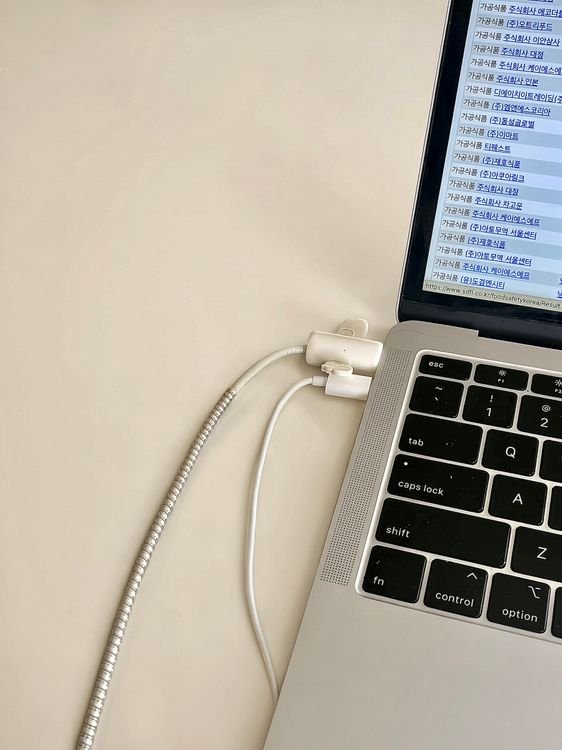
- Look at the whole cable: Run your fingers along the cable from end to end. Look for frays, kinks, cracks, or bare wire, especially near both connectors where cables bend the most.
- Check the MagSafe light if your Mac has one: On MagSafe 1, MagSafe 2, and MagSafe 3 MacBooks, the small light on the connector tells the story. Amber means charging, green means fully charged, and no light means no power is reaching the Mac.
- Try a different wall outlet: Plug the adapter into an outlet you know works, such as the one your lamp uses. A dead outlet or a switched off power strip fools many people into blaming the MacBook.
- Push every connection in firmly: Push the plug fully into the outlet, push the cable fully into the adapter if it comes apart, and push the connector fully into the Mac. A half seated plug is a classic cause of a macbook not charging problem.
- Match the adapter wattage to your Mac: A MacBook Air needs at least a 30W adapter, a 14 inch MacBook Pro needs 67W or 96W, and a 16 inch MacBook Pro needs 140W. A small phone charger cannot keep up, and the battery will drain while you work.
- Try a different cable and adapter: If you can borrow an Apple charger made for your model, test with it for a few minutes. If the MacBook charges at once, your old cable or adapter is the fault.
- Leave it plugged in for 15 minutes: A MacBook with a fully drained battery may show nothing at first. Leave it on a known good charger for 15 minutes before you decide it is dead.
More Cable and Adapter Checks for Your MacBook Not Charging Fix
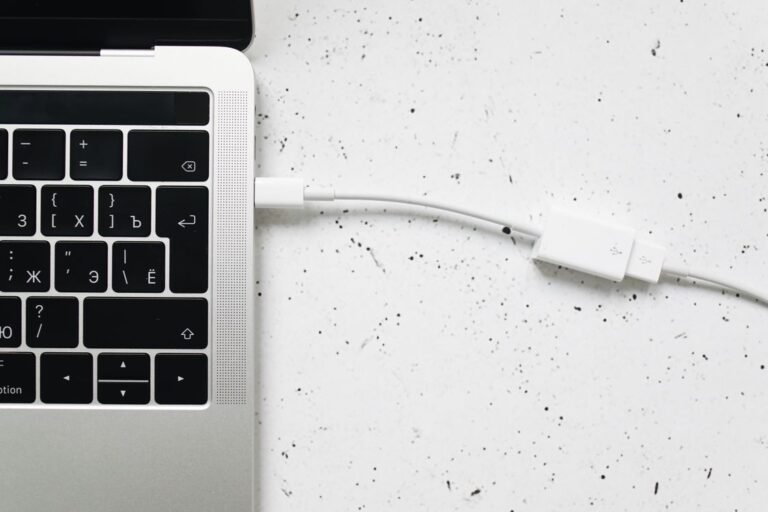
- Use a cable rated for laptop power: Many USB-C cables are made for phones and cannot carry laptop power. For MacBooks above 60W, look for a cable rated for 100W or more.
- Watch for a hot or buzzing adapter: An adapter that is very hot, buzzes loudly, or smells burnt should be thrown away. A failing adapter can damage the battery.
- Try the other USB-C port: MacBooks with more than one USB-C port can charge from any of them. If one port is damaged, another port may work fine.
- Skip hubs and docks for the test: Plug the charger straight into the Mac with no hub, dock, or adapter in between. If the MacBook charges, the hub or dock was the problem.
MacBook Not Charging Fix 2: Clean the Charging Port
If the charger works on another Mac but not on yours, look at the port. Lint, dust, and crumbs pack down into the small opening over months of carrying the MacBook in a bag, and the plug no longer sits fully inside. This macbook not charging fix takes two minutes and costs nothing.
- Shut down the MacBook: Click the Apple menu, then click Shut Down. Cleaning is safer with the Mac fully off.
- Look inside the port with a light: Shine a phone flashlight into the USB-C or MagSafe port. Look for grey lint, dust, or anything that does not belong there.
- Pick lint out gently: Use a wooden toothpick or a plastic spudger to lift lint out of the port. Work gently and never use a metal pin, which can short the contacts.
- Blow out loose dust: Use short puffs of compressed air held upright, or a soft brush. Hold the can upright so no liquid sprays into the port.
- Clean the MagSafe connector too: On MagSafe MacBooks, wipe the magnetic connector and the port with a dry cotton swab. Metal dust sticks to the magnet and blocks the connection.
- Plug in and test: Push the connector in firmly and watch for the MagSafe light or the lightning bolt on the battery icon. If the light flickers when you wiggle the plug, the port may be loose and need a repair.
More Port Checks for Your MacBook Not Charging Fix
- Check for bent pins or corrosion: Look for pins that are bent, blackened, or green with corrosion. A damaged port will not charge reliably and needs a repair shop.
- Remove cases and skins near the port: A thick case can stop the MagSafe connector from seating fully. Take the case off and test again.
- Keep liquids away from the port: Even a small spill can corrode the charging contacts over time. If the MacBook was ever near liquid, tell the repair shop, because corrosion spreads.
MacBook Not Charging Fix 3: Read the Battery Icon and Check Battery Health
Before you reset anything, let macOS tell you what it sees. This macbook not charging fix starts with what macOS itself reports, because the battery icon in the menu bar shows three states, and each one points at a different cause. A lightning bolt means the Mac is charging. A plug symbol means the Mac is connected to power but is not adding charge right now, often because the battery is full or held at a set level. A plain battery with no symbol means the Mac is running on battery power and sees no charger at all.
Click the battery icon to see more. The menu shows a line called Power Source. It reads Power Adapter when the Mac is getting power from the wall, and Battery when it is not. That one line tells you whether the charger is even reaching macOS.
Check Battery Health on macOS Ventura and Later
- Open System Settings: Click the Apple menu, then click System Settings.
- Open the Battery page: Click Battery in the sidebar. The page shows your current level and a usage graph for the last day.
- Click the info button next to Battery Health: The panel shows Maximum Capacity and Battery Health. If it reads Service Recommended, the battery has reached the end of its useful life and no software reset will extend it.
- Check Optimized Battery Charging: On the same page, look at Optimized Battery Charging. When it is on, macOS may hold the battery at 80 percent to protect its health. That is normal, and the battery will finish charging when macOS expects you to need it.
Check Battery Health on macOS Monterey and Earlier
- Open System Preferences: Click the Apple menu, then click System Preferences.
- Open the Battery pane: Click Battery, then click Battery in the sidebar.
- Click Battery Health: The panel shows the battery condition. Normal means the battery is healthy. Service Recommended means the battery needs replacing.
- Check the charge limit setting: On the same pane, look for Optimized Battery Charging. Turn it off for one test if the battery keeps stopping at 80 percent.
More Battery Checks for Your MacBook Not Charging Fix
- Watch the percentage over 10 minutes: Plug in, note the percentage, then check again after 10 minutes. A slow rise means the adapter is too weak, not that charging is broken.
- Close heavy apps while you test: Video editing, games, and a dozen browser tabs can use more power than a weak charger supplies. Close them and watch the battery again.
- Check the cycle count: Hold the Option key, click the Apple menu, then click System Information. Click Power in the sidebar and look at Cycle Count. Apple batteries are built for about 1000 cycles, and a count far above that means the battery is worn out.
MacBook Not Charging Fix 4: Reset the SMC on Intel Macs, Restart on Apple Silicon
The System Management Controller, or SMC, handles power, fans, and battery charging on Intel Macs. When it gets stuck after a crash, a surge, or an update, it can block charging even with a perfect cable. A reset clears that stuck state and erases no personal data. Apple Silicon Macs have no separate SMC, so the fix there is a plain restart, because Apple says the SMC resets automatically on those Macs.
Apple Silicon MacBooks, M1, M2, M3, and M4
- Find out your chip: Click the Apple menu, then click About This Mac. If it says Chip, your Mac has Apple silicon.
- Shut the Mac down: Click the Apple menu, then click Shut Down. Wait a full 30 seconds with the Mac completely off.
- Turn it back on: Press the power button and let the Mac start up. The power management firmware resets on this clean start.
- Plug in and test: Connect the charger and watch the battery icon for the lightning bolt.
Intel MacBooks With the T2 Security Chip, 2018 and Later
- Shut down the Mac: Click the Apple menu, then click Shut Down.
- Press and hold three keys: On the built in keyboard, press and hold Control on the left side, Option on the left side, and Shift on the right side.
- Hold for 7 seconds: Keep holding all three keys for 7 seconds. Your Mac might turn on, which is normal.
- Add the power button: Keep holding the three keys and press and hold the power button as well for another 7 seconds.
- Release everything: Let go of all the keys, wait a few seconds, then press the power button to start up.
Older Intel MacBooks Without the T2 Chip
- Shut down the Mac: Click the Apple menu, then click Shut Down.
- Press and hold four keys: On the left side of the built in keyboard, press and hold Shift, Control, and Option, then press and hold the power button at the same time.
- Hold for 10 seconds: Keep holding all four keys for 10 seconds.
- Release and start up: Let go of all the keys, then press the power button to turn the Mac on.
Apple lists the full SMC steps for every Mac type on its official reset the SMC of your Mac page, so check there if your model is a desktop or an older Mac with a removable battery. This macbook not charging fix works on laptops, and the same page covers the rest.
MacBook Not Charging Fix 5: Update macOS and Run Apple Diagnostics
If the cable, the port, the battery health, and the SMC reset all check out, the fault may be a macOS bug or a hardware fault. An update fixes the first, and Apple Diagnostics finds the second, and this macbook not charging fix covers both. Try them in order.
Update macOS on Ventura and Later
- Open System Settings: Click the Apple menu, then click System Settings.
- Open General, then Software Update: Click General in the sidebar, then click Software Update.
- Install any update: If an update is offered, click Update Now and let it finish. Keep the charger plugged in during the update.
- Test charging after the restart: Once the Mac restarts, plug in and watch the battery icon.
Update macOS on Monterey and Earlier
- Open System Preferences: Click the Apple menu, then click System Preferences.
- Open Software Update: Click Software Update and wait for it to check.
- Install any update: Click Update Now and let it finish, then test charging after the restart.
Run Apple Diagnostics to Test the Hardware
- Shut down the Mac: Click the Apple menu, then click Shut Down, and unplug everything except the keyboard, mouse, and power.
- Start Diagnostics on Apple Silicon: Press and hold the power button until the startup options appear, then press and hold Command and D together.
- Start Diagnostics on Intel Macs: Press the power button, then immediately press and hold the D key until the Diagnostics screen appears.
- Note any reference codes: Diagnostics runs for a few minutes and shows a result. Write down any code that starts with PPT, which points at the power system, and give it to Apple Support or a repair shop.
Offline Alternative for the macOS Update
- Use a USB installer made on another Mac: If your Mac has no working internet, download the macOS installer on a friend or family member Mac and create a bootable USB installer with a 16 GB or larger USB stick. Boot from the stick by holding Option at startup, then install from the USB drive.
- Apple Diagnostics works offline: The Diagnostics tool is built into the Mac, so it needs no internet connection and no download.
Mistakes That Make a MacBook Not Charging Problem Worse
- Using a cheap copy charger every day: A fake adapter can deliver dirty power and damage the battery over time. Use an Apple adapter or a known good brand with the right wattage.
- Forcing a plug into a dirty port: Pushing hard on a plug when lint blocks the port bends the contacts. Clean the port first, then plug in gently.
- Resetting the SMC again and again: One reset is enough. If it does not help, the fault is somewhere else, and repeating the reset wastes time.
- Assuming the battery is dead because the Mac is off: A Mac with a fully drained battery can look dead for several minutes on a good charger. Wait 15 minutes before you blame the battery.
- Ignoring the Service Recommended warning: A battery at the end of its life will not hold a charge no matter what you reset. Book a battery replacement instead of repeating software fixes.
FAQ: MacBook Not Charging
Why is my MacBook not charging even though it is plugged in? The chain from the wall to the battery is broken somewhere. The cable may be damaged, the adapter may be too weak, lint may block the port, or the SMC may be stuck. Check the cable and adapter in Fix 1 first, clean the port in Fix 2, then reset the SMC in Fix 4.
Why does my MacBook say Not Charging in the menu bar? The Mac sees the charger but is not accepting power. This often means Optimized Battery Charging is holding the battery at 80 percent, the adapter is too weak, or the battery health reads Service Recommended. Click the battery icon, read the Power Source line, then check Battery Health as in Fix 3.
Why does my MacBook charge slowly? The adapter wattage is usually too low, or a heavy app is using power faster than the charger can supply it. Use the adapter wattage your model needs, close heavy apps, and watch the percentage rise over 10 minutes. Our guide to a MacBook battery that drains fast also helps when the battery falls while plugged in.
More MacBook Charging Questions
Can a bad USB-C cable stop a MacBook from charging? Yes. A cable made for phones cannot carry laptop power, and a cable with a broken wire inside sends no power at all. The cable can look perfect from the outside. Swap in a cable rated for 100W or more, as in Fix 1, before you blame the MacBook.
Does resetting the SMC erase my files? No. The SMC reset only clears power and hardware settings. Your files, apps, and passwords stay exactly as they were. Apple confirms this in its official SMC reset guide.
Why did my MacBook stop charging after a macOS update? The update may have left the power controller in a stuck state, or it may have turned Optimized Battery Charging back on. Restart the Mac as in Fix 4, then check the battery settings in Fix 3. If it still will not charge, install the next update as in Fix 5.
More Answers About MacBook Charging
Does this macbook not charging fix work without the internet? Yes, almost all of it. The cable checks, the port cleaning, the battery health check, the SMC reset, and Apple Diagnostics all work offline. Only downloading a macOS update needs a connection, and the USB installer alternative in Fix 5 covers that.
Why is my MacBook stuck at 80 percent? Optimized Battery Charging is holding the battery at 80 percent to protect its long term health. This is normal on macOS Ventura and later. Turn the setting off for one test as in Fix 3, or wait until macOS expects you to need a full charge.
When should I take my MacBook to Apple? Go when you have tested two known good Apple chargers with the right wattage, cleaned every port, reset the SMC, and run Apple Diagnostics, yet the MacBook still will not charge. A code starting with PPT, a swollen battery, or a port with bent pins also means it is time for a repair shop. If your phone charges slowly too, see our guide to phone charging slowly fixes next, because the cable and adapter checks work the same way there.
Final Words
This macbook not charging fix works because it follows the power itself. First, check the cable, the adapter, and the outlet. Next, clean the port and read the battery icon. Then, check battery health and reset the SMC on Intel Macs, or restart on Apple Silicon. After that, update macOS and run Apple Diagnostics. Finally, test with a known good charger. Work through those steps in order, test after each change, and most MacBooks start charging again in minutes without a repair shop.