

You open your laptop, click the Wi-Fi icon, and your network is gone. The list shows your neighbours, a printer, maybe a hotspot, but not your own wifi network. A wifi network not showing up feels strange, because nothing changed and the router sits right there. The good news is that most cases have a simple cause. A router that needs a restart, a band your laptop cannot see, a hidden network name, or a tired driver causes most of them, and you can check all of them yourself in about twenty minutes.
Work through the fixes below in order. Start with the router and a check on your other devices, then fix the settings on your own device, then check the router settings. These steps fix a wifi network not showing up on Windows 7, 8, 8.1, 10, and 11, and they also cover Mac, iPhone, and Android, so follow the part that matches your device. Follow the part that matches your device, and work through the fixes in order.
Quick fix: Restart your router first. Unplug its power cable, wait 30 seconds, plug it back in, and wait two minutes. Then restart your laptop or phone and open the Wi-Fi list again. If your network is still missing, check whether your phone can see it. If your phone sees it and your laptop does not, the problem is on your laptop, so jump to Fix 3.
Why Your WiFi Network Is Not Showing Up
A wifi network not showing up has a few common causes. The router may have frozen, or its Wi-Fi signal may be off. The network name may be hidden, so it never appears in any list. Your laptop may be on the wrong band, because many older laptops and phones cannot see a 5 GHz network at all. A Windows service called WLAN AutoConfig may have stopped, or the Wi-Fi driver may be broken after an update. The table below matches what you see to the most likely cause, so you can start at the right fix.
| What you see | Likely cause | Start with |
|---|---|---|
| No Wi-Fi icon or option at all | Airplane mode, the Wi-Fi key, a disabled adapter, or a driver problem | Fix 3, then Fix 4 and Fix 5 |
| Wi-Fi is on but the list is empty | WLAN AutoConfig stopped, no networks in range, or the router is off | Fix 1, then Fix 4 |
| Other networks show but yours does not | Hidden network name, 5 GHz only, or a router problem | Fix 6 |
| No device sees your network | Router off, network name hidden, or an internet outage | Fix 1, then Fix 6 |
You do not need any special tools for the first fixes. Everything here uses the router, the Wi-Fi settings, and the tools your device already has. If your Wi-Fi works but the internet does not, our guide for Wi-Fi connected with no internet covers that problem instead.
WiFi Network Not Showing Up Fix 1: Restart Your Device and the Router
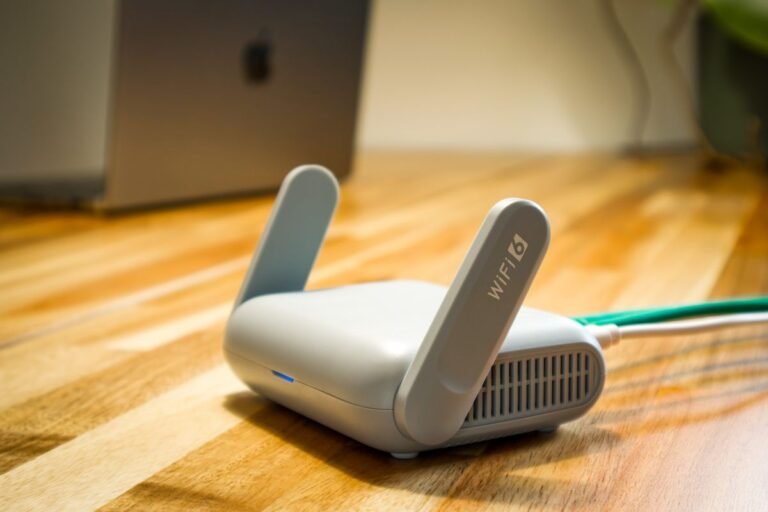
Start with the simplest cause of all. A router that has run for weeks can freeze, and a frozen router stops sending out its network name. A restart clears that freeze in two minutes, and it fixes more missing networks than any other step.
- Restart your laptop or phone: On Windows, click Start, then Power, then Restart. On a phone, hold the power button and tap Restart. Use Restart, not Shut down, because Fast Startup on Windows 11 can keep part of the old session and bring the same problem back.
- Unplug the router: Pull the power cable out of the back of the router. If the modem is a separate box, unplug that too.
- Wait 30 seconds: Leave both boxes unplugged for a full 30 seconds. This drains the leftover power and clears the freeze.
- Plug the modem back in first: If you have a separate modem, plug it in first and wait until its lights stop blinking. Then plug the router back in.
- Wait two minutes: Give the router two full minutes to start up and send out its network name again.
- Check the Wi-Fi list: Open the Wi-Fi list on your laptop or phone. If your network is back, the router was the problem.
If a wifi network not showing up stays missing after the restart, the router is probably fine. Move on to Fix 2, because the next step tells you whether the problem sits in the router or in your device.
More Router Restart Tips When Your WiFi Network Is Not Showing Up
- Check the router lights: The Wi-Fi light on the router should be on or blinking. No Wi-Fi light at all means the wireless signal is off, so check the Wi-Fi button on the router itself.
- Move closer to the router: Stand in the same room as the router and check the list again. A weak signal can hide a network at the far end of a house.
- Try the router button: Many routers have a small Wi-Fi on and off button. Press it once, wait ten seconds, and check the list again.
WiFi Network Not Showing Up Fix 2: Check Whether Other Devices See the Network
Before you change any setting, find out how wide the problem is. This one check splits the whole problem in half, and it shows where a wifi network not showing up really starts. If your phone sees the network, the router is fine and your laptop is the problem. If no device sees it, the router is the problem.
- Open the Wi-Fi list on your phone: On iPhone, open Settings, then Wi-Fi. On Android, open Settings, then Network and internet, then Wi-Fi. Look for your network name in the list.
- Check a second device: If you have another laptop, a tablet, or a smart TV, open its Wi-Fi list too. One more device makes the result certain.
- Read the result: If your phone sees the network but your laptop does not, the problem is on your laptop, so keep going with Fix 3. If no device sees the network, the problem is the router, so skip ahead to Fix 6.
- Note what other networks show: If your laptop shows other networks but not yours, your adapter works fine. The cause is almost always a hidden name, a band problem, or a router setting, and Fix 6 covers all three.
If every device in the house sees other networks but not yours, do not waste time on your laptop settings. The router is hiding the network, and Fix 6 shows you how to bring it back.
WiFi Network Not Showing Up Fix 3: Turn Wi-Fi Off and On, Check Airplane Mode and the Wi-Fi Key
A wifi network not showing up is often a switch problem, not a real fault. Airplane mode turns the whole radio off, and a Wi-Fi key on the keyboard can do the same with one accidental press. This fix takes one minute, and it is the first thing to try when the Wi-Fi option itself is missing.
Windows 11 and Windows 10: Use Quick Settings
- Open Quick Settings: Press the Windows key and A together. The Quick Settings panel opens at the bottom right.
- Turn Airplane mode off: If the Airplane mode tile is on, click it to turn it off. Airplane mode blocks all wireless signals, so no network can show while it is on.
- Turn Wi-Fi on: Click the Wi-Fi tile so it lights up. Then click the small arrow next to it to open the list of networks.
- Check Settings too: If the tile is missing, open Settings, then Network and internet, then Wi-Fi, and turn the Wi-Fi switch on there.
Windows 8 and Windows 8.1: Use the Charms Bar
- Open Settings: Press the Windows key and C together to open the Charms bar, then click Settings.
- Turn Airplane mode off: Click the network icon, then turn Airplane mode off if it is on.
- Turn Wi-Fi on: In the same panel, turn Wi-Fi on and wait a few seconds for the list to fill.
For Windows 7: Use the Taskbar Icon
- Click the network icon: Click the small network icon in the taskbar at the bottom right of the screen.
- Check the list: The list of nearby networks opens. If the list is empty, move on to the keyboard key below, because Windows 7 has no Airplane mode tile.
All Windows Laptops: Check the Wi-Fi Key and the Switch
- Press the Wi-Fi function key: Hold the Fn key and press the key with the Wi-Fi symbol on it, often F2, F3, or F12. The key is different on each laptop, so look for the small antenna symbol.
- Check the side switch: Some laptops have a small physical switch on the side or the front edge. Slide it to the on position and watch for the Wi-Fi light.
- Look for the Wi-Fi light: Many laptops have a small light that shows when the wireless radio is on. No light means the radio is still off.
Mac, iPhone, and Android: Toggle Wi-Fi Off and On
- Mac: Click the Wi-Fi icon in the menu bar at the top of the screen. Turn Wi-Fi off, wait ten seconds, then turn it back on.
- iPhone: Open Settings, then Wi-Fi, and toggle Wi-Fi off and back on. Also open Control Center and make sure Airplane Mode is off.
- Android: Swipe down twice from the top of the screen to open Quick Settings. Make sure Airplane mode is off, then toggle Wi-Fi off and back on.
If the network appears after this fix, a switch was the whole problem. If a wifi network not showing up stays on the list after this fix, the Windows service in Fix 4 is the next likely cause.
More Wi-Fi Toggle Tips
- Toggle it twice: Turn Wi-Fi off, wait ten seconds, turn it on, and wait another ten seconds. The list sometimes needs a few seconds to fill.
- Restart after toggling: If the list stays empty, restart the device once more. A restart reloads the wireless service from scratch.
- Check the date and time: A wrong date on a phone or a laptop can break Wi-Fi logins on some networks. Set the date and time to automatic in Settings.
WiFi Network Not Showing Up Fix 4: Restart the WLAN AutoConfig Service
Windows finds and lists Wi-Fi networks through a background service called WLAN AutoConfig. If this service stops, the Wi-Fi list can go empty even when the adapter itself is fine, so a wifi network not showing up on Windows can come from this service alone. Restarting it is a quick fix, and the steps are the same on Windows 7, 8, 8.1, 10, and 11. Mac, iPhone, and Android do not have this service, so skip to Fix 5 if you use one of those.
- Open the Run box: Press the Windows key and R together, type services.msc, and press Enter. The Services window opens.
- Find WLAN AutoConfig: Scroll down the list until you find WLAN AutoConfig, then double-click it.
- Set the startup type: In the window that opens, set Startup type to Automatic. This makes sure the service starts every time Windows starts.
- Start or restart the service: If the service status says Stopped, click Start. If it says Running, click Stop, then click Start again, or use the Restart link on the left.
- Click OK and restart: Click Apply, then OK, close the Services window, and restart your computer.
- Check the Wi-Fi list: After the restart, open the Wi-Fi list. Your network should appear if the stopped service was the cause.
If the service will not start at all, write down the error message. A service that refuses to start often points at a broken driver, and Fix 5 deals with that next.
WiFi Network Not Showing Up Fix 5: Update or Reinstall the Wi-Fi Driver
The Wi-Fi driver is the small piece of software that lets Windows talk to the Wi-Fi card. When it is outdated, damaged, or replaced by a bad version during an update, the adapter can vanish from Windows, and no network will show. A missing driver is a common reason for a wifi network not showing up on Windows. This fix puts the right driver back.
Windows 11 and Windows 10: Update the Driver
- Open Device Manager: Right-click the Start button and click Device Manager.
- Find the Wi-Fi adapter: Expand Network adapters. Look for an entry with Wi-Fi, Wireless, or 802.11 in its name.
- Update the driver: Right-click the adapter and click Update driver, then click Search automatically for drivers. Let Windows check and install what it finds.
- Roll back if it broke after an update: If Wi-Fi stopped working right after a Windows update, right-click the adapter, click Properties, open the Driver tab, and click Roll Back Driver if the button is available.
Windows 8 and Windows 8.1: Open Device Manager
- Open Device Manager: Press the Windows key and X together, then click Device Manager.
- Update the driver: Expand Network adapters, right-click the Wi-Fi adapter, and click Update Driver Software. Then click Search automatically for updated driver software.
For Windows 7: Open Device Manager
- Open Device Manager: Click Start, right-click Computer, click Manage, then click Device Manager in the left panel.
- Update the driver: Expand Network adapters, right-click the Wi-Fi adapter, and click Update Driver Software. Then click Search automatically for updated driver software.
All Windows Versions: Reinstall the Driver
- Uninstall the adapter: In Device Manager, right-click the Wi-Fi adapter and click Uninstall device. Do not tick the box to delete the driver unless you already have the replacement driver ready.
- Restart the computer: Windows detects the adapter again on startup and reinstalls a basic driver for it.
- Install the maker driver: For the best result, get the exact driver from your laptop or motherboard maker support site. Use the driver that matches your exact model name, not a driver for a different model.
- Use a USB drive if you have no internet: If your laptop has no connection at all, download the driver on another device, copy it to a USB drive, plug the drive into your laptop, and run the installer. This offline option works even when Wi-Fi and mobile data are both out of reach.
After the driver is back in place, restart WLAN AutoConfig from Fix 4 once more, then open the Wi-Fi list. If the adapter is missing from Device Manager entirely, click View, then Show hidden devices, and look again. An adapter that never appears may have failed, and the repair shop section at the end covers that case. If Bluetooth also stopped working, our Bluetooth not connecting fix covers similar driver steps.
More Driver Tips When Your WiFi Network Is Not Showing Up
- Write down the driver version first: In the adapter Properties, open the Driver tab and note the driver date and version. This helps you tell whether an update changed anything.
- Use the maker driver, not a random one: A generic driver can restore basic Wi-Fi, but it may miss features like the 5 GHz band. The driver from your laptop maker is always the safer pick.
- Check Windows Update after: Once Wi-Fi works again, run Windows Update. It often delivers a newer, stable driver for the adapter.
WiFi Network Not Showing Up Fix 6: Check the Router Settings and Connect to a Hidden Network
If your phone and your laptop both miss the same network, the router is hiding it. A wifi network not showing up on every device points at the router, not at one laptop. Three router settings cause this. The network name broadcast may be off, the network may run on 5 GHz only, or the channel may sit where your device cannot hear it. This fix checks all three, and it also shows how to join a hidden network by hand.
Turn the Network Name Broadcast Back On
- Open the router page: Connect a laptop to the router with an ethernet cable, or use a device that still sees the network. Open a browser and type 192.168.1.1 or 192.168.0.1 in the address bar, then press Enter.
- Log in: Type the admin name and password. They are usually printed on a sticker on the bottom or the back of the router. If you changed them and forgot them, hold the reset button on the router for ten seconds to restore the sticker login, but note that a reset erases your Wi-Fi name and password too.
- Find the wireless settings: Look for Wireless, Wi-Fi, or WLAN settings in the router menu.
- Turn on SSID broadcast: Find the option called Enable SSID Broadcast, Broadcast network name, or Hide SSID, and make sure the network name is set to show. Save the setting and let the router restart if it asks.
Check the Wi-Fi Band: 2.4 GHz or 5 GHz
- Look at the bands: In the same wireless settings page, check whether the router sends out a 2.4 GHz network, a 5 GHz network, or both.
- Turn on the 2.4 GHz band: Many older laptops and phones cannot see a 5 GHz network at all. If only 5 GHz is on, turn on the 2.4 GHz band too, or give each band its own name, like HomeWiFi and HomeWiFi-5G.
- Set the channel: For the 2.4 GHz band, set the channel to 1, 6, or 11, and set the channel width to 20 MHz. These channels overlap the least, and a narrow width reaches further through walls.
- Save and wait: Save the settings, wait two minutes, then check the Wi-Fi list on your laptop.
Connect to a Hidden Network by Hand
If the network name must stay hidden, you can still join it by typing the name yourself. You need the exact network name, the security type, and the password, so check the router sticker or the router settings page first.
- Windows 11 and Windows 10: Open Settings, then Network and internet, then Wi-Fi, then Manage known networks. Click Add network, type the network name, pick the security type, type the password, and tick Connect automatically. Then click Save.
- Windows 8 and Windows 8.1: Open Control Panel, then Network and Sharing Center, then Set up a new connection or network. Click Manually connect to a wireless network, type the name and password, and click Next.
- Windows 7: Open Control Panel, then Network and Sharing Center, then Manage wireless networks. Click Add, then Manually create a network profile, type the name and password, and click Next.
- iPhone: Open Settings, then Wi-Fi, then tap Other at the bottom of the list. Type the network name, pick the security type, type the password, and tap Join.
- Android: Open Settings, then Network and internet, then Wi-Fi. Scroll to the bottom and tap Add network. Type the name and password, then tap Save.
- Mac: Click the Wi-Fi icon in the menu bar, then click Other Networks, then Other. Type the name and password, then click Join.
A hidden network is not more secure than a visible one, so turning the broadcast back on is the simpler fix for most homes. If you forgot the Wi-Fi password while doing this, our guide to finding a forgotten Wi-Fi password shows where it is saved on every device.
WiFi Network Not Showing Up Fix 7: Reset the Network Settings
Use this fix last, because it erases saved networks and passwords. A network reset clears every network setting back to a fresh state, and it fixes a wifi network not showing up when a setting deep inside the system is broken. Write down your Wi-Fi passwords before you start.
Windows 11 and Windows 10: Network Reset
- Open the reset page: Open Settings, then Network and internet, then Advanced network settings. Click Network reset.
- Reset now: Click Reset now, then click Yes to confirm. The computer restarts, and all network adapters are reinstalled.
- Join your network again: After the restart, open the Wi-Fi list, pick your network, and type the password.
Windows 8, Windows 8.1, and Windows 7: Reset with Commands
- Open Command Prompt as administrator: On Windows 8 and 8.1, press the Windows key and X, then click Command Prompt (Admin). On Windows 7, click Start, type cmd, right-click Command Prompt, and click Run as administrator.
- Reset the network stack: Type netsh winsock reset and press Enter. Then type netsh int ip reset and press Enter.
- Restart the computer: Restart the computer, then open the Wi-Fi list and join your network again.
iPhone, Android, and Mac: Reset Network Settings
- iPhone: Open Settings, then General, then Transfer or Reset iPhone. Tap Reset, then tap Reset Network Settings, and type your passcode. The phone restarts, and all saved Wi-Fi networks are removed.
- Android: Open Settings, then System, then Reset options. Tap Reset Wi-Fi, mobile and Bluetooth, then tap Reset settings. The names of the menus can differ a little by phone maker.
- Mac: Open System Settings, then Wi-Fi, and click Details next to your network. Click Forget This Network, restart the Mac, then join the network again. If that fails, open Details again, go to TCP/IP, and click Renew DHCP Lease.
If the network shows up after the reset, a broken setting was the cause. If a wifi network not showing up stays missing after the reset, the problem is almost certainly the router or the hardware, so read the next section before you spend more time on settings.
When to Call Your Internet Provider or a Repair Shop
Some cases need help from outside. Call your internet provider when no device in the house sees any network after a router restart, or when the router lights stay red after two minutes. The line or the router itself may be down, and only the provider can check that. Take the laptop to a repair shop when the Wi-Fi adapter is missing from Device Manager even after you show hidden devices and reinstall the driver. A loose or failed Wi-Fi card is a hardware problem, and it needs hands on repair. Tell the shop everything you already tried, so they start at the right place.
Final Words
Restart the router, check your other devices, turn Wi-Fi off and on, restart WLAN AutoConfig, fix the driver, check the router settings, and reset the network only as a last step. Work through these seven fixes in order, and a wifi network not showing up will usually come back at one of the early steps. The most common cause is the router, so never skip Fix 1 and Fix 2. If your Wi-Fi is back but the connection keeps dropping, our Wi-Fi keeps dropping fix covers the next steps.
Microsoft also keeps its own advice for Wi-Fi problems on the Microsoft Support site, and it is worth a look if the steps above do not fix it.
Frequently Asked Questions
Why is my wifi network not showing up on my laptop but it shows on my phone? A wifi network not showing up on one device only is usually a band or driver problem. Your phone may see a 5 GHz network that your older laptop cannot see, or your laptop driver may be broken after an update. Turn on the 2.4 GHz band in the router settings, then update the Wi-Fi driver on your laptop with Fix 5.
Why did my wifi network disappear all of a sudden? When a wifi network not showing up happens all of a sudden, the cause is often a router that froze, restarted after a power cut, or took an automatic update. A router update can also turn off the SSID broadcast or change the channel. Restart the router with Fix 1, then check the broadcast setting with Fix 6.
How do I connect to a hidden wifi network? You join a hidden wifi network by typing its name by hand, because it never appears in the list. On Windows 11 and 10, go to Settings, then Network and internet, then Wi-Fi, then Manage known networks, and click Add network. Type the exact name, the security type, and the password, then save it. On iPhone, go to Settings, then Wi-Fi, and tap Other.
Router and Password Questions
Can my router hide my wifi network? Yes, a router can hide the network name when SSID broadcast is turned off. The network still works, but no device can see it in the Wi-Fi list, so every device must join it by hand. Log into the router at 192.168.1.1 or 192.168.0.1, open the wireless settings, and turn the broadcast back on.
Will resetting network settings delete my wifi passwords? Yes, a network reset removes every saved Wi-Fi network and password from the device. Write down your passwords before you reset, or find them first with our guide to finding a forgotten Wi-Fi password. After the reset, you join each network again with its password.
Why is my wifi network not showing up after a Windows update? A Windows update can replace your Wi-Fi driver with a version that does not fit your adapter. Open Device Manager, open the adapter Properties, go to the Driver tab, and click Roll Back Driver to bring back the old version. If that button is greyed out, download the exact driver from your laptop maker support site and install it with Fix 5.