


You unplug your phone at 100 percent in the morning, and by lunch it is already begging for a charger. You barely used it, yet the battery melted away while it sat in your pocket. This phone battery draining fast problem hits old phones and brand new ones alike, and it is rarely a broken battery. In most cases one greedy app, a bright screen, or a setting you never changed is eating the power, and each one takes only a few minutes to fix.
Work through the fixes below in order. First find which app is eating your battery, then tame the screen, then stop the background drain. These steps fix a phone battery draining fast on iPhone and Android, so follow the part that matches your phone. The steps work for any brand of phone, and the notes below call out where iPhone and Android differ.
Quick fix: Open Settings, then Battery, and look at the battery usage list. The app at the top is your battery hog. Turn off its background refresh, then lower your screen brightness to about half and set the screen timeout to 30 seconds. If your phone battery draining fast slows down right away, you are done. If it is still draining, work through Fix 4 below, because Battery Saver is the strongest quick win left.
Why Your Phone Battery Drains So Fast
A phone battery draining fast has a few common causes. One app may run in the background all day, checking for updates and using the GPS even when you never open it. The screen may sit at full brightness, and the screen is the biggest battery user in any phone. The phone may struggle with a weak signal, so it boosts its radio power to stay connected, which drains the battery fast. Or the battery itself may be old and worn out, so it holds less charge than it did when the phone was new. The table below matches what you see to the most likely cause, so you can start at the right fix.
| What you see | Likely cause | Start with |
|---|---|---|
| Battery drops even when you barely touch the phone | Background apps or weak signal | Fix 1, then Fix 5 |
| One app uses far more battery than the rest | That app is the battery hog | Fix 1 |
| Battery drops fast outdoors or in bright sun | Screen brightness is too high | Fix 2 |
| Phone gets warm while the battery drops | Heavy app, bad signal, or old battery | Fix 1, then Fix 7 |
| Battery dies fast even after all the fixes | Worn out battery | Fix 7, then a new battery |
You do not need any special tools for the first fixes. Everything here uses the settings your phone already has. If your phone gets hot while the battery drains, our phone overheating fix covers that problem too.
Phone Battery Draining Fast Fix 1: Find the App Eating Your Battery
Your phone keeps a list of exactly how much battery each app used, and it is the first thing to check. A phone battery draining fast is often one app doing far more work than the rest, such as a social app refreshing in the background, a maps app tracking your location, or a game you forgot was running. Once you see the name, you can tame that one app instead of guessing.
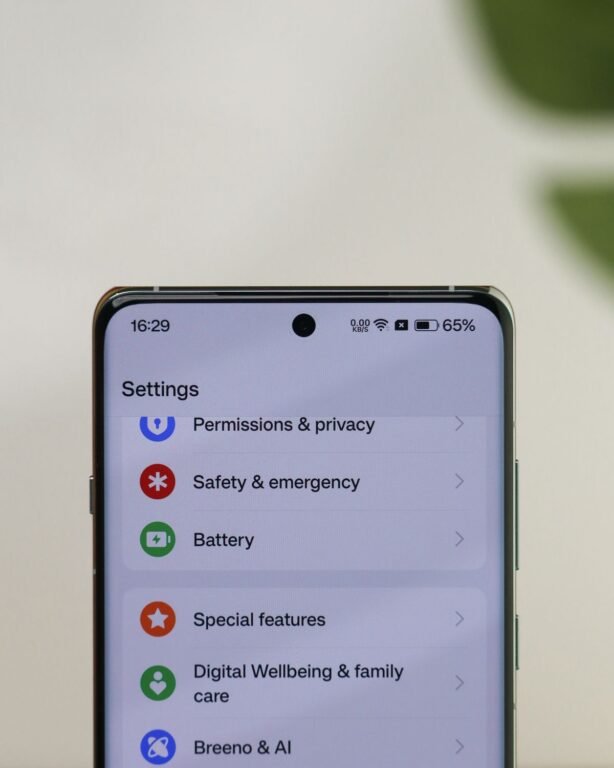
iPhone: Find the Battery Hog
- Open Settings, then tap Battery: The list shows battery use for the last 24 hours. Tap Last 10 Days to see the longer picture.
- Look at the top of the list: The app at the top used the most battery. Tap an app to see how much of its use was on screen and how much was in the background.
- Check for background use: If an app shows a lot of background time, it is working while you do not use it. That is your battery hog.
- Limit that app: Go to Settings, then General, then Background App Refresh, and turn it off for that app. Or delete the app if you rarely use it.
- Check again tomorrow: Open the Battery list again the next day. The top app should be one you actually used.
Android: Find the Battery Hog
- Open Settings, then tap Battery: On Samsung phones this is under Settings, then Battery and device care, then Battery.
- Tap Battery usage: The list shows which apps used the most battery since the last full charge.
- Look at the top of the list: The app at the top used the most battery. Tap it to see its background use.
- Restrict that app: Tap the app, then Battery, and pick Restricted or Optimized. Restricted stops the app from running in the background at all.
- Check again tomorrow: Open the Battery usage list again the next day. The top app should be one you actually used.
If the top app is one you use all day, like a video app or a game, that is normal. The problem is an app you barely open sitting near the top. A maps app or a social app with heavy background use is the usual suspect, and restricting it can add hours to your day.
More Tips for Catching Battery Hogs
- Restart your phone once a week: A stuck app can keep running in the background after a crash. A restart clears it, and it takes one minute.
- Update the greedy app: App updates often fix battery bugs. Open the App Store or the Play Store and update any app that sits near the top of the list.
- Check WhatsApp and other chat apps: Chat apps with lots of photos and videos can grow huge and work hard in the background. Our stop WhatsApp eating phone storage guide shows how to tame one.
Phone Battery Draining Fast Fix 2: Turn Down the Screen
The screen is the biggest battery user in your phone, bigger than any app. A screen at full brightness outdoors can drain a full battery in a few hours all by itself. Turning it down is the single fastest way to stop a phone battery draining fast, and your eyes will adjust in a minute.
iPhone: Tame the Screen
- Turn on Auto-Brightness: Go to Settings, then Accessibility, then Display and Text Size, and turn on Auto-Brightness. The phone will dim the screen when you go inside.
- Lower the brightness by hand: Swipe down from the top right corner to open Control Center, then drag the brightness slider to about half.
- Shorten Auto-Lock: Go to Settings, then Display and Brightness, then Auto-Lock, and pick 30 Seconds. The screen will turn off fast when you put the phone down.
- Turn off Raise to Wake if you do not need it: In Settings, then Display and Brightness, turn off Raise to Wake so the screen does not light up every time you pick the phone up.
Android: Tame the Screen
- Turn on Adaptive brightness: Go to Settings, then Display, and turn on Adaptive brightness. The phone will dim the screen when you go inside.
- Lower the brightness by hand: Swipe down twice from the top of the screen to open Quick Settings, then drag the brightness slider to about half.
- Shorten the screen timeout: Go to Settings, then Display, then Screen timeout, and pick 30 seconds. The screen will turn off fast when you put the phone down.
- Turn on Dark mode: Go to Settings, then Display, and turn on Dark theme. On phones with an OLED screen, dark pixels use almost no power, so this saves real battery.
If you play games or watch videos for hours, the screen will still use a lot of battery, and that is normal. The fix is for the screen staying bright when you are not looking at it, which is pure waste.
Phone Battery Draining Fast Fix 3: Stop Background Refresh and Location Drain
Apps refresh in the background so they are ready when you open them, and many of them also check your location all day. A phone battery draining fast often comes from a dozen apps doing this at once. Turning it off for the apps that do not need it can add hours to your battery, and you will not notice any difference in how the apps work.
iPhone: Stop the Background Drain
- Turn off Background App Refresh for most apps: Go to Settings, then General, then Background App Refresh. Keep it on only for chat and email apps, and turn it off for the rest.
- Set location to While Using: Go to Settings, then Privacy and Security, then Location Services. Tap each app and pick While Using the App instead of Always, unless it is a maps or ride app you trust.
- Turn off location for the Camera and Photos if you do not need it: Location tagging on photos is nice, but it keeps the GPS awake. Set those apps to Never if you do not use the feature.
- Turn off Push for email you check by hand: Go to Settings, then Mail, then Accounts, then Fetch New Data, and turn off Push. Set it to fetch every 30 minutes instead.
Android: Stop the Background Drain
- Turn off background data for greedy apps: Go to Settings, then Apps, tap an app, then Mobile data, and turn off Allow background data usage for apps you rarely open.
- Set location to While using the app: Go to Settings, then Location, then App location permissions. Change apps from Allow all the time to Allow only while using the app.
- Turn on Adaptive Battery: Go to Settings, then Battery, then Adaptive preferences, and turn on Adaptive Battery. On Samsung phones this is under Battery and device care, then Battery, then Background usage limits.
- Put unused apps to sleep: On Samsung phones, go to Battery and device care, then Battery, then Background usage limits, and add apps you rarely open to Deep sleeping apps.
Do not turn everything off at once. Chat apps, email, and maps need background access to work right. Start with social apps, shopping apps, and games, because those are the ones that refresh most and matter least.
Phone Battery Draining Fast Fix 4: Use Battery Saver and Low Power Mode
Every phone has a built in battery saver, and it is the strongest quick win in this guide. It slows background work, dims the screen a little, and stops the extras you do not need. A phone battery draining fast can often last until bedtime with this one switch, and you can turn it on only when the battery gets low.
iPhone: Turn On Low Power Mode
- Turn it on by hand: Go to Settings, then Battery, and turn on Low Power Mode. You can also add it to Control Center in Settings, then Control Center, so you can switch it on with one tap.
- Let the phone offer it: When the battery hits 20 percent, the phone asks if you want Low Power Mode. Say yes. It will turn itself off when you charge past 80 percent.
- Know what it changes: Low Power Mode slows background refresh, pauses automatic downloads, and dims the screen a little. Your calls, texts, and apps still work fine.
Android: Turn On Battery Saver
- Turn it on by hand: Go to Settings, then Battery, then Battery Saver, and turn it on. On Samsung phones this is under Settings, then Battery and device care, then Battery, then Power saving.
- Set it to turn on by itself: In the same Battery Saver screen, set it to turn on automatically at 15 or 20 percent, so you never have to remember.
- Try Extreme Battery Saver on Pixel phones: Pixel phones have an Extreme Battery Saver mode that limits the phone to essential apps only. It is the best option when you are far from a charger.
- Know what it changes: Battery Saver slows background work and dims the screen a little. Your calls, texts, and apps still work fine.
Battery Saver is not only for emergencies. If your phone battery draining fast is a daily problem, leave it on all day for a week and see how much longer the phone lasts. Many people keep it on all the time and never miss the extras it turns off.
Phone Battery Draining Fast Fix 5: Check Your Signal and Turn Off What You Do Not Use
A weak signal is a silent battery killer. When your phone has one bar or no service, it boosts its radio power to hold the connection, and it keeps searching for a better tower. A phone battery draining fast in a basement, a rural area, or a big concrete building is often the signal, not the battery. Wi-Fi, Bluetooth, and 5G add to the same drain when they stay on and unused.
- Use Wi-Fi when it is there: Wi-Fi uses far less battery than mobile data. Connect to Wi-Fi at home, at work, and at cafes, and keep mobile data for when you are out.
- Turn on Airplane Mode in dead zones: If you are somewhere with no signal, like a basement or a remote road, turn on Airplane Mode. The phone will stop hunting for a tower and the battery will last far longer.
- Turn off Bluetooth when you are not using it: Swipe down to open Quick Settings or Control Center and turn Bluetooth off when no headphones or watch are connected. Bluetooth uses little power, but it adds up with everything else.
- Switch from 5G to 4G if 5G is weak: On iPhone, go to Settings, then Mobile Data, then Mobile Data Options, then Voice and Data, and pick 4G. On Android, go to Settings, then Connections, then Mobile networks, then Network mode, and pick 4G or LTE. A weak 5G signal drains far more battery than a strong 4G one.
- Turn off Wi-Fi and location when you leave the house: A phone that keeps scanning for Wi-Fi networks and checking GPS while you walk around uses extra power. Turn them off when you do not need them, and turn them back on when you get home.
If your phone keeps dropping the Wi-Fi at home, the signal may be the problem on the router side instead. Our forgot Wi-Fi password guide helps you get back on your home network, and a stable Wi-Fi connection saves battery every day.
Phone Battery Draining Fast Fix 6: Charge the Right Way
How you charge matters as much as how you use the phone. Heat is the enemy of phone batteries, and a cheap charger or a habit of charging to 100 percent and leaving it there can wear the battery out years early. A phone battery draining fast on a two year old phone is often a battery that was cooked by bad charging habits.
- Keep the phone cool while it charges: Take the case off if the phone feels warm, and never charge it in direct sun or on a hot car dashboard. Heat wears the battery out faster than anything else.
- Use the charger that came with the phone, or a certified one: Cheap no name chargers can feed the wrong power and heat the battery. Look for the maker name or a certification mark on the charger.
- Turn on Optimized Charging: On iPhone, go to Settings, then Battery, then Battery Health and Charging, and turn on Optimized Battery Charging. On Pixel phones, turn on Adaptive Charging in Settings, then Battery. The phone will wait at 80 percent and finish charging just before you wake up.
- Charge between 20 and 80 percent when you can: Lithium batteries last longest when they stay in the middle of the range. You do not have to watch it every day, but topping up from 40 to 80 percent is kinder than draining to zero and charging to 100 every night.
- Do not use the phone for heavy games while it charges: Gaming while charging makes the phone hot, and heat plus charging is the worst mix for the battery. Let it charge in peace for 20 minutes.
If your phone charges slowly even with a good charger, the cable or the port may be the problem, not the battery. Check the port for lint with a wooden toothpick, with the phone off, and try a different cable before you blame the battery.
Phone Battery Draining Fast Fix 7: Update Your Software and Check Battery Health
A software bug can drain a battery overnight, and makers fix those bugs in updates. A phone battery draining fast that started right after an update, or that no setting seems to fix, often needs the next update to settle down. If the battery itself is worn out, your phone can tell you, and then a new battery is cheaper than a new phone.
iPhone: Update and Check Battery Health
- Update iOS: Go to Settings, then General, then Software Update, and install any update. Use Wi-Fi for the download, because it is large.
- Check Maximum Capacity: Go to Settings, then Battery, then Battery Health and Charging. Maximum Capacity shows how much charge your battery still holds compared to when it was new.
- Read the number: A new battery shows 100 percent. Apple considers a battery worn out below 80 percent, and the phone may say Service at that point. If you are at 80 percent or below, a battery replacement will fix the drain.
- Restart after the update: Hold the side button and a volume button, slide to power off, then turn the phone back on. A restart after an update clears stuck background work.
Android: Update and Check Battery Health
- Update Android: Go to Settings, then System, then System update, and install any update. On Samsung phones this is under Settings, then Software update. Use Wi-Fi for the download, because it is large.
- Check battery health in Samsung Members: On Samsung phones, open the Samsung Members app, tap Support, then Phone diagnostics, then Battery status. It will say Good or Bad.
- Use a battery health app if your phone has no built in check: Most Android phones do not show a battery health number. A free app such as AccuBattery can measure it over a few charge cycles and show the estimated health.
- Restart after the update: Hold the power button, tap Restart, and let the phone come back up. A restart after an update clears stuck background work.
No internet on the phone is fine too. Skip the update for now and use the fixes above, because they work without any download. You can update later from Wi-Fi at home, at work, or at a library. Never download a system update from a random site, because fake update files are a common way to install malware.
When to Replace the Battery
Some cases need a new battery, not a new setting. Take the phone to a repair shop when the battery health sits below 80 percent, when the phone shuts off at 20 or 30 percent, or when the battery swells and pushes the screen up. A swollen battery is a safety problem, so stop using the phone and take it in right away. A battery replacement usually costs far less than a new phone, and it makes a two or three year old phone feel new again. If the phone restarts by itself instead of just draining fast, our phone keeps restarting fix covers the next steps.
Final Words
Open the Battery list and find the app eating your power, then turn off its background refresh. Then turn the brightness down to about half, shorten the screen timeout to 30 seconds, and turn on Battery Saver when the battery gets low. Work through these seven fixes in order, and a phone battery draining fast will usually slow down at Fix 1 or Fix 2 and stay fixed after Fix 3. The most common cause is one greedy app, so never skip Fix 1. If the battery health is below 80 percent, a new battery is the real fix, and it costs far less than a new phone. Apple also shares its own battery saving tips, and they are worth a look if you want a second view.
Troubleshooting
Battery drops fast only overnight: An app is working while you sleep, or the phone is hunting for a weak signal. Turn on Airplane Mode overnight if you do not need calls, or turn on Battery Saver before bed. Check the Battery list in the morning to see which app ran overnight.
Battery drains fast only when you use one app: That app is the battery hog. Restrict its background use as shown in Fix 1, lower the video quality inside the app if it is a video app, and update the app. If it still drains, try the web version of the app in your browser instead.
Battery got worse right after an update: Updates can reset settings and reindex your files for a day or two, which uses extra battery. Give it two days, restart the phone, and check the Battery list. If it is still bad after a week, the next update usually fixes it.
Frequently Asked Questions
Why is my phone battery draining fast all of a sudden? A phone battery draining fast all of a sudden usually comes from a new app, a software update, or a setting that changed. A new app may run in the background all day, an update can reset your brightness or background settings, and a weak signal in a new place can drain the battery fast. Check the Battery list first, then the screen brightness, then the signal.
Does closing apps save battery? No, not the way most people think. Swiping apps closed and reopening them uses more battery than leaving them paused in the background, because the phone has to load them from scratch. Only close an app that is stuck or misbehaving. The real fix is turning off background refresh for apps you do not use, as shown in Fix 3.
Is it bad to charge my phone overnight? It is fine with a modern phone, because the phone stops charging at 100 percent and Optimized Charging waits at 80 percent until morning. The risk is heat, so charge on a hard surface, not under a pillow, and take a thick case off if the phone feels warm.
Phone Battery and Charging Questions
Why does my battery drain fast when I am not using my phone? A phone battery draining fast while the phone sits idle means background work or a weak signal. Apps refresh, email fetches, and location checks all run while the screen is off. Turn off background refresh for the apps at the top of the Battery list, and turn on Airplane Mode in dead zones. A restart once a week also clears stuck background work.
Should I let my phone battery go to 0 percent? No, not on a modern phone. Lithium batteries wear out faster when they drain to zero often. Charge when the battery hits 20 percent, and keep it between 20 and 80 percent when you can. Letting it hit zero once in a while will not kill it, but doing it every day will shorten its life.
How long should a phone battery last? A healthy phone battery should last a full day with normal use, and most batteries stay healthy for two to three years. After that the capacity drops, and the phone will need charging sooner. If your phone is older than three years and the battery health is below 80 percent, a replacement battery is the fix that makes it last all day again.