


You click Print, and nothing happens. No paper moves, no error message makes sense, and the document just sits there while the deadline gets closer. Before you buy a new printer or pay for a repair, try this printer not printing fix first. In most cases the printer is not broken. A stuck print job, a crashed spooler service, or a wrong default printer is blocking everything behind it. This guide works through the real causes in order, from the two minute checks to the full driver reinstall, so you stop as soon as printing works again.
Why a Printer Stops Printing Even When It Looks Fine
A print job travels further than most people think. Your app sends it to Windows, Windows hands it to the print spooler service, the spooler hands it to the driver, and the driver talks to the printer. If any step in that chain stalls, the whole job stops, and the printer itself can look perfectly ready while nothing prints.
Meanwhile, the most common stall is also the simplest one. One damaged or stuck job sits at the front of the queue, and every job behind it waits forever. That is why this printer not printing fix starts with the queue, not with new drivers or new cables. Clear the blockage first, and the printer often starts working again on its own.
One more thing is worth knowing before you start. If the printer shows a paper jam light, an empty ink warning, or an error code on its own screen, fix that physical problem first. No Windows setting will print through an empty paper tray or a real jam. The steps below assume the printer itself is ready, with paper loaded and ink or toner available.
Printer Not Printing Fix 1: The Two Minute Basics Check
Most printer problems are embarrassingly simple, and checking them first saves you from reinstalling drivers for no reason. Work through this printer not printing fix list in order, and test a print after each change.
- Check power and the screen: Make sure the printer is switched on and its screen shows Ready, not an error or a warning. If the screen is dark, check the power cable at both ends and try a different wall outlet.
- Check paper and ink: Open the paper tray and confirm paper is loaded straight, not bent or overfilled. Check the ink or toner level on the printer screen. A printer that is out of one colour can refuse to print even a black and white page.
- Clear any paper jam properly: If paper is jammed, switch the printer off first, then pull the paper out slowly in the direction it normally travels. Torn pieces left inside cause the next jam, so check for small scraps.
- Check the cable or the Wi-Fi: For a USB printer, unplug the cable at both ends and plug it back in firmly, and try a different USB port on the computer. For a Wi-Fi printer, check that the printer shows it is connected to your home network, and that your computer is on the same network name.
- Check the right printer is the default: Many computers list more than one printer, including a PDF printer and an old printer you no longer own. If the job went to the wrong printer, nothing will ever come out of the one on your desk.
Windows 11:
- Open Printers and scanners: Press Windows key plus I, click Bluetooth and devices, then click Printers and scanners.
- Set your printer as default: Click your printer, then click Set as default. If you do not see that button, switch off the Let Windows manage my default printer option first, then set it again.
Windows 10:
- Open Printers and scanners: Press Windows key plus I, click Devices, then click Printers and scanners.
- Set your printer as default: Click your printer, then click Manage, then click Set as default. Switch off Let Windows manage my default printer first if the button is missing.
Windows 8 and 8.1:
- Open Devices and Printers: Press Windows key plus X, click Control Panel, then click Devices and Printers.
- Right-click your printer: Choose Set as default printer. A green tick should appear on the printer icon.
Windows 7:
- Open Devices and Printers: Click Start, then click Devices and Printers.
- Right-click your printer: Choose Set as default printer. A green tick should appear on the printer icon.
After the basics check, send one small test page, not a big document. A single page with a few lines of text tells you fast whether the printer is working again, and it wastes no paper if the job stalls.
Printer Not Printing Fix 2: Clear the Stuck Print Queue
This is the heart of this printer not printing fix, and it solves more cases than any other step. When a job gets stuck, it blocks every job behind it, even new ones. Clearing the queue gives the printer a clean start.
Windows 11:
- Open the queue: Press Windows key plus I, click Bluetooth and devices, then Printers and scanners. Click your printer, then click Open print queue.
- Cancel every job: Right-click each job in the list and choose Cancel. If a job refuses to cancel, leave it for now and move to Fix 3, which clears it from underneath.
Windows 10:
- Open the queue: Press Windows key plus I, click Devices, then Printers and scanners. Click your printer, then click Open queue.
- Cancel every job: Right-click each job and choose Cancel until the list is empty.
Windows 8 and 8.1:
- Open Devices and Printers: Press Windows key plus X, click Control Panel, then Devices and Printers.
- Open the queue: Double-click your printer to open its queue, then click Printer in the menu and choose Cancel All Documents.
Windows 7:
- Open Devices and Printers: Click Start, then Devices and Printers.
- Open the queue: Double-click your printer, click Printer in the menu, then choose Cancel All Documents.
Once the queue is empty, send the test page again. If the new job prints, you are done, and the old stuck job was the whole problem. If the job gets stuck again in the same place, the spooler itself needs a restart, which is Fix 3.
Printer Not Printing Fix 3: Restart the Print Spooler and Clear Its Folder
The print spooler is the Windows service that holds your print jobs and feeds them to the printer one by one. When it crashes or gets confused, jobs freeze, apps hang when you press Ctrl plus P, and printers can even vanish from the list. Restarting it is safe, it changes no settings, and Microsoft lists it as a first fix for stuck jobs. This printer not printing fix step works the same on Windows 7, 8, 10, and 11.
- Open Services: Press Windows key plus R, type services.msc, and press Enter.
- Find Print Spooler: Scroll down the list until you find Print Spooler.
- Restart it: Right-click Print Spooler and choose Restart. Wait a few seconds, then try printing again.
- If a job still will not cancel, stop the spooler first: Right-click Print Spooler and choose Stop instead of Restart.
- Clear the spool folder: Open File Explorer and go to C:\Windows\System32\spool\PRINTERS. Delete every file inside that folder. Those files are only stuck print jobs, not system files, so deleting them is safe.
- Start the spooler again: Go back to Services, right-click Print Spooler, and choose Start. The queue should now be empty.
- Test again: Send the small test page. In many cases the printer starts working right here, because the corrupted job that blocked everything is finally gone.
- Set the spooler to start automatically: While you are in Services, right-click Print Spooler, choose Properties, and make sure Startup type is set to Automatic. That way the service is running every time Windows starts.
- Do not delete anything outside the PRINTERS folder: Only clear the files inside C:\Windows\System32\spool\PRINTERS. Other folders in that area belong to Windows, so leave them alone.
Microsoft Spooler Help
For Microsoft own steps on stuck print jobs, see Fix print job stuck in queue errors in Windows. For the spooler service itself, see Fix print spooler service not running errors in Windows.
Printer Not Printing Fix 4: Reinstall the Driver From the Maker
If the queue is clear and the spooler is running but printing still fails, the driver is the next suspect. Drivers get damaged by Windows updates, by old printer software, and by half finished installs. A fresh driver from the printer maker fixes most of what is left. This printer not printing fix step matters most on older computers, where the automatic driver is often years out of date.
- Find your exact printer model: Look for the model name on the front of the printer or on the sticker underneath it. A driver for a close model is not good enough, so copy the model exactly.
- Remove the old printer first: Open Printers and scanners on Windows 11 or 10, or Devices and Printers on Windows 8 or 7, click your printer, and choose Remove device. Then restart the computer.
- Download the driver from the maker site: Search for your maker and model, for example HP, Canon, Brother, or Epson, and open the official Support or Drivers page for that exact model. Do not download drivers from random driver download sites, which often bundle unwanted software.
- Install it and reconnect when asked: Run the downloaded installer and follow its prompts. It will usually ask you to plug in the USB cable or join the Wi-Fi network at the right moment, so wait for that prompt instead of connecting early.
- Print the test page the installer offers: Most installers offer a test page at the end. Say yes, because it confirms the driver, the connection, and the printer all work together.
Offline Driver Option
Offline alternative, no internet on the computer: Every other step in this printer not printing fix works without the internet. For a fresh driver without internet, download the driver on another computer or a phone from your printer maker support website, copy it onto a USB stick, then run it on your computer from the stick. You never need to connect the problem computer itself to the internet for this.
If a slow computer is part of your trouble too, printer helper apps that launch at startup can add to the load. Our guide to fixing a slow startup walks through trimming that list: Slow Computer Startup Fix.
Printer Not Printing Fix 5: Reconnect a Wi-Fi Printer That Keeps Vanishing
A Wi-Fi printer adds one more failure point, the network itself. The printer can look connected while the computer talks to an old address for it, especially after a router restart or a password change. Removing the printer and adding it fresh forces Windows to find its current address.
Windows 11:
- Remove the printer: Press Windows key plus I, click Bluetooth and devices, then Printers and scanners. Click your printer, then click Remove.
- Restart the router and the printer: Unplug the router for 30 seconds, plug it back in, and wait until its lights settle. Then restart the printer and wait until it shows connected to your network.
- Add it back: Go back to Printers and scanners and click Add device. Wait for your printer to appear in the list, click it, and let Windows install it.
Windows 10:
- Remove the printer: Press Windows key plus I, click Devices, then Printers and scanners. Click your printer, then click Remove device.
- Restart the router and the printer: Unplug the router for 30 seconds, plug it back in, and wait for its lights to settle, then restart the printer.
- Add it back: Click Add a printer or scanner, wait for your printer to appear, click it, and let Windows install it.
Windows 8 and 8.1:
- Remove the printer: Open Control Panel, then Devices and Printers. Right-click your printer and choose Remove device.
- Restart the router and the printer: Unplug the router for 30 seconds, plug it back in, wait for its lights to settle, then restart the printer.
- Add it back: In Devices and Printers, click Add a printer and follow the prompts to find the printer on the network.
Windows 7:
- Remove the printer: Click Start, then Devices and Printers. Right-click your printer and choose Remove device.
- Restart the router and the printer: Unplug the router for 30 seconds, plug it back in, wait for its lights to settle, then restart the printer.
- Add it back: In Devices and Printers, click Add a printer and follow the prompts to find the printer on the network.
- Keep the computer and printer on the same network name: A printer on the guest network and a computer on the main network cannot see each other, even in the same house. Both must use the exact same network name.
- Try USB as a test, not just a fallback: If the printer works over USB but not over Wi-Fi, the printer itself is fine and the network is the problem. That tells you where to keep troubleshooting, instead of reinstalling drivers again.
Printer Not Printing Fix 6: Run the Built-in Troubleshooter
If the earlier fixes did not work, let Windows check itself before you go deeper. The troubleshooter checks the spooler, the driver, and the connection in one pass, and it sometimes catches a setting you missed.
Windows 11:
- Open Get Help: Click Start, type Get Help, and open the app.
- Search for the printer troubleshooter: Type printer troubleshooter in the search box and run it.
- Pick your printer when asked: Choose the printer that holds the stuck job, then follow the prompts and test again afterwards.
Windows 10:
- Open Troubleshoot settings: Press Windows key plus I, click Update and Security, then click Troubleshoot.
- Run the Printer troubleshooter: Click Additional troubleshooters, click Printer, then click Run the troubleshooter, and follow the prompts.
Windows 8 and 8.1:
- Open Troubleshooting: Open Control Panel, type troubleshooting in the search box, and click Troubleshooting.
- Run the Printer troubleshooter: Under Hardware and Sound, click Use a printer, then follow the prompts.
Windows 7:
- Open Troubleshooting: Click Start, click Control Panel, then click Troubleshooting.
- Run the Printer troubleshooter: Under Hardware and Sound, click Use a printer, then follow the prompts.
When a Printer Problem Means a Repair, Not a Setting
Most printers respond to the fixes above. A few signs mean something is physically wrong, and no setting will save it. Watch for these signs in this printer not printing fix guide.
- Grinding, loud clicking, or a carriage that slams: A healthy printer hums and moves smoothly. Grinding or slamming usually means a worn gear or something stuck inside the paper path.
- Ink or toner leaking inside: Switch the printer off and do not keep printing through a leak. Leaked ink or toner can damage the printer and stain everything it touches.
- A burning smell or scorch marks: Switch the printer off, unplug it right away, and do not keep using it until a technician has looked at it.
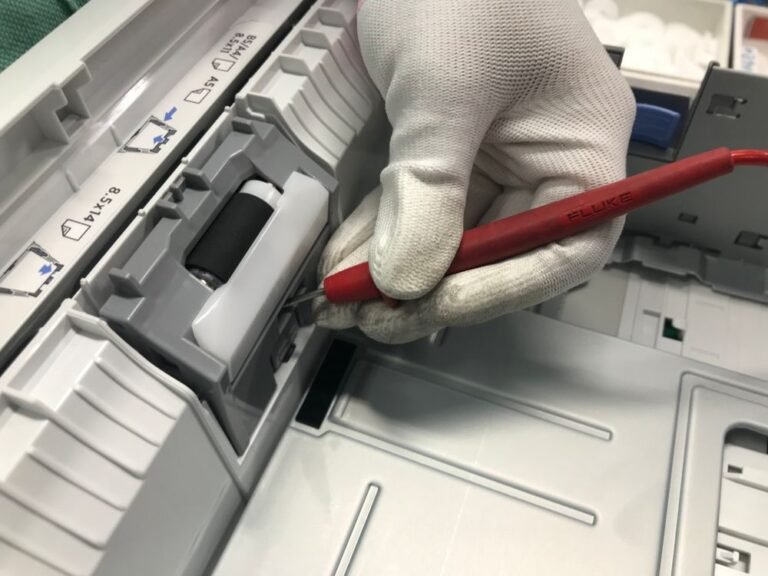
- The same jam in the same spot every time: A jam that returns in the exact same place after a careful clean usually means a worn roller or a broken sensor, which is a repair shop job.
- Error codes that survive a full reinstall: If a printer error stays after a fresh driver, a clear queue, and a restarted spooler, the fault is likely in the printer hardware itself.
Tricks That Do Not Fix a Printer That Will Not Print
- Reinstalling the driver before clearing the queue: A new driver cannot push past a stuck job. Clear the queue and restart the spooler first, then reinstall only if printing still fails.
- Buying a new cable before testing the old one: Swap the cable to another port or another computer first. A cable that works elsewhere was never the problem.
- Downloading a driver fixer tool: Random driver tools often install the wrong driver and bundle unwanted software. Get the driver from the printer maker site only.
- Printing the same big document over and over: Each retry adds another stuck job to the queue and makes the blockage worse. Test with one small page until printing works, then print the big document once.
Frequently Asked Questions
Why does my printer say it is ready but nothing prints?
Usually a stuck job is blocking the queue, or the job went to a different printer. Clear the queue with Fix 2, check the default printer in Fix 1, and restart the spooler with Fix 3. This printer not printing fix order matters, so work through the steps in order.
Is it safe to delete the files in the spool folder?
Yes, the files inside C:\Windows\System32\spool\PRINTERS are only queued print jobs, not system files. Stop the spooler first, delete only the files inside that folder, then start the spooler again.
Why does my printer work over USB but not over Wi-Fi?
The printer itself is fine, so the network is the problem. Make sure the computer and the printer use the exact same network name, restart the router and the printer, then remove and re-add the printer with Fix 5.
More Printer Questions
Do I need a new printer if the driver install fails?
Not yet. First make sure you downloaded the driver for your exact model from the maker site, and try the offline USB alternative in Fix 4. A driver install that fails on every model page points to a Windows problem, not a dead printer.
Why does my printer keep jamming in the same place?
A jam in the exact same spot usually means a torn scrap is still inside, or a roller is worn out. Switch the printer off, check the whole paper path with a torch, and remove every scrap. If it still jams there, it needs a repair.
Can I print without the internet?
Yes. Printing over USB needs no internet at all, and a Wi-Fi printer on your home network prints without internet too, as long as the router is running. Only the driver download in Fix 4 needs the internet, and the USB stick alternative covers that.
Final Words
This printer not printing fix works because it follows the print job. Check the basics, clear the stuck queue, restart the spooler, reinstall the driver from the maker, and reconnect a Wi-Fi printer fresh. Do those steps in order, test with one small page after each change, and most printers start printing again in under half an hour. If grinding, leaking, or the same jam in the same spot remains after all of it, that is the printer telling you it needs a repair, and getting it serviced early is cheaper than forcing it to print through a hardware fault.