
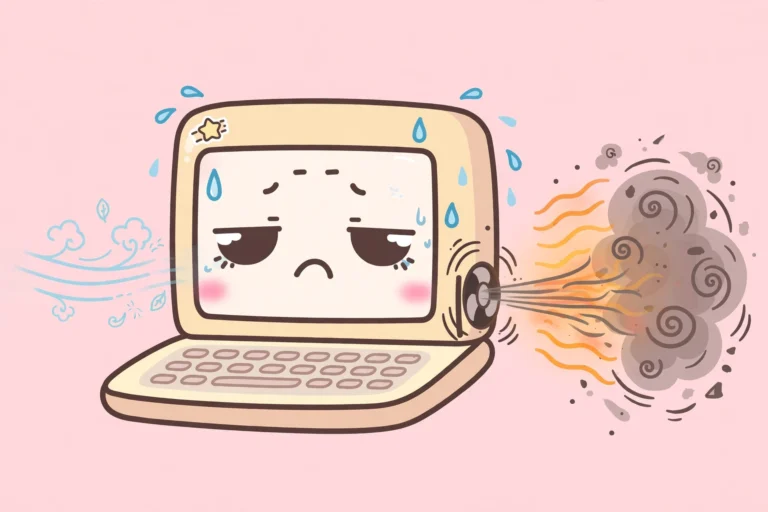

You open your laptop to check email, and within minutes the fan starts roaring like a small jet engine. It drowns out video calls, it makes the whole laptop hot to touch, and it never seems to calm down. Before you buy a new laptop or a noisy cooling pad, try this loud laptop fan fix first. In most cases the fan is not broken. It is just working overtime because heat cannot escape, or because a hidden app is keeping the processor busy. This guide walks you through the real causes, in order, and every step uses tools you already have.
Why a Loud Laptop Fan Happens
A laptop fan has one job. It pushes hot air out so the processor can stay cool. When dust blocks the vents, that hot air gets trapped inside. The processor gets hotter, so the fan spins faster, and the faster fan makes more noise. It is a loop, and it only gets louder until something changes.
Meanwhile, a second cause often hides in the background. Chat apps, game launchers, cloud storage, browser tabs, and update tools can keep the processor busy even when you think the laptop is idle. A busy processor makes heat, and heat makes fan noise. That is why a loud laptop fan fix needs both parts. Clear the heat path, and calm the processor down.
One more thing is worth knowing before you start. A fan that is loud during a game or a video export is normal. The processor is working hard, and the fan is doing its job. A fan that roars while you only read email, or that never slows down at all, is the problem this guide fixes.
First, Find What Is Making the Fan Work So Hard
Two minutes here stops you from fixing the wrong thing. If one app is eating the processor, cleaning the vents alone will not quiet the fan.
- Open Task Manager: Press Ctrl plus Shift plus Esc. On Windows 7, if Task Manager opens in a short view, click the Processes tab to see the full list.
- Sort by CPU: Click the CPU column header so the hungriest app sits at the top. Watch it for about a minute, not just a few seconds.
- Look for a stuck app: A browser with dozens of tabs, a game launcher updating in the background, or an updater stuck in a loop can sit at high CPU for no good reason. Close it normally first, from inside the app, and see if the fan calms down.
- Check the temperature clue: If the bottom of the laptop feels very hot and the air coming out of the vents feels weak or barely warm, blocked vents are likely part of the problem. If the air coming out feels strong and hot but the fan never slows down, a busy processor or a power setting is more likely.
Loud Laptop Fan Fix 1: Give the Laptop Air to Breathe
This is the fastest win in this whole loud laptop fan fix, and it costs nothing. Laptops pull cool air in from underneath or from the sides, and they push hot air out through the vents. Anything soft underneath blocks that airflow.

- Move it off the bed, sofa, and blanket: Soft surfaces sink around the vents and trap heat underneath. Always use the laptop on a hard, flat table or desk.
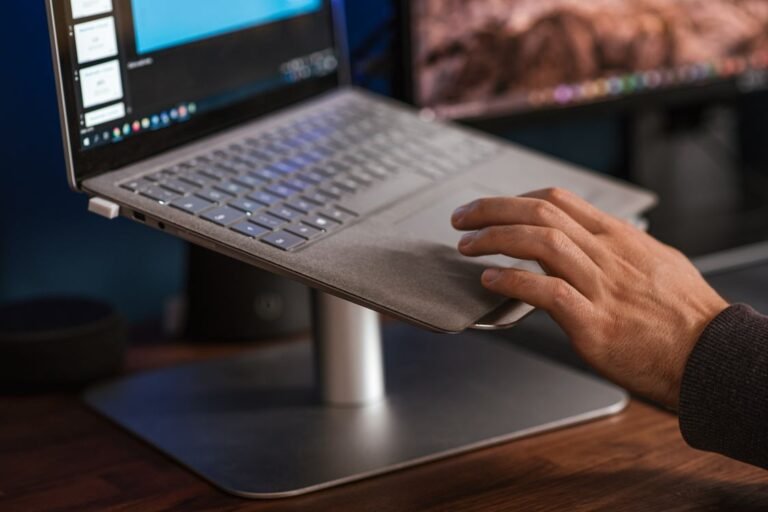
- Raise the back a little: Even a small lift helps. A laptop stand, a cooling pad, or even two small blocks under the back feet lets cool air flow underneath. Keep the vents uncovered.
- Clear space around the vents: Do not push the laptop against a wall, a pile of papers, or a bag. Hot air needs somewhere to go.
- Keep the room cooler if you can: A laptop in a hot, sunny room will always run its fan harder. Shade and airflow help more than people expect.
Loud Laptop Fan Fix 2: Clean the Dust Out of the Vents
Dust is the most common reason a quiet laptop slowly turns loud. It builds up a little at a time, so you barely notice the fan getting louder month by month. A short clean often brings the noise straight back down.
- Shut the laptop down and unplug it: Do not just close the lid. Shut it down fully, unplug the charger, and remove any other cables.
- Find the vents: Look along the sides and the back edge, and underneath near the hinge. Those slots are where hot air leaves and where dust collects.
- Use short bursts of compressed air: Hold the can upright and use short bursts, not one long spray. Spray into the vents from outside, at a slight angle, so the dust blows out instead of deeper in.
- Do not spin the fan up with air: If you can see the fan through a vent, avoid blasting it so hard that it spins wildly. A fan spun far past its normal speed can wear out.
- Do not use a vacuum hose right against the vent: A vacuum can pull the fan around too fast, and static from a household vacuum is a risk near electronics. Compressed air and a soft brush are the safer pair.
- Start it up and listen: Power the laptop on and let it sit idle for a few minutes. In many cases the fan is already noticeably quieter.
- Only open the case if you are comfortable doing it: The deepest dust sits on the fan itself, inside the case. If your laptop is under warranty, or if opening it feels risky, let a repair shop do the inside clean. A quick outside clean still helps a lot.
- Clean the vents every few months: If you use the laptop on a bed, near pets, or in a dusty room, dust builds up faster. A short clean every few months keeps the fan from getting loud again.
Loud Laptop Fan Fix 3: Stop Hidden Apps Heating the Processor
Even with clean vents, a laptop will stay loud if too many apps launch at startup and never really close. Each one adds a little heat, and together they keep the fan busy all day. This loud laptop fan fix step is about trimming that list.
Windows 11:
- Open Settings, then Apps, then Startup: Press Windows key plus I, click Apps on the left, then click Startup.
- Switch off what you do not need at sign-in: Switch off chat apps, game launchers, music apps, and cloud storage you do not use every single morning. Keep your security software switched on.
- Restart and listen: Restart the laptop and let it sit idle for a few minutes. If the fan stays calm now, a startup app was a big part of the noise.
For Windows 10:
- Open Task Manager: Press Ctrl plus Shift plus Esc, then click the Startup tab. If you see a short view, click More details first.
- Right-click and choose Disable: Right-click each app you do not need at sign-in and choose Disable. The app stays installed and still opens normally when you click it.
Windows 8 and 8.1:
- Open Task Manager: Press Ctrl plus Shift plus Esc, then click the Startup tab.
- Right-click and choose Disable: Right-click each unwanted app and choose Disable. Restart to check the difference.
Windows 7:
- Open System Configuration: Press Windows key plus R, type msconfig, and press Enter.
- Click the Startup tab: Untick the programs you do not need at startup, then click Apply, then OK, then restart.
If startup apps are also making your whole computer slow to start, our step by step guide to fixing a slow startup covers the full list in detail: Slow Computer Startup Fix. For the full story on a related battery problem, see Fix Laptop Battery Drain on Windows.
Loud Laptop Fan Fix 4: Calm the Processor With the 99 Percent Setting
This is the quiet trick that surprises most people. By default, Windows lets the processor boost to its top speed for short bursts. That boost makes a lot of heat, and the fan answers with noise. Capping the processor just below its top speed stops most of those heat spikes, and for email, browsing, documents, and video calls you will barely notice the difference.
Windows 11 and 10:
- Open Power Options: Search the Start menu for Power Options and open it, or open Control Panel, then Hardware and Sound, then Power Options.
- Click Change plan settings: Click it next to your current plan, which is usually Balanced.
- Click Change advanced power settings: This opens the advanced settings box.
- Expand Processor power management: Expand it, then expand Maximum processor state.
- Set it to 99 percent: Change both On battery and Plugged in to 99 percent. This stops the top speed boost that makes the most heat.
- Set System cooling policy to Passive: In the same list, expand System cooling policy and set both On battery and Plugged in to Passive. Passive slows the processor a little before it speeds up the fan, which is quieter for everyday work.
- Click Apply, then OK, then restart: Let the laptop sit idle for a few minutes and listen for the difference.
For Windows 8 and 8.1:
- Open Control Panel, then Power Options: Click Change plan settings next to your current plan.
- Click Change advanced power settings: Expand Processor power management, then Maximum processor state.
- Set both values to 99 percent: Set On battery and Plugged in to 99 percent, set System cooling policy to Passive, then click Apply and OK.
Windows 7:
- Open Control Panel, then Power Options: Click Change plan settings next to your current plan, then click Change advanced power settings.
- Set Maximum processor state to 99 percent: Expand Processor power management, set both values to 99 percent, set System cooling policy to Passive if it is shown, then click Apply and OK.
One honest warning belongs here. If you play heavy games or edit large videos, the 99 percent cap can slow that work down a little. For those sessions, switch the plan back to High performance or set the value back to 100 percent, then return to 99 percent for everyday use. This loud laptop fan fix is about quiet everyday computing, not about removing power you truly need.
Loud Laptop Fan Fix 5: Update Drivers and the BIOS From the Maker
Outdated drivers and firmware can leave the fan running on an old, noisy fan curve. Laptop makers sometimes fix exactly this problem in a BIOS update, so it is worth checking the maker site once.
- Find your exact model: Look for the model name on the sticker underneath the laptop, or in Settings, then System, then About.
- Go to the maker support site: Search for your maker and model, then open the Drivers or Support page for that exact model. Do not download BIOS files from random download sites.
- Update the BIOS and the chipset driver first: Those two control heat and fan behaviour most directly. Then update the graphics driver if a newer one is listed.
- Keep the charger plugged in during a BIOS update: Never let the laptop lose power halfway through a BIOS update. Plug it in, close other apps, and do not touch it until the update finishes and the laptop restarts on its own.
Offline alternative, no internet on the laptop: Every other fix in this loud laptop fan fix guide works without the internet. For driver and BIOS updates without internet, download them on another computer from your laptop maker support website onto a USB stick, then run them on your laptop from the stick. You never need to connect the hot laptop itself to the internet for this.
For HP own fan noise steps, see How to Make Your Laptop Fan Quieter. For Lenovo own steps for a fan running faster than expected, see Fan runs at a higher than expected speed.
When a Loud Fan Means a Repair, Not a Setting
Most loud fans respond to the fixes above. A few sounds mean something is physically wrong, and no setting will save it. Watch for these signs.
- Grinding, rattling, or clicking: A healthy fan hums or whirs. Grinding or rattling usually means a worn bearing or a blade hitting something inside.
- The fan stops, then the laptop shuts down: If the laptop suddenly powers off when it gets hot, the cooling system is failing to protect the processor. Stop using it for heavy work and get it serviced.
- One side stays silent while the laptop burns up: If a fan that used to spin never spins now, it may have failed or its cable may have come loose.
- A burning smell or melted plastic smell: Switch the laptop off and unplug it right away, and do not keep using it until a technician has looked at it.
- The noise came back days after a full clean: A fan that gets loud again very fast may have a failing bearing or dried out thermal paste inside. Both are repair shop jobs.
Tricks That Do Not Fix a Loud Laptop Fan
- Forcing the fan to run slow with a random fan app: Forcing a low fan speed under heavy load traps heat inside and can shut the laptop down or shorten its life. Use the maker quiet profile or the 99 percent setting instead.
- Blowing into the vents with your mouth: Breath carries moisture, and moisture inside a laptop is a bad idea. Compressed air is cheap and dry.
- Covering the vents to muffle the sound: Blocking the vents only traps more heat, so the fan works even harder once the cover comes off.
- Buying a cooling pad before cleaning the vents: A cooling pad helps a clean laptop stay cool. It cannot fix a vent that is already choked with dust.
Frequently Asked Questions
Is a loud laptop fan dangerous?
A loud fan on its own is usually just annoying, not dangerous. It becomes a warning sign when the laptop also shuts down from heat, smells burnt, or the fan grinds or rattles. Those cases need a repair, not a setting change.
Will the 99 percent processor setting slow my laptop down?
For everyday work like email, browsing, documents, and video calls, you will barely notice it. Heavy games and large video edits may run a little slower, so switch back to full power for those sessions.
How often should I clean my laptop vents?
Every few months is a good rhythm for most people. Clean more often if you use the laptop on soft surfaces, near pets, or in a dusty room, or if the fan starts getting loud again.
Can I use a vacuum cleaner on the vents?
It is safer not to press a vacuum hose right against the vent. It can spin the fan too fast and it carries a static risk. Short bursts of compressed air from outside are the safer choice.
Why is my laptop fan loud even when I do nothing?
Usually a startup app, a stuck updater, or a browser with many tabs is keeping the processor busy in the background. Check Task Manager first, then trim the startup list with Fix 3.
Does a cooling pad really help a loud laptop fan?
Yes, once the vents are clean. A stand or a cooling pad improves airflow underneath and can lower temperatures a little. It works best as a helper after cleaning, not as a replacement for it.
Final Words
This loud laptop fan fix works because it follows the heat. Give the laptop air to breathe, clean the dust out of the vents, stop the hidden apps heating the processor, and calm the top speed boost with the 99 percent setting. Do those four steps in order, and most laptops go from jet engine back to a quiet hum in under half an hour. If grinding, rattling, or sudden shutdowns remain after all of it, that is the laptop telling you it needs a repair, and getting it serviced early is cheaper than waiting for the heat to damage something else.