

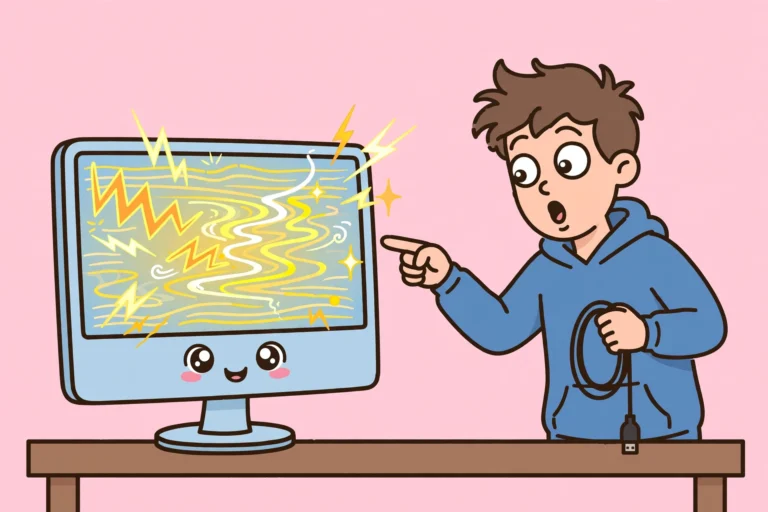

Your screen blinks, flashes, or rolls with faint lines, and your eyes hurt within minutes. When a monitor keeps flickering like this, work turns into a headache and games turn unplayable. Every blink makes you worry the monitor is dying. In most cases the monitor itself is fine. A loose cable, a refresh rate the monitor cannot handle, or a graphics driver that broke after an update causes the flicker. This monitor keeps flickering fix walks through those causes in order. It goes from a ten second driver reset to the deeper driver repair, so you stop the flicker without buying a new monitor first.
Why a Monitor Keeps Flickering in the First Place
A monitor shows a new picture dozens of times every second. That steady rhythm is called the refresh rate. It only looks smooth when the monitor, the cable, and the graphics driver all agree on it. When one part of that chain disagrees, the picture stutters. For example, a refresh rate the monitor does not support makes the screen flash. Meanwhile, a damaged cable drops parts of the signal, which shows up as blinking or lines. In addition, a faulty graphics driver can send broken frames to a healthy monitor. As a result, the same flicker can come from three very different places, and the fix depends on which one is at fault.
Before you change anything, run one quick test. Press Ctrl plus Shift plus Esc to open Task Manager, then watch its window. If Task Manager flickers along with everything else, the graphics driver or the monitor hardware is the likely cause. On the other hand, if Task Manager stays steady while the rest of the screen flickers, one app is the likely cause instead. That detail points you at the right fix, so keep it in mind as you work through the steps below.
Monitor Keeps Flickering Fix 1: Reset the Graphics Driver
Start here, because this monitor keeps flickering fix takes ten seconds and it clears many driver glitches at once. It restarts the graphics driver without restarting the computer, and it loses no open work.
- Press Windows key plus Ctrl plus Shift plus B: Hold all four keys together for a second, then let go. The screen goes black for a moment, and you may hear a beep.
- Wait for the picture to return: Give the screen a few seconds to come back. Then watch it for a minute to see whether the flicker is gone.
- Restart the computer if the flicker returns: Click Start, click Power, then click Restart. A restart clears a stuck driver state, so do not skip this simple step.
- Open Task Manager again after the restart: Press Ctrl plus Shift plus Esc and watch the window. If Task Manager flickers too, move on to the cable and driver fixes below. A steady Task Manager points at one app instead, so update or uninstall the app that was open when the flicker started.
- Do not panic at the black screen: The black screen after the driver reset shortcut is normal. It lasts only a second or two. If the screen stays black for more than a minute, press the monitor power button off and on once.
- Note when the flicker started: Flicker that began right after a Windows update or a driver update points at the driver. Fix 4 covers that repair. Flicker that began after you moved the desk or the monitor points at the cable fix in Fix 2.
Monitor Keeps Flickering Fix 2: Reseat the Cable and Try Another Port
Next, rule out the most common physical cause. A loose, damaged, or wrongly seated video cable can fake a dying monitor, and this check takes only a few minutes.
- Switch the monitor off first: Press the monitor power button so the screen is off while you handle the cable. This protects the ports from a short spark while you unplug things.
- Unplug the video cable at both ends: Remove the HDMI, DisplayPort, DVI, or VGA cable from the monitor and from the computer. Check both plugs for bent pins, dust, or damage.
- Plug the cable back in firmly: Push each plug fully into its port until it seats with no wobble. A half seated plug is a classic cause of a monitor keeps flickering problem.
- Try a different cable: If you have a spare cable, swap it in and test for a few minutes. Cables fail invisibly, and a broken wire inside looks exactly like a good cable from the outside.
- Switch to a different port on each end: Move the cable to another port on the monitor and another video output on the computer. One bad port on either side can cause flicker on its own.
- Skip adapters and docks for the test: Connect the monitor straight to the computer with one cable. Leave out any dock, splitter, or adapter in between. If the flicker stops, the adapter or dock was the problem.
Extra Checks for Desktop Computers
- Use the graphics card ports on a desktop: On a desktop with a dedicated graphics card, plug the monitor into the card ports lower on the back panel. Do not use the motherboard ports near the top. The motherboard ports may not carry a signal at all on such a computer.
- Keep power cables away from video cables: A video cable pressed hard against a power brick or a power strip can pick up interference. Give the video cable a little space and see whether the flicker fades.
Monitor Keeps Flickering Fix 3: Set the Right Refresh Rate
If the cable is fine, the refresh rate is the next suspect. A rate the monitor does not support makes the screen flash, and a rate set too low makes it shimmer. Check the setting for your Windows version below. Each version hides the setting in a slightly different place, so use only the steps for your version.
Windows 11
- Open Advanced display settings: Press Windows key plus I, click System, click Display, then click Advanced display.
- Pick the flickering monitor: If you have more than one monitor, choose the flickering one at the top of the Advanced display page.
- Choose a refresh rate: Open the Choose a refresh rate list and pick a standard rate your monitor supports, such as 60 Hz. If the monitor supports higher rates, you can try those after the flicker stops, but start with 60 Hz for the test.
- Turn off Dynamic refresh rate if it shows: If your monitor page shows a Dynamic option, switch it off for the test. A rate that keeps changing can look like flicker.
Windows 10
- Open Advanced display settings: Press Windows key plus I, click System, click Display, then click Advanced display settings.
- Pick the flickering monitor: If you have more than one monitor, choose the flickering display on that page.
- Choose a refresh rate: Open the Refresh rate list and pick a standard rate your monitor supports, such as 60 Hz. Then click Apply and test for a few minutes.
- Use the adapter properties route if the list is missing: Click Display adapter properties for the display, then open the Monitor tab. Pick a rate under Screen refresh rate, then click Apply.
Windows 8 and 8.1
- Open Screen resolution: Right click an empty spot on the desktop and click Screen resolution.
- Go to Advanced settings: Click Advanced settings on the Screen resolution page.
- Set the refresh rate: Open the Monitor tab, pick a standard rate under Screen refresh rate, such as 60 Hz, then click Apply.
Windows 7
- Open Screen resolution: Right click an empty spot on the desktop and click Screen resolution.
- Go to Advanced settings: Click Advanced settings on the Screen resolution page.
- Set the refresh rate: Open the Monitor tab, pick a standard rate under Screen refresh rate, such as 60 Hz, then click Apply.
If the flicker stops at 60 Hz but returns at a higher rate, your monitor or cable may not truly support that higher rate. Stay at the stable rate, or try a better cable, before you blame the monitor itself.
Monitor Keeps Flickering Fix 4: Update, Roll Back, or Reinstall the Graphics Driver
A broken graphics driver is the next most common cause of a monitor keeps flickering problem, especially after a Windows update. The driver is the software that lets Windows talk to the graphics card, so a bad driver breaks the picture completely. Work through these steps in order, and test the monitor after each one.
- Open Device Manager: On Windows 8, 10, and 11, press Windows key plus X and click Device Manager. For Windows 7, click Start, right click Computer, choose Manage, then click Device Manager.
- Find the graphics adapter: Expand Display adapters and note the name shown, such as Intel, NVIDIA, or AMD. Some computers list two adapters, so check both.
- Update the driver: Right click the adapter and choose Update driver, then choose Search automatically for drivers. Restart the computer if an update installs.
- Roll back if the flicker started after an update: Right click the adapter, choose Properties, and click the Driver tab. Then click Roll Back Driver if that button is available. Restart and test again.
- Reinstall the driver as a clean test: If updating does not help, right click the adapter and choose Uninstall device. Restart the computer, and Windows will reinstall a basic driver on its own. Then test the monitor before you install anything else.
- Get the maker driver if Windows finds nothing: Go to the graphics maker support site, such as Intel, NVIDIA, or AMD. Search for your exact graphics card model, download the latest driver, and install it. This maker driver often fixes flicker that the Windows driver cannot.
No Internet? Use the Offline Alternative
Offline alternative, no internet on the computer: Download the maker driver on another computer or a phone from the graphics maker support site. Copy it onto a USB stick, then run it on your computer from the stick. You never need to connect the problem computer itself to the internet for this monitor keeps flickering fix step. If you have no second device, a phone hotspot also works for a one time download.
For extra background on the Windows 11 driver reset and refresh rate steps, see this screen flickering guide for Windows 11. It covers the same Task Manager test and driver checks in detail.
Monitor Keeps Flickering Fix 5: Turn Off HDR and Test Another Monitor
If the driver is healthy, two more suspects remain. HDR can flicker on monitors that handle it badly, and a failing monitor panel flickers no matter what you change. This fix separates those two cases.
- Turn HDR off for a test: On Windows 11, press Windows key plus I, click System, then click Display. Switch HDR off if it shows. On Windows 10, open the same Display page and switch Windows HD Color off. Then test for a few minutes.
- Reset the monitor picture settings: Press the monitor menu button, find the reset option in the on screen menu, and restore the factory defaults. A strange picture mode or overdrive setting can flicker on its own.
- Lower the resolution for a test: Set the resolution to the option marked Recommended, or one step lower, and watch the screen. If a lower resolution stops the flicker, the cable or the graphics card may struggle at the higher resolution.
- Test another monitor on the same computer: Connect a different monitor or a TV with the same cable. If the second screen is steady, your monitor is the problem. A flicker on the second screen too means the computer, cable, or driver is the problem.
- Test the same monitor on another computer: Connect the flickering monitor to a different computer. If it flickers there too, the monitor itself is at fault, and no Windows setting will save it.
- Check the monitor power supply too: A failing power brick or a loose power cable can make a monitor blink. Power drops in and out cause the blinking. Push the power plug fully in, and try another wall outlet before you judge the panel.
When a Monitor Keeps Flickering Means Hardware Trouble
Most monitors come back with the fixes above. A few signs mean the hardware itself needs help, and no setting will save it. Watch for these signs.
- The monitor flickers on the startup screens before Windows loads: That pattern points to the monitor panel, cable, or graphics card. It is not a Windows setting, because Windows has not started yet.
- Same flicker on two different computers with two different cables: The monitor itself is the suspect here. You already ruled out the computer and the cable.
- Only one corner or one half of the screen flickers: A failing backlight or panel section shows up this way. That is a repair or replacement job.
- The monitor clicks, smells hot, or powers off by itself: Switch it off and unplug it. A failing power board can damage other parts, so do not keep using it.
If your monitor is still under warranty, contact the maker before you open it yourself. Opening a monitor can void the warranty, and a panel repair is usually a shop job, not a home fix.
Tricks That Do Not Fix a Monitor Keeps Flickering
- Reinstalling Windows before checking the cable: A full reinstall wipes your files and settings. It cannot help if the cable is simply loose. Check Fix 2 first.
- Buying a new monitor before testing another cable: A spare cable costs very little. It rules out the most common physical cause in minutes. Test the cable before you spend on a new screen.
- Downloading a random driver fixer tool: Random driver tools often install the wrong driver and bundle unwanted software. Get the driver from the graphics maker site only.
- Updating the driver before checking the refresh rate: A new driver cannot help if Windows asks the monitor for a rate it cannot show. Check Fix 3 first.
FAQ: Monitor Keeps Flickering
Why does my monitor flicker only sometimes? Flicker that comes and goes often follows heat, a loose plug, or a heavy graphics load. Check the cable seating in Fix 2 first. Then watch whether the flicker starts when a game or a video app opens, which points at the driver in Fix 4.
Can a bad HDMI cable cause flickering? Yes. A damaged or low quality cable drops parts of the signal, which shows up as blinking, lines, or brief black screens. Swap in a known good cable for a few minutes, since that test costs nothing and rules the cable out fast.
What refresh rate should I pick? Pick a standard rate your monitor truly supports, and start with 60 Hz for the test. If 60 Hz is steady, you can try higher rates after. But a rate the monitor or cable cannot handle will bring the flicker back.
More Flicker Questions
Is the Windows plus Ctrl plus Shift plus B shortcut safe? Yes. It only restarts the graphics driver, and it loses no open work. The screen goes black for a second or two, then returns on its own.
Why does my second monitor flicker but not the first? Each monitor has its own cable, port, and refresh rate setting, so one screen can flicker while the other stays perfect. Work through Fixes 2 and 3 for the flickering screen only, and check that it sits on a supported rate.
Can I fix a monitor keeps flickering problem without the internet? Yes, most of this monitor keeps flickering fix works offline. The driver reset, the cable check, the refresh rate setting, the HDR switch, and the driver reinstall after a restart need no internet. Only the maker driver download in Fix 4 needs the internet, and the USB stick alternative covers that.
Final Words
This monitor keeps flickering fix works because it follows the signal itself. First, reset the graphics driver and run the Task Manager test. Next, reseat the cable and try another port. Then, set a refresh rate your monitor truly supports for your Windows version. After that, repair the graphics driver, with the USB stick alternative if you are offline. Finally, turn HDR off and test another monitor to separate a settings problem from a hardware problem. Work through those steps in order, test after each change, and most flicker stops without a new monitor.
If the screen still flickers before Windows loads and on a second computer too, that is the hardware telling you it needs help. A warranty claim early saves more frustration than another round of driver installs. If your setup has another noisy problem too, our guide to a loud laptop fan fix quiets that one in minutes as well.