



Your phone warns you that storage is almost full, and the app eating the most space is often the one you open all day. WhatsApp storage grows quietly in the background. Every photo, video, and voice note in your chats lands on your phone, and busy group chats can add gigabytes without you noticing. This guide shows you how to stop WhatsApp storage from growing, clean up what is already there, and keep your chats safe. It takes about five minutes, and it works on Android and iPhone.
Work through the fixes below in order. Start by seeing how much space WhatsApp uses, then stop the auto-download, then clean up the big files. In addition, make a backup before you delete anything, so nothing important is lost. If you use WhatsApp on more than one phone, repeat the auto-download step on each one.
Why Your WhatsApp Storage Gets So Big
WhatsApp downloads most of what people send you automatically, even in group chats you never open. A single funny video can be 50 MB, and a busy group can send dozens a day. Voice notes, photos, documents, and stickers all pile up in your WhatsApp storage too. As a result, your phone fills up even when you never save anything on purpose.
The good news is that WhatsApp storage is easy to control once you know where the switches are. Turn off the auto-download, keep media out of your photo gallery, and delete the biggest files with the built-in cleanup tool. Your chats keep working normally through all of it.
WhatsApp Storage Fix 1: See Exactly What WhatsApp Is Using
Before deleting anything, look at where your WhatsApp storage is going. WhatsApp has a built-in screen that shows the total and breaks it down chat by chat. Keep this screen in mind, because you will come back to it in Fix 4.

Android: Check Your WhatsApp Storage
- Open WhatsApp: Tap the WhatsApp icon on your home screen.
- Open Settings: Tap the three dots in the top right corner, then tap Settings.
- Open Storage and data: Tap Storage and data in the Settings list.
- Tap Manage Storage: Tap Manage Storage to see the total your WhatsApp storage uses.
iPhone: Check Your WhatsApp Storage
- Open WhatsApp: Tap the WhatsApp icon on your home screen.
- Open Settings: Tap the Settings tab in the bottom right corner.
- Open Storage and Data: Tap Storage and Data in the Settings list.
- Tap Manage Storage: Tap Manage Storage to see the total your WhatsApp storage uses.
This screen lists large files and media that was forwarded many times, and it shows how much space each chat uses. The biggest chat is usually a family group or a friends group with lots of videos. Note the total at the top, so you can see how much space you win back later.
WhatsApp Storage Fix 2: Stop the Auto-Download (the Real Fix)
This is the setting that matters most for your WhatsApp storage. Once you turn auto-download off, photos and videos only download when you tap them. Your chats keep working normally, and you miss nothing.
Android: Turn Off Media Auto-Download
- Open the media auto-download settings: In WhatsApp, go to Settings, then Storage and data. Look for the Media auto-download section.
- Turn it off for mobile data: Tap When using mobile data and uncheck every box (Photos, Audio, Videos, Documents), then tap OK.
- Turn it off for Wi-Fi: Tap When connected on Wi-Fi and uncheck every box there too.
- Turn it off for roaming: Tap When roaming and uncheck every box, so a trip abroad does not fill your phone.
iPhone: Turn Off Media Auto-Download
- Open the media auto-download settings: In WhatsApp, go to the Settings tab, then Storage and Data. Look for the Media Auto-Download section.
- Set each type to Never: Tap Photos, Audio, Videos, and Documents one by one and set each to Never.
- Check the setting after app updates: A big WhatsApp update can reset settings now and then. If your storage starts growing again, check this screen first.
More Auto-Download Tips for Your WhatsApp Storage
- Keep Photos on Wi-Fi if you like the convenience: You can leave Photos checked for Wi-Fi only. Turn everything off for mobile data and roaming so your data plan stays safe.
- Videos are the real problem: A single video can be bigger than a hundred photos. If you change one thing, turn off video auto-download first.
- Data savings come free with this fix: Videos in groups are data hungry, so turning them off for mobile data saves your plan as well as your storage.
WhatsApp Storage Fix 3: Keep WhatsApp Media Out of Your Photo Gallery
Even with auto-download off, anything you do download can still pile up in your photo gallery. That double saving wastes space twice. Stop it per chat, or for all new chats at once.

Android: Stop Saving WhatsApp Media to Your Gallery
- Open the chat: Open the chat or group you want to change.
- Open its settings: Tap the contact or group name at the top of the screen.
- Turn Media visibility off: Tap Media visibility and set it to No.
- Set the default for new chats: Go to Settings, then Chats, and turn Media visibility off. New chats will follow the same rule.
iPhone: Stop Saving WhatsApp Media to Your Photos
- Open the chat: Open the chat or group you want to change.
- Open its settings: Tap the contact or group name at the top of the screen.
- Turn Save to Camera Roll off: Turn off Save to Camera Roll.
- Set the default for new chats: Go to Settings, then Chats, and turn off Save to Camera Roll.
Note that this only affects new media. Files already saved in your gallery stay there until you delete them yourself, so check your gallery after this step too.
WhatsApp Storage Fix 4: Delete the Big Stuff Safely
Go back to the Manage Storage screen from Fix 1. This is WhatsApp’s own cleanup tool, and it is the safest way to shrink your WhatsApp storage, because it never touches your messages. WhatsApp’s own guide to freeing up storage walks through the same screens, so you can double check any step there.
- Tap Larger than 5 MB: This shows the biggest videos and files first. Select the ones you do not need and tap delete.
- Tap Forwarded many times: This shows memes and clips that travelled through many chats. Most of them are safe to delete.
- Clean one chat at a time: Open a chat, tap its name, then tap Manage storage to review only that chat’s files. Start with the chat that uses the most space.
- Preview before you delete: Tap a file to see it first. Only delete things you do not need, because a deleted file cannot be downloaded again from the chat.
Only your copy is deleted. Everyone else in the chat keeps theirs. One thing to watch is that a deleted file may still sit in your phone gallery if it was saved there, so check the gallery too if the number barely moves. Then close WhatsApp fully and check the Manage Storage screen again.
More Cleanup Tips for Your WhatsApp Storage
- Start with the biggest chat: One busy group often holds half of your WhatsApp storage. Clearing it first gives you the biggest win.
- Delete voice notes you already heard: Long voice notes add up fast, and you rarely need them twice.
- Repeat every few months: A quick check of Manage Storage four times a year keeps the problem from coming back.
WhatsApp Storage Fix 5: Back Up Before You Clean (Stay Safe)
If you are nervous about losing chats, make a backup first. Then clean up with confidence. A backup takes a few minutes on Wi-Fi and saves everything, including the media you decide to keep.
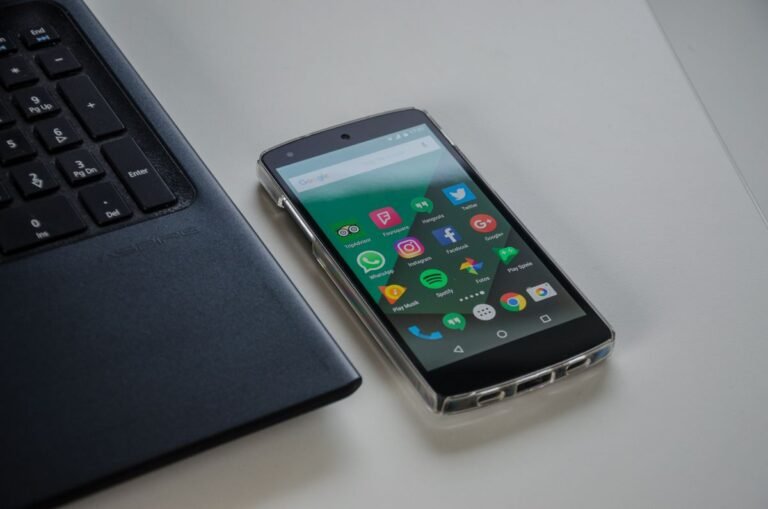
Android: Back Up Your Chats
- Open the backup settings: In WhatsApp, go to Settings, then Chats, then Chat backup.
- Pick your Google account: Choose the Google account for the backup.
- Tap Back Up: Tap Back Up and wait for it to finish. Stay on Wi-Fi while it runs.
iPhone: Back Up Your Chats
- Open the backup settings: In WhatsApp, go to Settings, then Chats, then Chat Backup.
- Tap Back Up Now: Tap Back Up Now to save your chats to iCloud.
- Wait for it to finish: Stay on Wi-Fi and keep WhatsApp open until the backup completes.
No cloud? No problem: On Android, WhatsApp also keeps a local backup on the phone itself, in the WhatsApp/Databases folder. Plug your phone into a computer with a USB cable and copy that folder over before you start deleting. That is your offline safety net, and it needs no cloud account at all.
One honest warning is that if you delete media and then make a fresh backup, the backup will not contain that media either. Back up first, then clean, in that order.
Final Words
Auto-download off, gallery saving off, big files deleted, backup made. Do this once and WhatsApp stops being a storage hog. Check the Manage Storage screen every few months and you will never get the storage full warning from WhatsApp again. If your iPhone still says storage is full after this cleanup, the problem may sit outside WhatsApp, and our guide to iPhone System Data covers the next fixes.
Frequently Asked Questions
If I turn off auto-download, will I still get my photos? Yes. You will see a blurred preview in the chat. Just tap it and it downloads. You miss nothing.
Will deleting media in Manage Storage delete it for everyone? No. It only deletes your copy on your phone. Everyone else keeps theirs.
Why is WhatsApp still huge after I deleted files? Close WhatsApp fully and check the Manage Storage screen again. Voice notes and documents hide inside individual chats and are easy to miss. If the number barely moved, check your phone gallery too, because deleted files may still be saved there. Restart your phone and check again.
Does turning off auto-download save mobile data too? Yes, and that is half the point. Videos in groups are data hungry. Turn them off for mobile data and roaming at minimum.
Can I move WhatsApp to my SD card instead? WhatsApp says that is not possible at the moment. The cleanup and backup steps in this guide are the supported way to get your space back. To free up more room, WhatsApp suggests moving other apps and media files to your SD card instead.