
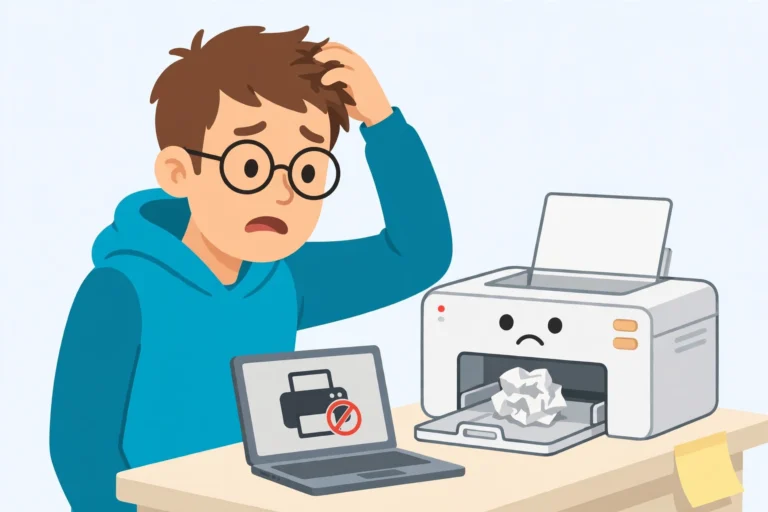

You press Print, wait, and nothing happens. Then you see it. Your printer says offline, even though the printer is on, plugged in, and sitting right there. It is one of the most annoying computer problems, because the printer looks fine and the computer still refuses to talk to it. The good news is that a printer says offline message is almost never a broken printer. It is a lost connection, a stuck job, or one wrong setting. This printer says offline fix walks through the fixes in order, from the 30 second restart to the deeper driver fix, so your printer comes back online fast.
Work through the fixes below in order, and test a print after each one. Most printers come back online at Fix 1, 2, or 3. In addition, keep a USB cable nearby while you work. If Wi-Fi keeps failing, a USB cable connects the printer straight to the computer and tells you at once whether the problem is the network or the printer itself.
Why Your Printer Says Offline Even When It Is On
When your printer says offline, Windows or macOS cannot reach the printer. The printer may be on and full of paper, but the computer gets no answer when it checks. As a result, the computer marks the printer offline and holds every print job in the queue. The most common causes are a printer that fell asleep, a Wi-Fi drop, a stuck print job, a stalled Print Spooler service, or a wrong default printer. A printer says offline problem is a communication problem, not a hardware problem, and that is why the fixes below work so often.
Printer Says Offline Fix 1: Restart the Printer and Your Computer
A restart clears the temporary communication fault that causes most printer says offline errors. Restart both devices, because the fault can sit on either side. Do the printer first, then the computer, so both start fresh.
- Turn the printer off: Press the power button on the printer and wait until every light goes out.
- Unplug the printer: Pull the power cable out of the back of the printer and wait 30 seconds. This clears the printer memory completely.
- Plug it back in: Plug the power cable back in and turn the printer on. Wait until the printer finishes warming up and shows its ready screen.
- Restart your computer: While the printer warms up, restart your computer too. A restart clears any stuck printer state on the computer side.
- Test a print: Once both devices are back on, print a test page. On Windows, open Settings, then Printers and scanners, click your printer, and choose Print a test page.
More Restart Tips for Your Printer Says Offline Fix
- Wait for the ready light: A printer still warming up cannot answer the computer, so wait until the screen or light shows it is ready before you test.
- Check for an error light: A blinking orange light means a paper jam, an open cover, or low ink. Fix that first, because the printer stays offline until the error clears.
Printer Says Offline Fix 2: Check the Cable and the Wi-Fi Connection
A printer says offline error often means the printer and the computer are no longer on the same connection. A loose USB cable or a printer that dropped off Wi-Fi is enough to break the link. Check the physical connection first, because it takes seconds and fixes the problem often.
- Check the USB cable: If your printer uses a USB cable, push both ends in firmly. Try a different USB port on the computer, and try a different cable if you have one. A cable that looks fine can still be faulty inside.
- Check the Wi-Fi light: If your printer uses Wi-Fi, look for the Wi-Fi light or icon on the printer screen. A solid light means it is connected. A blinking light means it is trying to connect and failing.
- Put both devices on the same network: Open the Wi-Fi settings on your computer and check the network name. Then check the network name on the printer screen or on a network report printed from the printer. Both must match exactly.
- Use the same Wi-Fi band: Many printers only use the 2.4 GHz band, while computers often join the 5 GHz band. If your router shows two network names, connect the computer to the 2.4 GHz one and test again.
- Restart the router: Unplug the router for 30 seconds, plug it back in, and wait two minutes. Then check whether the printer shows online again.
More Connection Tips for Your Printer Says Offline Fix
- Try a USB cable as a test: Plug the printer into the computer with a USB cable. If it prints over USB, the printer is fine and the Wi-Fi link is the problem. Keep using USB while you fix the Wi-Fi.
- Move the printer closer: A printer at the far end of the house may get a weak signal and drop off the network. Move it closer to the router and test again.
- Print a network report: Most printers can print a network settings page from the control panel. It shows the network name and signal strength, which tells you at once if Wi-Fi is the fault.
Printer Says Offline Fix 3: Turn Off Use Printer Offline and Set the Right Default
Windows has a setting called Use Printer Offline that holds your print jobs on purpose. It can get switched on by accident during troubleshooting, and then it stays on. Windows can also send your jobs to the wrong printer, such as an old printer or Microsoft Print to PDF. Both problems make your real printer look offline, so check both settings now.
Windows 11 and Windows 10: Bring the Printer Online
- Open the printer settings: On Windows 11, open Settings, then Bluetooth and devices, then Printers and scanners. On Windows 10, open Settings, then Devices, then Printers and scanners.
- Open the print queue: Click your printer, then click Open print queue.
- Turn off Use Printer Offline: In the queue window, click the Printer menu at the top. If Use Printer Offline has a check mark next to it, click it to turn it off. Also make sure Pause Printing is not checked.
- Turn off automatic default switching: Go back to the Printers and scanners page and turn off Let Windows manage my default printer. This stops Windows from switching your default to another printer on its own.
- Set your printer as default: Click your printer, then click Set as default. Your printer should now show as the default printer.
- Test a print: Send a test page to the printer and check whether it prints.
Windows 7 and Windows 8.1: Bring the Printer Online
- Open Devices and Printers: Open the Control Panel, then open Devices and Printers. On Windows 7, click Start, then Control Panel. On Windows 8.1, right-click the Start button, then click Control Panel.
- Open the print queue: Right-click your printer, then click See what is printing.
- Turn off Use Printer Offline: In the queue window, click the Printer menu. If Use Printer Offline has a check mark next to it, click it to turn it off. Also make sure Pause Printing is not checked.
- Set your printer as default: Close the queue window, right-click your printer again, then click Set as default printer. A green check mark appears on the printer icon.
- Test a print: Send a test page to the printer and check whether it prints.
Mac: Check the Default Printer
- Open the printer settings: On macOS Ventura and later, open System Settings, then Printers and Scanners. On older macOS versions, open System Preferences, then Printers and Scanners.
- Check the default printer: Look at the Default printer menu at the bottom of the window. If it shows the wrong printer, change it to the printer you use.
- Check the printer status: If your printer shows Paused in the list, double-click it to open the queue, then click Resume.
More Default Printer Tips for Your Printer Says Offline Fix
- Remove duplicate printers: Old copies of the same printer, such as HP OfficeJet and HP OfficeJet Copy 1, confuse Windows. Remove the copies you do not use, then set the real one as default.
- Check after every Windows update: A Windows update can turn the automatic default setting back on. If the printer goes offline after an update, check this setting first.
Printer Says Offline Fix 4: Clear the Print Queue and Restart the Print Spooler
One damaged print job can block every job behind it and keep the printer offline. The Print Spooler is the Windows service that manages the queue, and when it stalls, nothing prints. Clearing the queue and restarting the service fixes this in minutes.
- Open the print queue: On Windows 11, open Settings, then Bluetooth and devices, then Printers and scanners, click your printer, then click Open print queue. On Windows 7 and 8.1, open Devices and Printers, right-click the printer, then click See what is printing.
- Cancel every job: In the queue window, click the three dots or the Printer menu, then click Cancel all documents. If a job refuses to cancel, move on to the next step.
- Open Services: Press the Windows key and R together, type services.msc, then press Enter.
- Stop the Print Spooler: Scroll down to Print Spooler, right-click it, then click Stop.
- Delete the stuck job files: Open File Explorer and go to C:\Windows\System32\spool\PRINTERS. Delete every file inside that folder, but leave the folder itself in place. You need an administrator account for this step.
- Start the Print Spooler again: Go back to the Services window, right-click Print Spooler, then click Start. Double-click Print Spooler and set Startup type to Automatic, so it always runs when the computer starts.
- Test a print: Send a fresh test page to the printer.
Mac: Clear the Queue and Reset the Printing System
- Open the printer queue: Open System Settings, then Printers and Scanners, then double-click your printer to open its queue.
- Delete stuck jobs: Select each job in the queue and click the X button to delete it.
- Reset the printing system: If the printer still says offline, go back to the Printers and Scanners list, hold the Control key, click in an empty part of the printer list, then click Reset printing system. This removes all printers, so add your printer again after the reset.
More Queue Tips for Your Printer Says Offline Fix
- Reprint after clearing: Clearing the queue deletes the stuck jobs for good. Send the documents again after the printer comes back online.
- Save a copy on a USB stick: If the document matters, save a copy to a USB stick before you clear the queue. That way you can print it from another computer if this one keeps failing.
Printer Says Offline Fix 5: Check the Printer Hardware and Reinstall the Driver
If the printer still says offline, the problem may sit inside the printer or in its driver. A paper jam, an empty ink cartridge, or a broken driver all stop the computer from reaching the printer. Check the hardware first, then reinstall the driver for a clean start.
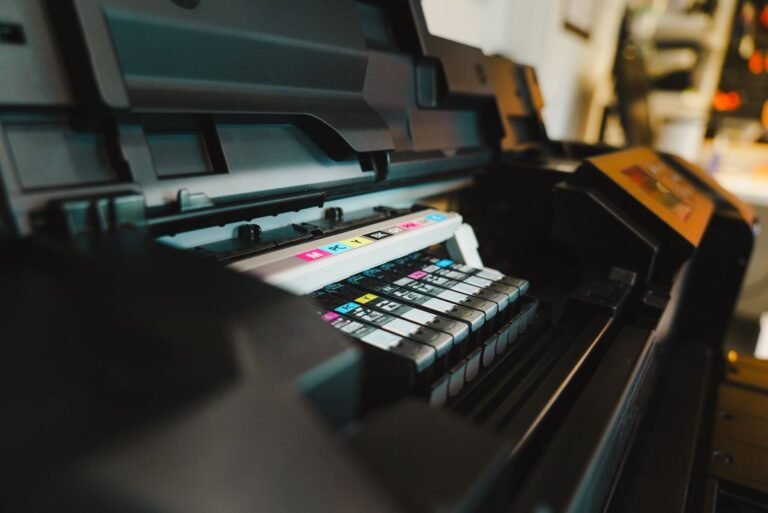
- Open the printer cover: Lift the top cover and look for jammed paper, a loose ink cartridge, or anything blocking the paper path. Pull out jammed paper slowly and in one piece.
- Check the ink and paper: Make sure the paper tray has paper and the ink or toner is not empty. Some printers report themselves offline when ink runs out.
- Remove the printer: On Windows 11, open Settings, then Bluetooth and devices, then Printers and scanners, click your printer, then click Remove. On Windows 7 and 8.1, open Devices and Printers, right-click the printer, then click Remove device. On a Mac, open Printers and Scanners, select the printer, then click the minus button.
- Restart the computer: Restart the computer after removing the printer, so Windows or macOS clears the old setup completely.
- Add the printer again: On Windows 11, open Printers and scanners and click Add device. On Windows 10, click Add a printer or scanner. On Windows 7 and 8.1, click Add a printer in Devices and Printers. On a Mac, click the plus button in Printers and Scanners. Follow the prompts to add the printer back.
- Update the driver: If the printer still shows offline, download the latest driver from the printer maker website, such as HP, Canon, Brother, or Epson. Install it, then restart the computer and test again.
More Driver Tips for Your Printer Says Offline Fix
- Use the maker driver, not a generic one: The driver from the printer maker website matches your exact model. A generic Windows driver may install, but it often misses features and can go offline again.
- Try a USB install: Connect the printer with a USB cable while you install the driver. A wired install is more reliable than a Wi-Fi install, and you can switch back to Wi-Fi after it works.
- Check Windows Update too: On Windows 11 and 10, open Settings, then Windows Update, and install any optional driver updates for your printer.
Printer Says Offline Fix 6: Stop the Printer From Going Offline Again
Some printers come back online after a fix, then go offline again the next day. That usually means the printer loses its network address or falls asleep and never wakes up properly. These steps stop the repeat problem.
- Turn off printer sleep mode: Open the printer settings on the printer screen or in the maker app, and turn off deep sleep or eco mode. A printer in deep sleep may ignore the computer until you press a button on it.
- Give the printer a fixed address: Open your router settings page in a browser, find the DHCP or connected devices list, and reserve a fixed IP address for the printer. A fixed address stops the printer from getting a new address that the computer does not know.
- Keep the printer on the 2.4 GHz network: If your router has separate 2.4 GHz and 5 GHz networks, keep the printer on the 2.4 GHz one. It reaches further through walls and drops out less often.
- Update the printer firmware: Open the printer maker app on your computer or check the maker website for a firmware update. New firmware often fixes Wi-Fi dropouts that cause a printer says offline error.
- Restart the router once a week: A weekly router restart keeps the network fresh and stops the slow buildup of connection faults that push printers offline.
More Repeat Offline Tips for Your Printer Says Offline Fix
- Print something every few days: A printer left idle for weeks can dry out and drop off the network. A short test print every few days keeps it awake and ready.
- Keep the driver updated: Check the maker website for a new driver every few months, especially after a big Windows or macOS update.
Troubleshooting

The printer says offline right after a Windows update: The update may have changed your default printer or broken the driver. First, check the default printer as in Fix 3. Then download the latest driver from the printer maker website as in Fix 5.
The printer works over USB but not over Wi-Fi: The printer hardware and driver are fine, so the Wi-Fi link is the fault. Restart the router, move the printer closer to it, and give the printer a fixed IP address as in Fix 6. You can also keep using the USB cable while you sort out the Wi-Fi.
The printer goes offline every time it sleeps: Turn off deep sleep mode on the printer as in Fix 6. Some printers need a button press to wake up before the computer can reach them, so press the power button once before you print.
Use Printer Offline keeps turning itself back on: A stuck job in the queue can turn the setting back on. Clear the queue and restart the Print Spooler as in Fix 4, then turn the setting off again.
The printer shows offline on one computer but not another: The problem sits on the first computer, not the printer. Restart the Print Spooler on that computer as in Fix 4, then remove and re-add the printer as in Fix 5.
The printer prints blank pages after coming back online: That is a different problem from an offline printer. Our printer printing blank pages fix walks through that problem step by step. If the printer will not print at all, our printer not printing fix covers that too.
FAQ
Why does my printer say offline when it is turned on? Offline means the computer cannot reach the printer, not that the printer is off. The printer may be asleep, off the Wi-Fi network, or blocked by a stuck job. Work through Fix 1 to Fix 3, and most printers come back online in minutes.
How do I change my printer from offline to online? Open the print queue, open the Printer menu, and turn off Use Printer Offline. Then set the printer as default and clear any stuck jobs. There is no single online switch in Windows 11, so the status turns online again once the computer can reach the printer.
Does restarting the Print Spooler fix an offline printer? Often, yes. The Print Spooler manages every print job, and when it stalls, Windows stops talking to the printer. Restart it in services.msc as in Fix 4, and clear the spool folder if jobs stay stuck.
Can the wrong default printer make a printer look offline? Yes. Windows may send jobs to an old printer entry or to Microsoft Print to PDF while your real printer sits idle. Turn off Let Windows manage my default printer, then set the printer you use as default as in Fix 3.
Why does my printer keep going offline after I fix it? The printer usually loses its network address or falls into deep sleep. Give it a fixed IP address in the router settings and turn off deep sleep mode, as in Fix 6, and the problem should stop coming back.
Should I reinstall the printer driver? Yes, if the first four fixes do not work. A driver can break after a Windows or macOS update. Remove the printer, restart the computer, add the printer again, and install the latest driver from the printer maker website as in Fix 5.
Final Words
A printer says offline message feels like a dead printer, but the printer is almost always fine. A restart wakes it up, a cable or Wi-Fi check reconnects it, and the Use Printer Offline toggle or the Print Spooler clears the block. Work through the fixes in order, test after each one, and most printers print again in minutes without a repair shop. If you want a second opinion on the Windows steps, this printer offline guide covers the same fixes with screenshots. And if your printer comes back online but prints nothing at all, our printer not printing fix is the next place to look.