


Your laptop feels like a hot plate, the fan sounds like a hair dryer, and then the screen goes black right in the middle of your work. That sudden shutdown is your laptop protecting itself from its own heat. The good news is that most hot laptops are not broken. They are choked with dust, buried in soft bedding, or running too many heavy apps at once. This laptop overheating fix walks you through the real causes in order, from the quickest check to the last resort, so your laptop runs cool and quiet again.
Quick fix: Move the laptop to a hard flat desk, close the heavy apps in Task Manager, and blow the dust out of the vents with short bursts of compressed air. Those three steps fix most hot laptops in under fifteen minutes. If the fan still screams after that, work through Fix 4 and Fix 5 below.
Why Your Laptop Overheats
A laptop cools itself with a simple loop. The fan pulls cool air in through the vents, the air picks up heat from the processor, and the fan pushes the hot air out the other side. Copper heat pipes carry the heat from the chip to the fan, like tiny radiators. If any part of that loop breaks, the heat has nowhere to go, and the temperature climbs fast.
The most common cause is dust. A thin mat of dust on the fan and the heat sink fins blocks the airflow, so the fan spins faster and louder while moving less air. The next most common causes are blocked vents, because the laptop sits on a bed or a couch, and heavy apps that keep the processor working hard for hours. Old thermal paste can dry out too, but that takes years, so check the easy causes first. This laptop overheating fix checks each cause in turn, so you fix the right one. A clear walkthrough of the same cleaning steps is also covered in the Digital Trends guide to cleaning a laptop fan.
One thing is worth knowing before you start. A laptop that is hot only while gaming or editing video is usually working as designed, just working hard. A laptop that is hot while doing nothing, with the fan loud on a blank desktop, has a real problem. That one difference tells you how urgent the fix is.
First, Check How Hot It Really Is
Two minutes here stops you from fixing the wrong thing. Your hand can feel hot, but it cannot tell 70 degrees from 95 degrees, and that gap matters. A free tool gives you the real number.
- Download a free temperature tool: On Windows, HWMonitor or Core Temp both show the processor temperature live. On a Mac, the free app Macs Fan Control shows the same numbers. Install one, then watch the temperature while you work.
- Note the idle temperature: Close every app and wait five minutes. A healthy laptop idles between 40 and 55 degrees Celsius.
- Note the load temperature: Open your usual apps and work normally for ten minutes. Light work should stay under 75 degrees, and heavy work like gaming or video editing can reach 80 to 90 degrees.
- Watch for the danger line: If the temperature keeps climbing past 95 degrees, or the laptop shuts itself down, stop and work through the fixes below. That is the processor protecting itself from damage.
| What you see | What it means | Start with |
|---|---|---|
| Hot only while gaming or editing video | Heavy load, cooling is working hard | Fix 1, then Fix 4 |
| Hot and loud while doing nothing | Dust, or a runaway app | Fix 2, then Fix 3 |
| Fan screams, almost no air comes out | Vents or fan blocked with dust | Fix 3 |
| Fan silent, laptop still gets hot | Fan may have failed | Fix 5 |
| Shuts down by itself when hot | Overheating protection kicked in | Fix 1, then Fix 3 |
Laptop Overheating Fix 1: Give It Air to Breathe
This is the fastest win in this whole laptop overheating fix, and it costs nothing. A laptop breathes through vents on the bottom and the sides. Set it on a bed, a blanket, or your lap, and those vents press into soft fabric and seal shut. The fan spins faster, the air goes nowhere, and the heat builds up inside.

- Move it to a hard flat surface: A desk or a table works best. The vents on the bottom need a gap underneath them, and a hard surface gives them one.
- Lift the back edge a little: Two bottle caps, a small book, or a cheap laptop stand under the back feet opens a bigger air gap. Even one centimeter of lift drops the temperature by a few degrees.
- Keep the vents clear: Look at the sides and the bottom and find the vent grilles. Keep books, papers, cables, and your hands away from them while the laptop runs.
- Move it out of the heat: Direct sunlight through a window, a radiator, or a hot car can push a laptop over the edge on its own. A cool room helps the fan more than most people expect.
- Never use it on a bed without a tray: A hard lap desk or a large book under the laptop keeps the vents open. A pillow or a blanket is the worst surface a laptop can sit on.
Laptop Overheating Fix 2: Close the Apps That Cook It
One runaway app can cook a laptop by itself. A browser with forty tabs, a game left running in the background, or an update stuck in a loop can pin the processor at full speed for hours. Task Manager shows you exactly which app is doing it.
Windows 11 and 10:
- Open Task Manager: Press Ctrl plus Shift plus Esc. Click More details if the window looks too simple.
- Click the CPU column: The apps using the most processor jump to the top of the list. Anything sitting above 30 percent while you are doing nothing is suspicious.
- End the heavy task: Click the app, then click End task. Close extra browser tabs the same way, and shut down any game or app you are not using.
- Check the Startup tab: Click Startup at the top, and set anything you do not need every day to Disabled. Fewer apps at startup means a cooler laptop from the moment it turns on.
Windows 8 and 8.1:
- Open Task Manager: Press Ctrl plus Shift plus Esc, then click the Processes tab and click the CPU column to sort by processor use.
- End the heavy task: Click the app at the top of the list, then click End task. Check the Startup tab too, and disable the apps you do not need at boot.
Windows 7:
- Open Task Manager: Press Ctrl plus Shift plus Esc, then click the Processes tab and click the CPU column to sort by processor use.
- End the heavy task: Click the process using the most CPU, then click End Process. Use the Startup tab in msconfig to stop unneeded apps from launching at boot. Press Windows key plus R, type msconfig, press Enter, and click the Startup tab.
On a Mac: Open Activity Monitor from Applications, then Utilities. Click the CPU tab and sort by percent CPU. Quit any app sitting at the top while you are doing nothing. If the laptop stays hot after this laptop overheating fix step, the cause is dust or airflow, so move on to Fix 3. If your laptop also dies fast on battery, our laptop battery drain fix covers that side of the same problem.
Laptop Overheating Fix 3: Clean the Dust Out of the Vents
If the fan screams but almost no air comes out of the vents, dust is blocking the way. A laptop collects dust every day, and after a year or two the layer on the fan and the heat sink fins is thick enough to choke the airflow. Cleaning it out is the single biggest cooling win there is, and it takes about ten minutes.
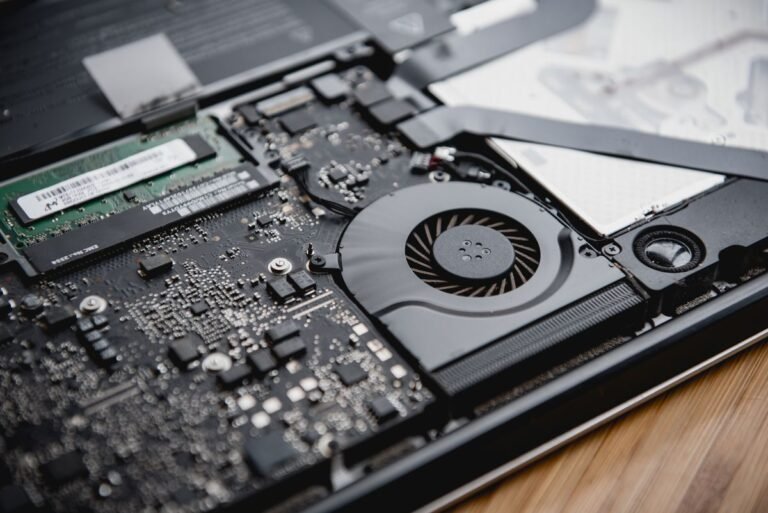
- Shut the laptop down and unplug it: Turn it fully off, not sleep. Unplug the charger and every cable, and take the battery out if it comes out easily.
- Find the intake and exhaust vents: The exhaust is usually on the side or near the hinge, and the intake is on the bottom. Shine a flashlight into the grilles and look for a grey mat of dust.
- Use short bursts of compressed air: Hold the can upright, keep the nozzle a few inches from the vent, and use short bursts. Aim across the vent, not straight into it, so the dust blows out instead of deeper in.
- Hold the fan still: Slide a toothpick or a thin plastic stick gently through the vent to stop the fan blades from spinning. Air blown through a free spinning fan can spin it far too fast and damage the bearing.
- Blow from both sides: Start at the exhaust vent, then the intake, then back to the exhaust. Do it outside or over a bin, because a surprising amount of dust comes out.
- Brush the vent slots: A soft dry brush along the outside of the grilles pulls out the mat that air alone leaves behind. Wipe the case with a dry microfiber cloth when you are done.
- Never use a vacuum cleaner on the vents: A vacuum builds up static, and static kills laptop parts. It can also spin the fan too fast, just like a long blast of air.
- Never tilt the air can sideways: Tipping it releases cold liquid propellant, which can damage parts. Keep it upright and use short bursts only.
- Clean the vents every three to six months: That is how often laptop makers suggest it, and it keeps the dust from ever building into a mat again.
Offline alternative, no internet on the laptop: Every fix in this laptop overheating fix works without the internet, except downloading a temperature tool. Without one, use your senses instead. Hold your hand near the exhaust vent and feel for warm air, listen for the fan, and watch whether the laptop still shuts down on its own. Warm air coming out and a fan that slows down after cleaning means the fix worked.
Laptop Overheating Fix 4: Turn Down the Power Plan
Some laptops run at full speed all the time, even when you only read email. A balanced power plan lets the processor slow down when the work is light, and that alone can drop the temperature by ten degrees or more. It also stretches the battery, which is a nice bonus.
Windows 11 and 10:
- Open Power Options: Press Windows key plus X and click Power Options, or open Settings, then System, then Power and battery.
- Pick Balanced: If the plan is set to Best performance or High performance, switch it to Balanced. Save the high power plan for gaming sessions only.
- Set the processor limit: In Power Options, click Change plan settings, then Change advanced power settings. Expand Processor power management, expand Maximum processor state, and set it to 95 percent on battery and plugged in. That small cut stops the processor from turbo boosting itself hot for no reason.
- Turn on Battery saver when unplugged: In Settings, then System, then Power and battery, set Battery saver to turn on at 20 percent. It trims background work and keeps the laptop cooler on the go.
Windows 8 and 8.1:
- Open Power Options: Press Windows key plus X and click Power Options, then pick the Balanced plan.
- Set the processor limit: Click Change plan settings, then Change advanced power settings. Expand Processor power management and set Maximum processor state to 95 percent.
Windows 7:
- Open Power Options: Click Start, click Control Panel, then click Power Options, and pick the Balanced plan.
- Set the processor limit: Click Change plan settings, then Change advanced power settings. Expand Processor power management and set Maximum processor state to 95 percent.
On a Mac: Open System Settings, then Battery, and turn on Low Power Mode. It slows the processor a little and keeps the Mac cooler during light work. If the fan noise is the part that bothers you most, our loud laptop fan fix goes deeper into fan noise alone.
Laptop Overheating Fix 5: Check the Fan and the Heat Pipes
If the laptop is hot and the fan is silent, or the fan rattles and grinds, the fan itself may have failed. The copper heat pipes carry heat from the processor to the fan, and they only work when the fan moves air across them. A dead fan means no cooling at all, no matter how clean the vents are.
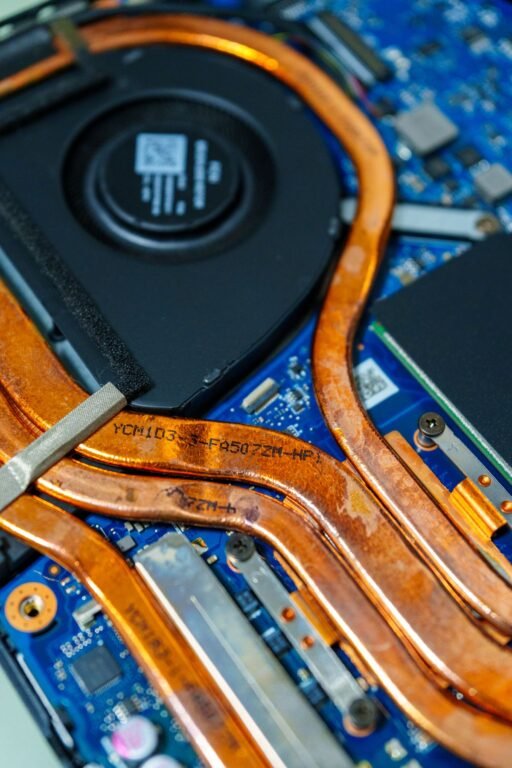
- Listen at startup: Turn the laptop on and put your ear near the vent. A healthy fan spins up for a few seconds, then settles. No sound at all, or a loud grinding and clicking, means the fan is in trouble.
- Feel for air: Hold your hand near the exhaust vent while the laptop works. Warm air coming out means the fan and the heat pipes are doing their job. No air at all with a hot laptop means the fan is not moving.
- Check the fan setting in the BIOS: Restart the laptop and press F2, F10, or Delete during startup to open the BIOS or UEFI settings. Look for a Fan or Thermal section and make sure the fan is set to Automatic or Enabled, not Silent or Off. Save and exit.
- Update the BIOS and drivers: A BIOS update from your laptop maker support website can fix broken fan control. Download it on another computer if you need to, copy it to a USB stick, and run it on the laptop. Never turn the laptop off during a BIOS update.
- Take it to a repair shop for a fan or paste replacement: Replacing a fan or the dried thermal paste between the processor and the heat pipes means opening the laptop and handling small parts. A shop does it in under an hour, and it is far cheaper than a new laptop.
Laptop Overheating Fix 6: Cool It From the Outside
When the inside is clean and the apps are light, a little outside help goes a long way, especially in a warm room or during long gaming sessions. A cooling pad is the simplest version, and it needs no setup at all.
- Use a cooling pad or a stand: A pad with one or two fans blows cool air straight into the intake vents on the bottom. Even a plain raised stand without fans helps, because it opens the air gap underneath.
- Point a small desk fan at the laptop: A cheap desk fan aimed at the side vents adds airflow on a hot day. It is the same idea as a cooling pad, and you may already own one.
- Keep the room cool: A laptop cools itself with room air. In a 30 degree room it has a much harder job than in a 20 degree room, so open a window or turn on a fan in the room itself.
- Unplug the charger during light work: Charging adds heat of its own. If you only read and write, running on battery for a while keeps the laptop a few degrees cooler.
- Give it breaks during heavy sessions: Close the game or the video render for ten minutes every hour. The laptop cools down fast once the processor rests, and the break helps you too.
Troubleshooting
Laptop still hot after cleaning the vents: The thermal paste may have dried out, or the fan may be failing. Check the fan with Fix 5, and let a repair shop replace the paste if the laptop is more than three years old.
Fan loud but the laptop feels cool: The fan curve or a stuck app may be the cause, not heat. Check Task Manager with Fix 2, and update the BIOS with Fix 5.
Laptop hot only while charging: A worn battery can give off extra heat while it charges. Try using the laptop on battery power alone for a while. If the heat stops, the battery may need replacing.
Laptop shuts down seconds after turning on: The heat sink may have come loose, or the fan may be fully blocked. Do not keep turning it on. Take it to a repair shop, because running it hot can damage the processor for good. If it will not turn on at all, our laptop won’t turn on fix covers that problem.
One side of the laptop is much hotter than the other: That is normal when the processor and the heat pipes sit on one side. Worry only if the hot side burns to touch, or the laptop shuts down.
Frequently Asked Questions
How hot is too hot for a laptop? Idle temperatures of 40 to 55 degrees Celsius are normal. Light work under 75 degrees is fine, and heavy work up to 90 degrees is expected. Past 95 degrees the processor slows itself down, and near 100 degrees the laptop shuts off to protect itself. If yours sits above 95 degrees during light work, this laptop overheating fix is worth doing today.
Can an overheating laptop damage itself? Yes, over time. Short bursts of heat are fine, because the processor protects itself by slowing down or shutting off. Months of running near the limit can wear out the battery faster and dry out the thermal paste sooner. Fixing the cooling early is cheaper than replacing parts later. To keep the battery healthy, our laptop battery charge limit guide shows the 80 percent rule.
Is it safe to use a laptop while it is overheating? Save your work and let it cool first. Keep using it while it shuts itself down and you risk losing files. Give it five minutes on a hard desk with the vents clear, then carry on.
Why does my laptop overheat when I play games? Games push the processor and the graphics chip to full speed for hours, which is the heaviest load a laptop faces. Use Fix 1 and Fix 4, keep the vents clear, and use a cooling pad. If the temperature still passes 95 degrees, turn the game graphics settings down one notch.
Does a cooling pad really help? Yes, usually by 5 to 10 degrees, because it feeds cool air into the intake vents and lifts the laptop off the desk. It helps most when the vents are on the bottom. It will not fix a fan full of dust, so clean the vents first.
Should I replace the thermal paste myself? Only if you are comfortable opening a laptop and handling small parts. The paste sits between the processor and the heat pipes, and a mistake there can damage the board. For most people, a repair shop is the safer choice, and the job is quick and cheap.
Final Words
This laptop overheating fix works because it follows the heat. Give the vents air, close the apps that cook the processor, clean the dust out, turn the power plan down, and check the fan. Work through the fixes in order, and most laptops run ten to twenty degrees cooler within the hour, with the fan quiet again. If the laptop still shuts itself down after all of it, that is the fan or the heat pipes telling you they need a repair shop, not another setting.