
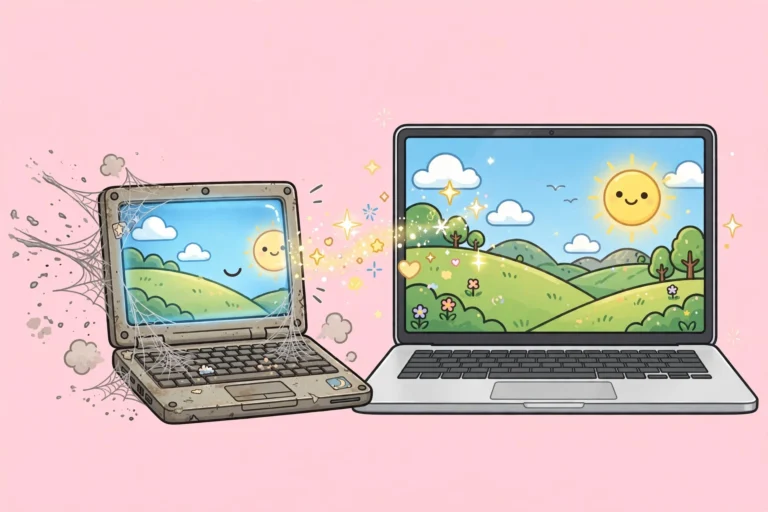

That old laptop in your closet is not trash. It is a free second monitor waiting to happen. Keep your email or chat open on it, drag reference documents over while you work, or watch a video while you type. No new hardware, no cables to buy, and no monthly subscription. Windows 10 and 11 can do this with a built-in feature, and Windows 7 and 8.1 can do it with a free app called spacedesk. This guide covers both methods with separate steps for each Windows version, plus a quick test that tells you which method fits your PCs before you start.
What You Need Before You Start
You need two PCs: your main computer and the old laptop you want to use as the extra screen. Both need Wi-Fi turned on, and both should be on the same Wi-Fi network. Your main PC must run Windows 10 or 11 for the built-in method, or Windows 8.1, 10, or 11 for the spacedesk method. The old laptop can run Windows 7, 8.1, 10, or 11. Keep the old laptop plugged into power, since it will be acting as a display. Set aside about ten minutes. Nothing here needs the internet beyond your home network, and nothing asks you to create an account.
Step 1: Find Out Which Method Fits Your PCs
Windows has a built-in wireless display receiver, but only on Windows 10 and 11, and only if the hardware supports Miracast. This quick test tells you where you stand. It works the same on every Windows version.
Press the Windows key plus R, type dxdiag, and press Enter. Click Save All Information and save the text file to your desktop. Open it in Notepad, press Ctrl plus F, and search for Miracast. If you see “Miracast: Available,” your PC can use the built-in method below. If you see “Miracast: Not Supported,” skip to Step 4 and use spacedesk instead. Run this test on the old laptop, the one that will become the second screen. You can delete the text file when you are done.
Step 2: Set Up the Old Laptop as a Wireless Display (Windows 10 and 11 only)
This turns the old laptop into a receiver that your main PC can project to. You do this on the old laptop, not your main PC.
Windows 11: Open Settings, then Apps, then Optional features. Click View features, search for Wireless Display, tick the box, click Next, and click Install. Wait for it to finish. Then go to Settings, then System, then Projecting to this PC. Set the first dropdown to “Available everywhere on secure networks.” Set “Ask to project to this PC” to “Every time a connection is requested.” Set “Require PIN for pairing” to Never. Then click “Launch the Wireless Display app to project to this PC” at the top. A full-screen window opens with your laptop’s name. Leave it open. It is now listening.
Windows 10: Open Settings, then Apps, then Optional features. Click Add a feature, search for Wireless Display, tick it, and click Install. Then go to Settings, then System, then Projecting to this PC. If the page is grayed out, the feature is still installing, so wait a minute and reopen the page. Set the first dropdown to “Available everywhere on secure networks.” Then click “Launch the Connect app to project to this PC.” A window opens with your laptop’s name. Leave it open. It is now listening.
Windows 8.1 and 7: These versions have no built-in receiver, so skip to Step 4 and use spacedesk.
Step 3: Connect From Your Main PC and Extend the Desktop
Now go to your main PC. Press the Windows key plus K. A Cast panel opens on the right and starts scanning. Click your old laptop’s name in the list. On the old laptop, click Yes when it asks to allow the connection. Your main screen now appears on the old laptop.
To use it as a real second monitor instead of a mirror, press the Windows key plus P and choose Extend. Then arrange the screens so windows move the right way.
Windows 11 and 10: Open Settings, then System, then Display. You will see two numbered tiles. Drag them left and right to match how the laptops sit on your desk. Click the old laptop’s tile and set its resolution and scale so text looks right.
Windows 8.1 and 7: You only reach this step through spacedesk (Step 4). Right-click the desktop and choose Screen resolution. Drag the numbered tiles to match your desk layout, then click Apply.
Try dragging a window to the edge of your main screen. It should slide onto the old laptop.
Step 4: Use spacedesk When Miracast Is Not Available (Windows 7, 8.1, 10, 11)
spacedesk is a free app with no account and no subscription. It works when the built-in method is not available, and many people prefer it anyway because it reconnects automatically. Install the driver on your main PC and the viewer on the old laptop. The main PC must run Windows 8.1, 10, or 11. The old laptop can run Windows 7, 8.1, 10, or 11.
On your main PC, go to spacedesk.net and download the spacedesk driver. Install it and restart if the installer asks. You will see a small spacedesk icon in the system tray near the clock. If the icon is missing, the service is off, so open the spacedesk Driver Console from the Start menu and switch it on.
On the old laptop, install the spacedesk viewer. Windows 10 and 11: get “spacedesk” from the Microsoft Store. Windows 8.1 and 7: download the viewer from spacedesk.net and install it.
Make sure both PCs are on the same Wi-Fi network. Open the viewer on the old laptop. It scans the network and shows your main PC’s name. Click it. The main screen flickers for a second, and the old laptop becomes an extra display.
Now set it to Extend, not mirror. Windows 11 and 10: open Settings, then System, then Display, choose Extend these displays, and drag the tiles to match your desk. Windows 8.1 and 7: right-click the desktop, choose Screen resolution, pick Extend these displays, drag the tiles, and click Apply.
Everything here runs on your local network. It does not need internet access, and nothing is uploaded anywhere.
Step 5: Make It Comfortable to Use Every Day
A laptop acting as a monitor should never fall asleep. Plug it into power and stop the sleep timer.
Windows 11: Open Settings, then System, then Power and battery. Under Screen and sleep, set “Put my device to sleep” to Never for the plugged-in state.
Windows 10: Open Settings, then System, then Power and sleep. Under Sleep, set it to Never when plugged in.
Windows 8.1: Open Control Panel, then Power Options. Click Change plan settings next to your active plan and set “Put the computer to sleep” to Never.
Windows 7: Open Control Panel, then Power Options. Click Change plan settings and set “Put the computer to sleep” to Never.
Dim the old laptop’s screen to a comfortable level, since it now faces you all day. If the old laptop has a touchscreen, spacedesk lets you tap and scroll on it, which is handy for reading long documents.
Troubleshooting
My main PC cannot see the old laptop. Check that both PCs are on the same Wi-Fi network and that Wi-Fi is actually turned on on both. Guest Wi-Fi networks often block devices from seeing each other, so use your main home network. Relaunch the Wireless Display app or the spacedesk viewer. Restart both PCs. If it still fails, update the Wi-Fi and graphics drivers on both machines, since old drivers are the most common hidden cause.
The picture is laggy. Sit closer to your router and switch both PCs to the 5 GHz Wi-Fi band if your router has one. Close heavy downloads and video streams during setup. For spacedesk, a wired ethernet connection to the router makes a big difference. Accept some lag as the price of wireless. This setup is great for email, documents, chat, and code, but it is not good for fast gaming or precise video editing.
The old laptop keeps going to sleep. Redo Step 5 and double check the plugged-in setting, not the on-battery one. Also check that the screen itself is not set to turn off after a few minutes in the same power settings page.
Windows says my device does not support Miracast. That is fine. It just means your hardware is too old for the built-in receiver. Use spacedesk from Step 4. Updating Wi-Fi and graphics drivers sometimes unlocks Miracast on borderline PCs, but many old laptops simply cannot do it, and spacedesk is the easier road.
Frequently Asked Questions
Can I do this with a Windows 7 laptop?
Yes. The old laptop can run Windows 7, 8.1, 10, or 11 with spacedesk. Only the main PC needs Windows 8.1 or newer for the spacedesk driver. The built-in wireless display method needs Windows 10 or 11 on the old laptop.
Do I need an internet connection?
No. Miracast connects the two PCs directly over Wi-Fi, and spacedesk works on your local home network. No accounts, no subscriptions, and nothing leaves your house.
Can I use my phone or tablet as the second screen instead?
Yes. spacedesk has free viewer apps for Android and iPhone. Install the same driver on your main PC from spacedesk.net, open the viewer on your phone or tablet, and connect the same way.
Will this work over a USB cable for zero lag?
spacedesk supports USB connections for its mobile viewers, and a wired ethernet connection to the router gives the smoothest result on PCs. The built-in Windows method is wireless only.
My old laptop has no working Wi-Fi. Am I stuck?
You need some network path between the two PCs. A cheap USB Wi-Fi adapter fixes a dead wireless card and works on Windows 7 through 11. Or plug both PCs into the router with ethernet cables and use spacedesk.
Final Words
You just gave an old laptop a second life as a second monitor, for free, in about ten minutes. If this got you hooked on multi-screen setups, our dual monitor guide walks through arranging a full desk setup the right way.
And since you are setting up a nicer workspace, it is a good moment to make sure your files are safe too. Our backup routine takes minutes to set up and works even with no cloud subscription.