

You deleted photos. You deleted apps. Your iPhone still says storage is almost full, and the biggest slice is something called System Data. There is no button to delete it. No folder to open. It just sits there, sometimes 20 or 30 gigabytes, and nobody explains what it is. This guide does. You will learn what System Data really is, why it gets so big, and the fixes that actually shrink it, in order from easiest to strongest. No factory reset needed, unless you want the nuclear option at the end.
WHAT SYSTEM DATA ACTUALLY IS
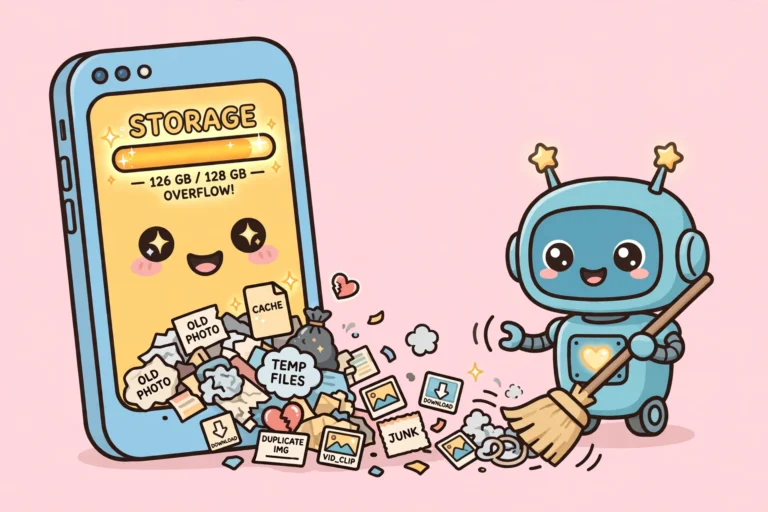
System Data is Apple’s junk drawer. It holds everything that does not fit neatly into Apps, Photos, Mail, or Messages. Cached images from apps. Logs of crashes. Voice assistant files. Streaming buffers. Leftover bits of iOS updates. Safari website data. Apple lumps them into one bar to keep the storage screen simple. The downside is that you cannot open it and empty it. You can only shrink it by cleaning the things that feed it.
WHY IT GETS SO BIG
- Social apps cache everything: Instagram, TikTok, Facebook, and YouTube save bits of everything you scroll past so feeds load faster. That cache grows for months.
- Safari piles up website data: Every site stores images, scripts, and cookies. Heavy browsing quietly builds several gigabytes.
- Messages hoards attachments: Every photo, video, and voice note you ever received stays on the phone. Group chats are the worst offenders.
- iOS update leftovers: Updates download as multi-gigabyte files. Sometimes pieces stay behind after installing.
- Background work: Syncing, indexing, and overnight downloads run while you sleep and charge, so the number can jump overnight.
FIRST, SEE HOW BIG YOURS IS
On any iPhone: Open Settings, tap General, then tap iPhone Storage. Wait a full minute. The list loads slowly, and the bar at the top is often wrong until it finishes. Now you know exactly how big System Data is, and you can check it again after each fix below.
FIXES THAT ACTUALLY SHRINK IT
Work through these in order. Check iPhone Storage after a few of them.
- Restart your iPhone: The simplest real fix. A restart dumps temporary files and forces the storage count to recalculate. On Face ID iPhones, press volume up, then volume down, then hold the side button until the Apple logo appears. On older iPhones with a Home button, hold the Home button and the side button together.
- Clear Safari history and website data:
- iOS 18 or newer: Go to Settings, tap Apps, tap Safari, then tap Clear History and Website Data and choose All History.
- iOS 17 or earlier: Go to Settings, tap Safari, then tap Clear History and Website Data.
This clears cached images, cookies, and site data. It signs you out of websites, but your saved passwords stay safe in iCloud Keychain.
- Delete big message attachments: Go to Settings, General, iPhone Storage, then tap Messages. Open Review Large Attachments and delete the biggest videos and photos. If you want to keep something, save it to the Photos app first, then delete it from Messages so you are not keeping two copies.
- Stop messages from piling up forever: By default your iPhone keeps every message forever.
- iOS 18 or newer: Go to Settings, tap Apps, tap Messages, then tap Keep Messages.
- iOS 17 or earlier: Go to Settings, tap Messages, then tap Keep Messages.
Choose 30 Days or 1 Year. One honest note: this deletes by age, not by size. It will not surgically remove only the big videos.
- Delete offline downloads in streaming apps: Open YouTube, Netflix, Spotify, Podcasts, and Maps, and remove downloaded videos, playlists, episodes, and offline maps you no longer need. Each app hides this in its own settings or downloads screen.
- Check for a stuck iOS update file: Go to Settings, General, iPhone Storage, and look for an iOS update file in the list. If an update downloaded but never installed, it can sit there eating gigabytes. Install it, or delete the file and download it fresh later.
- Delete and reinstall cache-heavy apps: Tap a heavy app in the iPhone Storage list. If its Documents and Data is huge compared to the app itself, delete the app and reinstall it from the App Store. Your login comes back, but the multi-gigabyte cache does not. Do this for Instagram, TikTok, or Facebook before anything else.
- Update iOS: Newer iOS versions manage caches better and fix bugs that stopped old caches from clearing. Go to Settings, General, Software Update.
- Sync once with a computer: Plug the iPhone into a Mac or PC, open Finder or iTunes, and run a sync. This forces iOS to rebuild its indexes and flush old logs. It sounds old-fashioned, but it still works.
TRICKS THAT DO NOT WORK
- The date-change trick: Some videos tell you to set the date far into the future to force caches to expire. This is folklore. It can break certificates, mess up messages, and cause weird app behavior. Skip it.
- iPhone cleaner apps: Apps from the App Store cannot touch system files. iOS locks them out. Most cleaner apps are ad-filled subscription traps that delete nothing useful.
- Offload Unused Apps as a System Data fix: Offloading removes the app but keeps its data. That is the opposite of what you want here. Delete and reinstall beats offloading for cache problems.
LAST RESORT
If System Data is still huge after everything above, a backup plus erase plus restore is the one move that reliably resets it. People routinely see it drop from 20 or 25 GB to under 5 GB.
- Make a full backup: An encrypted backup to a computer is the gold standard, or back up to iCloud with enough space.
- Erase the iPhone: Go to Settings, General, Transfer or Reset iPhone, then tap Erase All Content and Settings.
- Restore your backup: Set the iPhone up again and restore from your backup.
Warning: You will need to sign back in to banking apps and two-factor apps, and set up Face ID again. Give the phone a day of normal use before reinstalling every app you own, so the junk does not all come straight back.
FREQUENTLY ASKED QUESTIONS
What exactly is System Data?
Apple’s catch-all bucket for caches, logs, assistant files, streaming buffers, update leftovers, and browser data. Anything that is not an app, photo, message, or mail file lands here.
Will clearing Safari data delete my saved passwords?
No. It signs you out of websites, but passwords saved in iCloud Keychain stay untouched.
Is System Data the same as iCloud storage?
No. System Data lives only on your iPhone. Buying more iCloud space will not shrink it by a single megabyte.
Does Offload Unused Apps clear System Data?
Mostly no. Offloading keeps the app’s data, which is usually the bloated part.
Are cleaner apps safe?
They cannot reach system files because of iOS sandboxing, so they cannot fix this. Most are not worth installing.
How much System Data is normal?
A few gigabytes is normal and healthy. Worry when it climbs past 10 or 15 GB and keeps growing.
Will it just come back after a reset?
Yes, gradually, because caches rebuild with normal use. The fixes above are maintenance, not a one-time cure. Repeat them every few months.
FINAL WORDS
System Data is not a virus and not a mystery. It is just Apple hiding all the caches in one bar with no delete button. Restart, clear Safari, trim your message attachments, and reinstall the greediest apps, and most phones get several gigabytes back in one sitting. Save the backup and restore for the truly stubborn cases. Do this cleanup a few times a year and the bar will stay small.