


You unplug your MacBook at 9 in the morning, and by lunch the battery warning is already on. The fan spins up, the screen dims, and the percentage drops every time you look at it. This MacBook battery draining fast fix walks through the causes in order, from a runaway app to an aging battery, so you can find your cause and stop the drain.
A MacBook battery draining fast is rarely one single fault. Most of the time it is a mix of heavy apps, a bright screen, background syncing, and settings that quietly use power all day. Work through these fixes in order, and test after each change. Most fast draining MacBook batteries last all day again without a repair shop.
Why a MacBook Battery Drains So Fast
A MacBook battery holds a fixed amount of charge, and everything the Mac does spends it. The screen is the biggest spender, then the processor, then the radios. A heavy app can spend more in an hour than a whole day of light browsing. In addition, a weak Wi-Fi signal makes the radio work harder, and a plugged in accessory draws power too. After a big macOS update, the Mac also spends a day or two rebuilding its search index and photo library, which drains the battery fast for a while. That part is normal, and it stops on its own. So a MacBook battery draining fast is usually a settings or software problem, not a dead battery. The MacBook battery draining fast fix below finds which cause is yours, then stops it.

MacBook Battery Draining Fast Fix 1: Find the App Eating Your Battery
Start with Activity Monitor. It shows exactly which apps use the most energy right now, and it names the culprit in seconds.

- Open Activity Monitor: Press Command and Space together, type Activity Monitor, then press Enter. You can also open Finder, then Applications, then Utilities, then Activity Monitor.
- Open the Energy tab: Click Energy at the top of the window. Then click the Energy Impact column to sort the hungriest apps to the top.
- Spot the outlier: An app with an Energy Impact above 20 or 30 that you are barely using is the suspect. Browsers with many tabs, video editors, and cloud sync apps are the usual names at the top.
- Check the Preventing Sleep column: An app marked Yes in this column keeps your Mac awake. Quit it when you do not need it, or it will drain the battery even with the lid closed.
- Quit the app properly: Select the app in Activity Monitor, click the X button at the top, then click Quit. If it refuses to quit, click Force Quit in the same place.
- Watch it for a day: Use the Mac normally for a day with that app closed or limited. If the battery lasts much longer, you found your cause.
- A browser with 30 tabs is a battery hog: Each tab uses memory and power. Close tabs you do not need, or use Safari instead of Chrome for long battery sessions, since Safari is built for the Mac and uses less energy.
- Spotlight indexing after an update is temporary: If a process called mds_stores sits at the top, Spotlight is still rebuilding its index after a macOS update. Leave the Mac plugged in overnight and let it finish.
MacBook Battery Draining Fast Fix 2: Check Battery Health and Cycle Count
If no app is at fault, the battery itself may be worn out. macOS shows you its health in two places, and both take less than a minute to check.
macOS Ventura, Sonoma, Sequoia, Tahoe, and newer
- Open Battery settings: Click the Apple menu, then System Settings, then Battery in the left sidebar.
- Open Battery Health: Click the small info button next to Battery Health. You will see a condition of Normal or Service Recommended, plus a Maximum Capacity percentage.
- Read the number: A new battery shows 100 percent. Below 80 percent means the battery has aged a lot, and it will drain faster no matter what you change.
macOS Monterey and earlier
- Open Battery preferences: Click the Apple menu, then System Preferences, then Battery.
- Open Battery Health: Click the Battery Health button at the bottom of the window. The same Normal or Service Recommended condition appears there.
Then check the cycle count, which counts how many full charges the battery has used up. Apple rates most modern MacBook batteries for 1,000 cycles, and Apple designs them to still hold up to 80 percent of their charge at that point.
- Open System Information: Hold the Option key, click the Apple menu, then choose System Information.
- Open the Power section: Click Hardware in the sidebar, then click Power. Find Cycle Count and Condition in the list.
- Service Recommended means plan a replacement: The Mac still works, but no setting will bring the old capacity back. Book a battery check with Apple or an Apple Authorized Service Provider.
- A high cycle count is normal on an old Mac: A MacBook used every day for four or five years can pass 1,000 cycles. That is wear, not damage.
MacBook Battery Draining Fast Fix 3: Turn On Low Power Mode and Tame the Screen
Small settings changes cut the drain all day long. None of them stop you using the Mac normally. Together, they make a real difference, and this MacBook battery draining fast fix works best when these settings stay changed.
macOS Monterey and newer
- Turn on Low Power Mode: Click the Apple menu, then System Settings, then Battery. Turn on Low Power Mode, or set it to turn on automatically when the Mac runs on battery. It lowers the screen brightness, slows the processor a little, and limits background work.
- Lower the screen brightness: Press F1 to dim the screen, or drag the brightness slider in System Settings, then Displays. The screen is the biggest battery user on any MacBook.
- Turn on automatic brightness: In System Settings, then Displays, turn on Automatically adjust brightness. The Mac then dims the screen in dark rooms on its own.
- Slow the refresh rate on ProMotion screens: On a MacBook Pro with a ProMotion display, open System Settings, then Displays, then set Refresh Rate to 60 Hertz for everyday work. A slower refresh rate uses less power.
- Dim the keyboard backlight: Press F5 to lower the keyboard light, or turn it off when you type in a bright room. It is a small saving, but it adds up over a full day.
macOS Big Sur and earlier
- Dim the screen with the keys: Press F1 to lower the brightness until the screen is still comfortable to read. The brightness keys work the same on old Macs, even without Low Power Mode.
- Turn off the keyboard backlight: Press F5 until the keyboard light turns off. On an older Mac this is one of the easiest savings you can make.
- Turn down the glassy effects on Tahoe and newer: The Liquid Glass look in macOS Tahoe and macOS 27 uses extra graphics power. Open System Settings, then Appearance, and choose the plainer look if your Mac offers it. On any version, open System Settings, then Accessibility, then Display, and turn on Reduce transparency.
MacBook Battery Draining Fast Fix 4: Stop the Overnight Drain
A MacBook battery draining fast overnight with the lid closed has a sleep problem, not a battery problem. Something is waking it up while you sleep.
- Turn off Wake for network access: Click the Apple menu, then System Settings, then Battery, then Options. Turn off Wake for network access, and Power Nap too if you see it. These settings let the Mac wake up to check mail and updates while it sleeps.
- Quit apps before you close the lid: Quit video apps, browsers with video calls, and cloud sync apps before you shut the lid. An app that keeps the Mac awake drains the battery all night.
- Unplug accessories overnight: Unplug USB hubs, external drives, and adapters. A Mac in sleep can still send power to a plugged in device, and that drains the battery.
- Close the lid fully and wait: Close the lid until you hear the click, and wait a few seconds before you put the Mac in a bag. A half closed lid can leave the screen on inside the bag.
- Check the battery graph first: Open System Settings, then Battery, and look at the usage graph. A flat line overnight means the Mac slept well. A steady slope means something woke it up.
If your laptop also wakes up nearly empty after a full charge, see our guide to a laptop that wakes up almost dead next. Overnight drain and a fast draining battery often share the same cause.
MacBook Battery Draining Fast Fix 5: Fix Charging and Update macOS
Charging with the wrong adapter starves the Mac, and old software can hold a battery bug that Apple already fixed. Both are quick to check.
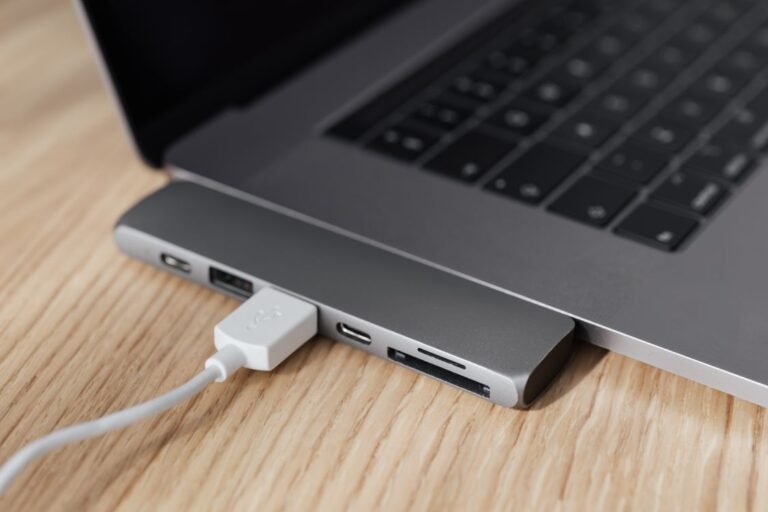
- Use the charger that came with the Mac: Use the Apple charger and cable that came in the box, or a charger with the same wattage. A weak phone charger cannot keep up with a MacBook Pro, and the battery drains even while it is plugged in.
- Watch for the Slow Charger message: On macOS Tahoe 26.4 and newer, the battery menu shows a Slow Charger message when the adapter is too weak for your Mac. Switch to a stronger charger when you see it.
- Check the charging port: Look for dust or lint in the USB-C or MagSafe port. Blow it out gently with dry air. A dirty port can make charging stop and start, which looks like fast drain.
- Install the latest macOS update: Click the Apple menu, then System Settings, then General, then Software Update. Install any update waiting there. Apple fixes battery bugs in point updates, so this step matters most right after a big upgrade.
- Give a big update two days: After a major macOS upgrade, Spotlight, Photos, and iCloud spend a day or two rebuilding and syncing. Leave the Mac plugged in and awake for that time, and judge the battery only after it settles.
- Restart an Apple silicon Mac, reset the SMC on an Intel Mac: On a Mac with Apple silicon, a plain restart clears stuck power processes. On an older Intel Mac, shut it down, then press and hold the left Shift, Control, and Option keys plus the power button for ten seconds, then release all keys and turn it on. This resets the System Management Controller, which controls charging and sleep.
Offline alternative, no cloud backup needed: Before any reset, back up with Time Machine to an external USB drive. Plug the drive in, open System Settings, then General, then Time Machine, and add the drive. That copy needs no internet at all, and it keeps your files safe even if the reset goes wrong.
Apple’s own MacBook Pro support page explains the battery settings in more detail, including Optimized Battery Charging and High Power Mode. See Apple Support for MacBook Pro if you want to read the official guide.
- Keep Optimized Battery Charging on: In System Settings, then Battery, leave Optimized Battery Charging turned on. It learns your routine and waits to charge past 80 percent until you need it, which slows battery aging.
Tricks That Do Not Fix a Fast Draining MacBook Battery
Before you spend money on a new battery, skip these common myths. None of them fix a MacBook battery draining fast, and some make it worse.
- Calibrating the battery by draining it to zero: Modern MacBook batteries do not need calibration. Draining one to zero on purpose only wears it out faster.
- Closing every app after each use: Quitting apps you will reopen in an hour makes the Mac reload them from scratch, which uses more power. Close only the apps that actually drain the battery.
- Installing a battery saver app: Most of these apps only run in the background themselves. Activity Monitor in Fix 1 finds the real culprit for free.
- Keeping the Mac plugged in all day, every day: A battery held at 100 percent for weeks ages faster. If you work at a desk, let Optimized Battery Charging do its job, and unplug the Mac now and then.
FAQ: MacBook Battery Draining Fast
Why is my MacBook battery draining fast after an update? A big macOS update makes Spotlight rebuild its search index, Photos rescan your library, and iCloud sync again. That heavy work lasts a day or two and drains the battery fast. Leave the Mac plugged in, let it finish, and judge the battery after two days.
Is it normal for a MacBook battery to drain overnight? A small drop of one or two percent is normal. A drop of 15 or 20 percent means something woke the Mac up. Turn off Wake for network access in Fix 4 and quit apps before you close the lid.
Does using Chrome drain a MacBook battery faster than Safari? Yes, usually. Chrome uses more memory and energy than Safari on a Mac, mainly with many tabs open. Safari is built for the Mac and sips power by comparison. Try a day in Safari and watch the difference.
More MacBook Battery Questions
What is a good Maximum Capacity percentage for a MacBook battery? A new battery shows 100 percent. Anything above 80 percent is still healthy. Below 80 percent, or a Service Recommended message, means the battery has aged and a replacement is worth planning.
Can a MacBook battery drain fast because of the charger? Yes. A charger with too little wattage cannot keep up, so the battery drains even while it is plugged in. On macOS Tahoe 26.4 and newer, the battery menu warns you with a Slow Charger message.
Can I fix a fast draining MacBook battery without the internet? Yes. Activity Monitor, the battery health check, Low Power Mode, and the charging fixes all work offline. Only the software update in Fix 5 needs a connection, and the USB Time Machine backup covers your files without the cloud.
Final Words
This MacBook battery draining fast fix works because it follows the power itself. First, find the app that eats the charge in Activity Monitor. Next, check the battery health and cycle count to rule out a worn battery. Then, turn on Low Power Mode and tame the screen. After that, stop the overnight drain and fix the charging setup. Finally, update macOS and give a big upgrade two days to settle. Work through those steps in order, test after each change, and most fast draining MacBook batteries last all day again without a repair shop.