
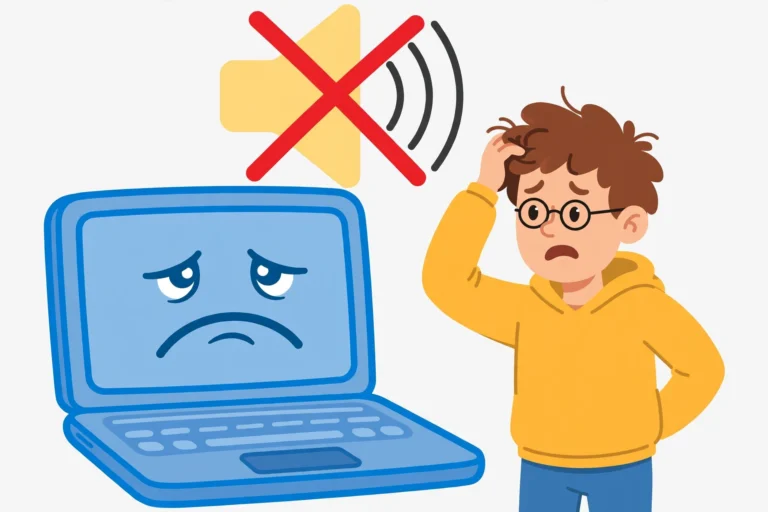

You press play, and nothing comes out. The video runs, the volume icon looks normal, and yet your laptop stays silent. This no sound fix walks through the causes in order, from a muted slider to a tired driver, so you can find your cause and hear sound again.
No sound on a laptop is rarely a dead speaker. Most of the time Windows is sending audio to the wrong device, an app is muted on its own, or a driver broke after an update. Work through these fixes in order, and test after each change. Most laptops get their sound back in minutes without a repair shop.
Why Your Laptop Has No Sound
Sound travels a short chain on your laptop. An app makes the sound, Windows sends it to an output device, and the speakers or headphones play it. If any link in that chain breaks, you hear nothing. The output device may be wrong, the volume may be muted in one place you never checked, or the audio service may have stopped. In addition, a driver update can leave the sound hardware silent even when every setting looks right. So a no sound fix has to check the chain from the start, not guess at one part of it. The no sound fix below finds which link broke, then repairs it.
No Sound Fix 1: Check Volume, Mute, and the Headphone Jack
Most no sound cases end here. Sound is often muted in a place you did not check, or the headphones are plugged into the wrong jack. Check every volume control before you touch a driver.
Check the Volume and Headphones First
- Turn the volume up and unmute it: Click the speaker icon in the taskbar, then drag the volume slider up past halfway. If you see a small X on the speaker icon, click the icon once to unmute it.
- Check the mute key on your keyboard: Many laptops have a mute key on the top row, often F1, F6, or F10, with a small speaker picture. Press it once, or hold Fn and press it, then check the speaker icon again. A glowing mute light means the sound is still off.
- Restart the laptop: A stuck audio process causes more no sound reports than a bad driver does. Restart the laptop, then play a video or a song to test the sound.
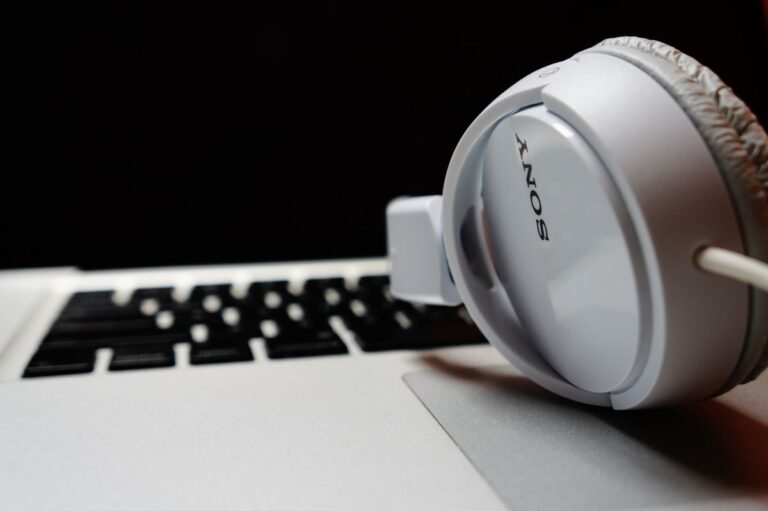
- Unplug the headphones and test the speakers: Unplug any headphones or external speakers, then play a sound. If the built-in speakers work, the problem sits with the headphones or the jack, not with Windows.
- Plug headphones into the right jack: Plug wired headphones into the headphone jack, not the microphone jack. On many laptops the two jacks sit side by side and look alike. A plug in the mic jack gives you no sound at all.
- Try a different pair of headphones: Borrow another pair and plug it in. If the second pair works, your first pair is broken. That saves you from fixing software that was never the problem.
More Volume Checks for Your No Sound Fix
- Check the volume knob on external speakers: If you use desktop speakers, turn their own volume knob up and check their power light. Speakers with no power stay silent no matter what Windows says.
- Look for dust in the headphone jack: Lint in the jack can stop the plug from seating fully. Shine a light into the jack, and clean it gently with a dry cotton swab if you see dust.
No Sound Fix 2: Pick the Right Output Device
Windows sends sound to one output device at a time. If you recently plugged in a monitor, a docking station, or Bluetooth headphones, Windows may have quietly switched the sound to that device. Your speakers get skipped, and the laptop looks silent. This no sound fix step puts the sound back on the right device.
For Windows 11: No Sound Fix Steps
- Open the Quick Settings panel: Click the speaker icon in the taskbar, or press the Windows key and A together. Click the small arrow next to the volume slider to see the output list.
- Pick your speakers or headphones: Choose your real speakers or headphones from the list. If your monitor or TV is selected, the sound is going there instead.
- Check the Sound settings page too: Press the Windows key and I together to open Settings, then click System, then Sound. Under Output, pick your speakers or headphones, raise the volume, and click Test if you see the button.
On Windows 10: No Sound Fix Steps
- Open Sound settings: Click Start, then Settings, then System, then Sound. Under Choose your output device, pick your speakers or headphones from the drop-down list.
- Use the speaker icon shortcut: Click the speaker icon in the taskbar, then click the small arrow above the volume slider. Pick your speakers or headphones from the list that appears.
- Test the device: On the Sound settings page, click Device properties under your output device, then click Test. If you hear the chime, the device is working.
In Windows 8, 8.1, and 7: No Sound Fix Steps
- Open the Playback tab: Right click the speaker icon in the taskbar, then click Playback devices. You will see every sound device Windows knows about.
- Set your device as default: Right click your speakers or headphones, then click Set as Default Device. A green tick appears on the device you picked.
- Enable a greyed out device: If your device is greyed out, right click it, then click Enable. Then right click it again and set it as the default device.
No Sound on a Mac
- Open Sound settings: Click the Apple menu, then System Settings, then Sound. Under Output, pick your built-in speakers or your headphones.
- Check the menu bar volume: Click the speaker icon in the menu bar at the top of the screen and drag the volume up. If the icon is missing, open System Settings, then Control Centre, and turn on Show Sound in Menu Bar.
- Restart the Mac: A restart clears a stuck audio process on a Mac just as it does on Windows. Test the sound again after the restart.
More Output Device Tips for Your No Sound Fix
- A monitor steals the sound most often: A monitor with built-in speakers, or a TV connected by HDMI, often becomes the default output device. If the sound vanished right after you plugged in a monitor, this fix is almost certainly your answer.
- Bluetooth headphones can stay silent after pairing: If your Bluetooth headphones connect but play no sound, they may be paired yet not set as the output device. Pick them in the output list above. If they still refuse to play, see our guide to Bluetooth not connecting next.
No Sound Fix 3: Check Per-App Volume in the Volume Mixer
Sometimes the system sounds work but one app stays silent. That happens because Windows lets every app have its own volume. Your browser or music app may be muted while everything else plays fine. This no sound fix checks the app, not the whole laptop.
For Windows 11 and 10
- Open the Volume mixer: Right click the speaker icon in the taskbar, then click Open Volume mixer. On Windows 11 you can also open Settings, then System, then Sound, then Volume mixer.
- Find the silent app: Play something in the app that has no sound, then look at the Volume mixer. The app appears in the list only while it is playing audio.
- Unmute the app and raise its volume: If the app shows a muted speaker icon, click it to unmute it. Then drag its volume slider up to at least half.
- Check the app output device: In the Volume mixer, each app can also have its own output device. Make sure the app is set to your speakers or headphones, not to another device.
On Windows 8, 8.1, and 7
- Open the Volume Mixer: Click the speaker icon in the taskbar, then click Mixer. On Windows 7, right click the speaker icon, then click Open Volume Mixer.
- Find the silent app: Play something in the app, then look for its slider in the mixer. A muted app shows a speaker icon with a small red circle.
- Unmute the app: Click the muted speaker icon under the app slider to unmute it, then drag the slider up.
More Volume Mixer Tips for Your No Sound Fix
- Check the app volume inside the app too: Video players, games, and video call apps have their own volume sliders. A video paused at zero volume inside YouTube or Zoom stays silent even when Windows is loud.
- Test with a second app: Play a video in your browser, then play a song in another app. If one app has sound and the other does not, the problem is the app, and the Volume mixer steps above will fix it.
No Sound Fix 4: Run the Audio Troubleshooter
Windows has a built-in audio troubleshooter that checks the driver, the muted devices, and the disabled endpoints for you. It fixes the common faults on its own, and it tells you what it found. Run it before you touch the driver by hand.
Using Windows 11
- Open the Get Help app: Click Start, type Get Help, then press Enter. Type audio troubleshooter in the search box and follow the steps it shows.
- Use Settings instead: Press the Windows key and I together to open Settings, then click System, then Troubleshoot, then Other troubleshooters. Click Run next to Audio, then answer the questions it asks.
- Let it finish: The troubleshooter tests your output device and applies a fix if it finds one. Restart the laptop when it tells you to, then test the sound again.
For Windows 10
- Open the troubleshooters: Click Start, then Settings, then Update and Security, then Troubleshoot, then Additional troubleshooters.
- Run Playing Audio: Click Playing Audio, then Run the troubleshooter. Follow the steps on screen and let it apply any fix it finds.
- Try the quick route: Right click the speaker icon in the taskbar, then click Troubleshoot sound problems. Windows opens the same troubleshooter directly.
On Windows 8, 8.1, and 7
- Open Troubleshooting: Open the Control Panel, then click Troubleshooting, then Hardware and Sound.
- Run Playing Audio: Click Playing Audio, then Next. The troubleshooter checks the sound hardware and the driver, then applies a fix if it can.
More Troubleshooter Tips for Your No Sound Fix
- The troubleshooter can find a disabled device: If it says no audio device is installed, the device may be disabled. Fix 6 shows you how to enable it and reinstall the driver.
- Run it again after a driver change: If you update or reinstall the driver in Fix 6, run the troubleshooter once more. It catches leftover settings the driver change did not fix.
No Sound Fix 5: Restart the Windows Audio Service
Two Windows services handle all sound on your laptop. If either one stops, every app goes silent at once, even though the volume icon looks normal. Restarting both services is fast, and it fixes a stuck audio process that a restart alone sometimes misses.
Restart the Audio Services
- Open Services: Press the Windows key and R together, type services.msc, then press Enter. The Services window opens.
- Find Windows Audio: Scroll down the list to Windows Audio. Right click it, then click Restart. If Restart is greyed out, click Start instead.
- Restart the Endpoint Builder too: Find Windows Audio Endpoint Builder in the same list. Right click it, then click Restart as well. Sound needs both services running.
- Set both services to Automatic: Right click Windows Audio, then click Properties. Set Startup type to Automatic, then click OK. Do the same for Windows Audio Endpoint Builder. That way Windows starts both services every time the laptop boots.
- Test the sound: Play a video or a song. If the sound is back, the stuck service was your cause.
Keep the Services Running
- This fix works on every Windows version: The Services window and the two service names are the same on Windows 7, 8, 8.1, 10, and 11. Only the look of the window changes slightly.
- Run the troubleshooter first if the service will not start: If Windows Audio refuses to start or stops again at once, run the Audio troubleshooter from Fix 4. A broken driver often stops the service, and Fix 6 covers the driver.
No Sound Fix 6: Update, Reinstall, or Roll Back the Audio Driver
The audio driver is the software that lets Windows talk to your sound hardware. A driver that is old, corrupt, or broken by an update can silence the laptop even when every setting looks right. Device Manager handles all three repair paths, and you need an administrator account for these steps.
Using Windows 11 and 10
- Open Device Manager: Right click Start, then click Device Manager.
- Find your audio device: Expand Sound, video and game controllers. Right click your audio device, which is usually named Realtek(R) Audio or High Definition Audio Device.
- Update the driver: Click Update driver, then Search automatically for drivers. Install anything Windows finds, then restart the laptop.
- Reinstall the driver if updating does not help: Right click the audio device again, then Uninstall device. Tick Delete the driver software for this device if you see the box, then click Uninstall. Restart the laptop, and Windows installs a fresh driver on its own.
- Get the driver from the maker if Windows cannot find one: Visit your laptop maker’s support site and download the latest audio driver for your exact model. Install it, then restart.
For Windows 8, 8.1, and 7
- Open Device Manager: Press the Windows key and R together, type devmgmt.msc, then press Enter.
- Find your audio device: Expand Sound, video and game controllers and look for your audio device. On Windows 7 it is often named Realtek High Definition Audio.
- Update the driver: Right click the audio device, then Update Driver Software, then Search automatically for updated driver software.
- Get the driver from the maker: On Windows 7 especially, Windows Update rarely carries the right driver. Download it from your laptop maker’s support site for your exact model and install it, then restart.
Offline alternative, no internet needed for the reinstall: If the laptop has no internet, download the driver on another computer, copy it to a USB stick, then plug the stick into the silent laptop and run the installer. The uninstall and restart steps in this fix work fully offline.
More Driver Tips for Your No Sound Fix
- Roll back the driver after a bad update: If the sound stopped right after a Windows update, the new driver is the likely cause. In Device Manager, right click the audio device, then Properties, then the Driver tab, then Roll Back Driver if the button is not greyed out. That undoes a driver update that broke the sound.
- Check for a disabled device first: If Windows says no audio output device is installed, look in Device Manager for a small down arrow on the audio device. Right click it and click Enable device. A disabled device hides from every sound setting until you enable it.
- Try the generic Windows driver: If the maker driver still gives no sound, go back to Update driver, then Browse my computer for drivers, then Let me pick from a list of available drivers on my computer. Pick High Definition Audio Device and click Next. The plain Windows driver works on many laptops when the maker driver fails.
No Sound Fix 7: Turn Off Audio Enhancements and Test Another Device
Audio enhancements are extra sound effects, like equalizer presets, spatial sound, and loudness equalization, layered on top of the raw audio. On some laptops they clash with the driver and silence the sound completely. Turning them off is a quick test, and it costs nothing.
On Windows 11 and 10
- Open your output device settings: Press the Windows key and I together to open Settings, then click System, then Sound. Click your output device under Output.
- Turn off Audio enhancements: Scroll to Advanced settings and set Audio enhancements to Off. Test the sound again.
- Try a different audio format: On the same device page, click Advanced device properties, then the Advanced tab. Pick a different Default Format, such as 16 bit, 44100 Hz, then click Test. Some formats silence certain sound hardware.
Using Windows 8, 8.1, and 7
- Open the Sound panel: Right click the speaker icon in the taskbar, then click Playback devices. Right click your device, then click Properties.
- Disable all enhancements: Click the Enhancements tab, then tick Disable all enhancements. Click OK, then test the sound.
Test Another Device in Your No Sound Fix
- Test with a different device to find the fault: Plug in a USB headset or a pair of Bluetooth headphones and test them. If the USB headset plays sound but the built-in speakers do not, the speakers or their wiring are the problem, and a repair shop is the next step.
- Check for a Windows update: Click Start, then Settings, then Windows Update, then Check for updates. Install anything available and restart. Microsoft ships audio fixes in regular updates, and a missing update can leave the sound broken.
- Check the sound in the BIOS if nothing else works: Restart the laptop and press the BIOS key shown on the first screen, often F2, F10, or Delete. Look for an audio or onboard sound setting and make sure it is Enabled. Save and exit, then test the sound in Windows again.
- If only one earbud has sound, the cause is different: Sound in one ear only usually means a loose plug, a broken wire, or a balance setting. See our guide to one earbud not working for that fix.
- Keep the volume down while you test: Turn the volume down before you test a fix that may suddenly restore the sound. A laptop that jumps back to full volume can blast your ears or damage the speakers.
Tricks That Do Not Fix No Sound
Before you buy new speakers or reset the whole laptop, skip these common myths. None of them fix a no sound problem, and some waste your money.
- Buying new speakers first: New speakers hit the same silent output if the cause sits in Windows or in the driver. Work through Fix 2 and Fix 6 before you spend anything.
- Installing a sound booster app: Most booster apps only raise the volume of a signal that is already there. They cannot create sound when Windows sends nothing to the speakers. The troubleshooter in Fix 4 finds the real fault for free.
- Turning the volume to maximum and leaving it: Full volume does not fix a silent laptop, and it can damage your ears or the speakers when the sound suddenly comes back. Keep the volume near half while you test.
- Deleting every sound driver at once: Removing the audio driver and the related Bluetooth and display audio drivers together can break sound and video as well. Remove only the audio device in Fix 6, then restart.
- Resetting the whole computer: A factory reset is the last step, not the first. The seven fixes above solve nearly every case, and a reset costs hours of setup.
FAQ: No Sound Fix
Why is there no sound on my laptop even though the volume is up? The sound is probably going to the wrong device, or one app is muted on its own. Check the output device in Fix 2 first, then the Volume mixer in Fix 3. A monitor or a pair of Bluetooth headphones often steals the output without any warning.
Why does my laptop say no audio output device is installed? Windows cannot see the sound hardware. The device is usually disabled, or its driver is missing. Open Device Manager, expand Sound, video and game controllers, and enable the device if it shows a down arrow. Then update or reinstall the driver using Fix 6.
Why do my headphones have no sound but the speakers work? The headphones are either plugged into the wrong jack, not set as the output device, or broken. Plug them into the headphone jack, pick them in the output list in Fix 2, then test a second pair. If the second pair works, your first pair is broken.
More No Sound Questions
Why did the sound stop after a Windows update? The update may have replaced your audio driver with one that does not fit your hardware. Roll back the driver using Fix 6, or download the driver from your laptop maker’s site. Microsoft also lists this on its official fix sound problems in Windows page.
Can a virus cause no sound on a laptop? Very rarely. A virus almost never targets sound alone. A muted setting, a wrong output device, or a broken driver causes nearly every no sound case. Work through the fixes above before you run a full virus scan for this problem.
Why is there sound in some apps but not others? Each app has its own volume in the Volume mixer, and some apps have their own output device too. Open the Volume mixer from Fix 3 while the silent app is playing, then unmute the app and raise its slider.
More Answers About Sound and Volume
Does this no sound fix work without the internet? Yes, almost all of it. The volume checks, the output device, the troubleshooter, the service restart, and the driver reinstall all work offline. Only downloading a new driver needs a connection, and the USB stick alternative in Fix 6 covers that.
Why is the sound very quiet even at full volume? Audio enhancements, a low per-app volume, or the wrong audio format can all make sound quiet. Turn off audio enhancements in Fix 7, check the app volume in Fix 3, then try a different Default Format. If the sound stays quiet, reinstall the driver using Fix 6.
Should I update to Windows 11 to fix the sound? Not as a first step. Windows 10 reached the end of support on October 14, 2025, so moving to Windows 11 is a good idea for security, and it can bring a newer driver. Try the seven fixes first, since most no sound cases are a setting or a driver, not the Windows version.
Final Words
This no sound fix works because it follows the sound itself. First, check the volume, the mute key, and the headphone jack. Next, pick the right output device and check the Volume mixer. Then, run the troubleshooter and restart the Windows Audio service. After that, update or reinstall the driver. Finally, turn off audio enhancements and test another device. Work through those steps in order, test after each change, and most laptops play sound again in minutes without a repair shop.