

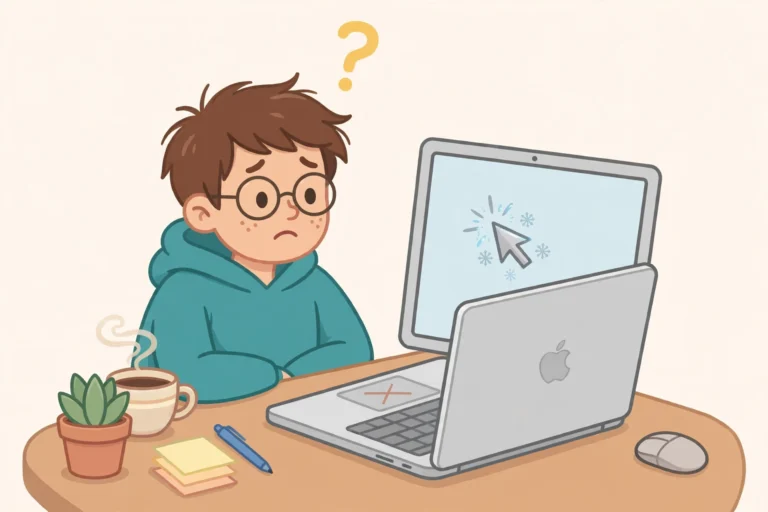

You move your finger across the trackpad, and nothing happens. The cursor stays frozen, clicks do nothing, and your MacBook feels broken. Before you book a repair, try the fixes in this guide. Most MacBook trackpad problems come from a dirty surface, a wrong setting, or a small software glitch, and all three are easy to fix at home. This macbook trackpad not working guide walks you through the real causes in order, from the quickest check to the last resort, so your clicks and gestures come back fast.
Quick fix: Wipe the trackpad with a dry lint-free cloth, restart your Mac, and open System Settings, then Trackpad, to check that Tap to click is on and the tracking speed is not set to the slowest point. Those three steps fix most dead trackpads in under ten minutes. If the cursor still will not move, work through Fix 4 and Fix 5 below.
Why Your MacBook Trackpad Stops Working
A MacBook trackpad is a flat glass surface that reads the tiny electrical signals from your fingers. It has no moving parts in the way an old mouse button does, so when it stops working, the cause is usually simple. The most common cause is a dirty or damp surface, because grease, crumbs, and moisture confuse the sensors. The next most common causes are a setting that got changed by accident and a software glitch that a restart clears. A swollen battery can also press on the trackpad from underneath, and a macOS bug can break gestures after an update. This macbook trackpad not working guide checks each cause in turn, so you fix the right one. A clear walkthrough of the same steps is also covered in the SimplyMac guide to fixing a MacBook trackpad.
One thing is worth knowing before you start. A trackpad that died suddenly after a macOS update is almost always a software problem. A trackpad that slowly got worse over weeks, with clicks that feel uneven or a surface that feels raised, is more likely a hardware problem. That one difference tells you how far down this guide you need to go.
First, Find Out What Kind of Trackpad Problem You Have
Two minutes here stops you from fixing the wrong thing. The symptom points at the cause, and the cause points at the fix. Match what you see to the table below, then start with the fix it names.
| What you see | What it means | Start with |
|---|---|---|
| Cursor frozen, nothing moves at all | Software freeze, or a dead trackpad | Fix 1, then Fix 3 |
| Cursor moves but clicks do nothing | Settings or Force Click problem | Fix 2 |
| Cursor jumps or moves on its own | Dirt, moisture, or a swollen battery | Fix 1, then Troubleshooting |
| Gestures stopped working | Gesture settings, or corrupt preferences | Fix 2, then Fix 6 |
| Trackpad works only sometimes | Loose connection or battery swelling | Fix 5, then a repair shop |
MacBook Trackpad Not Working Fix 1: Clean the Trackpad
This is the fastest win in this whole macbook trackpad not working guide, and it costs nothing. The trackpad reads your fingers through tiny electrical signals, and a layer of grease, food crumbs, or moisture blocks those signals. Wet hands are just as bad. A damp finger slides but the cursor stays still, which looks exactly like a broken trackpad.
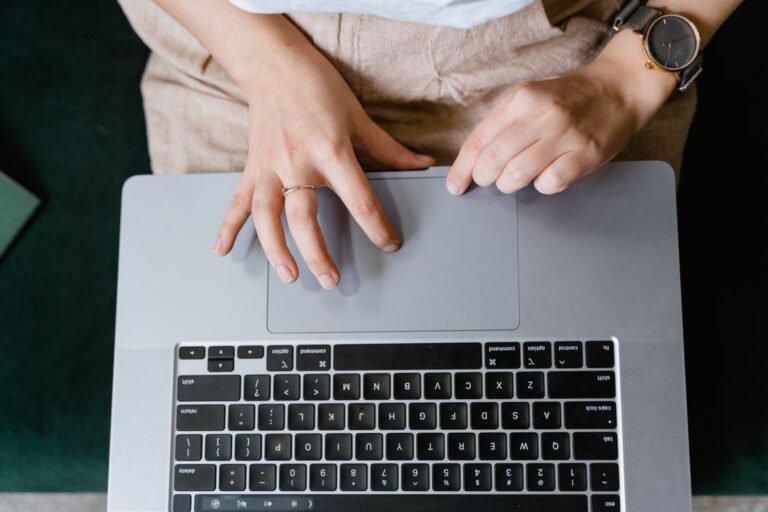
- Wash and dry your hands: Greasy or wet fingers confuse the trackpad sensors. Wash your hands, dry them fully, and try the trackpad again.
- Wipe the trackpad with a dry lint-free cloth: A microfiber cloth works best. Wipe the whole surface gently, and get into the edges where crumbs collect.
- Dampen the cloth for stuck grime: If dry wiping is not enough, dampen the cloth slightly with water and wipe again. Then dry the trackpad with the dry side of the cloth.
- Take off any cover or skin: A hard trackpad cover or a decorative skin sits between your finger and the sensors. Peel it off and test the trackpad bare.
- Check for moisture underneath: If you spilled a drink near the MacBook, turn it off, dry the outside, and leave it open in a dry room for a few hours before you turn it on again.
- Never spray cleaner straight onto the trackpad: Liquid can seep under the glass and reach the parts below. Always dampen the cloth first, never the MacBook.
- Never use a rough cloth or a paper towel: Rough fibres can scratch the glass surface over time. A soft microfiber cloth is the safe choice.
MacBook Trackpad Not Working Fix 2: Check the Trackpad Settings
Sometimes the trackpad is fine and a setting is the problem. A macOS update, a new user account, or a curious tap in System Settings can turn off Tap to click, set the tracking speed to the slowest point, or change how hard you need to press. When that happens, the trackpad feels dead even though nothing is broken. This macbook trackpad not working step takes two minutes and fixes the problem more often than people expect.
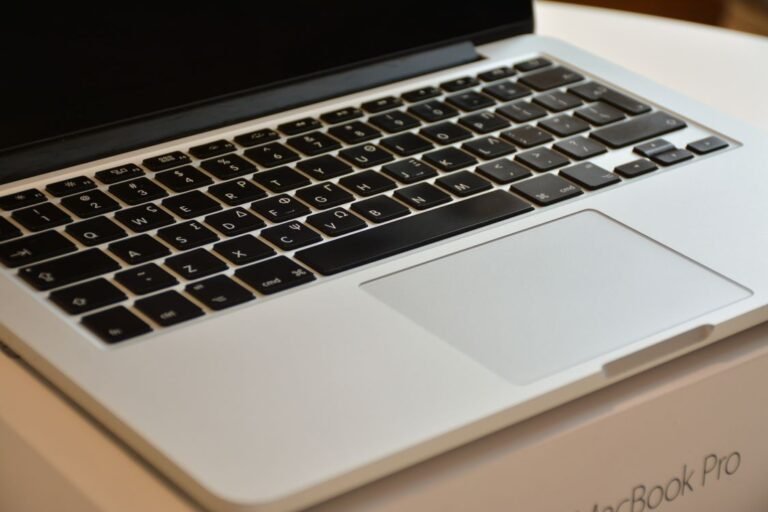
- Open Trackpad settings: Click the Apple menu, then System Settings, then Trackpad in the sidebar. If you cannot click, press Command plus Space, type Trackpad, and press Enter.
- Turn on Tap to click: Under Point and Click, make sure Tap to click is switched on if that is how you like to click. If it is off, a light tap does nothing, and only a firm press clicks.
- Move the tracking speed slider: Drag Tracking speed toward the middle or Fast. If it sits at the slowest point, the cursor crawls so slowly that it looks frozen.
- Check the click pressure: Set Click to Medium. Light can miss your clicks, and Firm can make the trackpad feel unresponsive if you press gently.
- Turn off Force Click and haptic feedback: If clicks feel wrong or register twice, uncheck Force Click and haptic feedback. Test the trackpad again with it off.
- Check the Scroll and Zoom and More Gestures tabs: Make sure the gestures you use, like two finger scroll and three finger swipe, are switched on. A gesture that is off is not a broken trackpad.
Also check Accessibility: Open System Settings, then Accessibility, then Pointer Control. If the box beside Ignore built-in trackpad when mouse or wireless trackpad is present is ticked, the trackpad stops working the moment a mouse is plugged in. Untick it, unplug the mouse, and test again.
MacBook Trackpad Not Working Fix 3: Restart Your Mac
A restart clears the small software glitches that freeze the trackpad. It restarts the background process that reads the trackpad, and it clears a stuck app that may be grabbing all of the attention. It is the oldest fix in the book, and it works here more than anywhere else. If your MacBook has an Apple silicon chip, a restart also resets the SMC and NVRAM for you, so this one step covers Fix 5 too.
- Restart from the Apple menu: Click the Apple menu, then Restart, then click Restart again. Wait for the Mac to come back, then test the trackpad on the login screen.
- Force a shutdown if the Mac is frozen: If nothing responds, press and hold the power button for about ten seconds until the screen goes dark. Wait ten seconds, then press the power button once to turn it on.
- Restart with the keyboard if you have no mouse: Press Control plus Command plus the power button together. The Mac restarts at once, so save any open work first if you can.
- Test the trackpad right after the restart: Try it on the login screen before you open any apps. If it works there but dies later, an app or a login item is the cause, and Fix 4 will find it.
MacBook Trackpad Not Working Fix 4: Update macOS and Test in Safe Mode
A macOS bug can break the trackpad after an update, and a later update can fix it again. A third party app can also interfere with the trackpad, and Safe Mode is how you catch it. Safe Mode starts your Mac with only the parts macOS needs, so if the trackpad works there, an app or a login item is the culprit. This macbook trackpad not working step finds software causes that a restart alone cannot.
- Check for a macOS update: Open System Settings, then General, then Software Update. If an update is waiting, install it and test the trackpad after the Mac restarts.
- Shut the Mac down fully: Click the Apple menu, then Shut Down, and wait until the screen is fully dark.
- Start in Safe Mode on Apple silicon: Press and hold the power button until you see Loading startup options. Select your startup disk, then press and hold the Shift key and click Continue in Safe Mode.
- Start in Safe Mode on Intel Macs: Press the power button, then immediately press and hold the Shift key until you see the login window. Log in and test the trackpad.
- Test the trackpad in Safe Mode: Move the cursor, click, and try a two finger scroll. If everything works, restart normally and remove your login items one by one in System Settings, then General, then Login Items, until you find the app that breaks it.
MacBook Trackpad Not Working Fix 5: Reset the SMC and NVRAM on Intel Macs
The SMC controls hardware like power, the battery, and the trackpad, and NVRAM stores settings the Mac needs at startup. Resetting them can wake up a trackpad that a restart did not fix. This step only applies to Intel Macs. If your Mac has an Apple silicon chip, like an M1, M2, or M3, there is no SMC or NVRAM reset to do. A restart already handles it, so skip this fix and move on to Fix 6.
On Intel Macs with a T2 security chip (most MacBooks from 2018 on):
- Shut the Mac down: Click the Apple menu, then Shut Down, and wait until the screen is fully dark.
- Hold three keys for seven seconds: Press and hold Control, Option, and Shift on the left side of the keyboard for seven seconds.
- Add the power button for seven more seconds: While still holding those three keys, press and hold the power button too. Hold all four keys for another seven seconds, then let go of everything.
- Wait, then turn it on: Wait a few seconds, then press the power button once. Test the trackpad after the Mac starts up.
On older Intel Macs without a T2 chip:
- Shut the Mac down and plug in the charger: Click the Apple menu, then Shut Down, and connect the power adapter.
- Hold four keys for ten seconds: Press and hold Shift, Control, and Option on the left side, plus the power button, all at the same time for ten seconds. Then let go of everything at once.
- Turn it on and test: Press the power button once, and test the trackpad after the Mac starts up.
Reset NVRAM on any Intel Mac:
- Shut the Mac down: Click the Apple menu, then Shut Down.
- Press four keys as it starts: Press the power button, then immediately press and hold Option, Command, P, and R together.
- Hold for twenty seconds: Keep holding until the Apple logo appears and disappears a second time, then let go and test the trackpad.
MacBook Trackpad Not Working Fix 6: Delete the Trackpad Preference Files
macOS stores your trackpad settings in two small preference files. If one of them gets corrupt, the trackpad can act strangely even when every setting looks right. Deleting the files is safe, because macOS builds fresh ones the next time it starts. This macbook trackpad not working fix helps when the cursor jumps, gestures fail, or clicks register twice for no clear reason.
- Open Finder: Click the Finder icon in the Dock, or press Command plus Space, type Finder, and press Enter.
- Open Go to Folder: Click Go in the menu bar at the top, then Go to Folder. You can also press Shift plus Command plus G.
- Go to the Preferences folder: Type ~/Library/Preferences/ and press Enter. A Finder window opens showing your preference files.
- Find the two trackpad files: Look for com.apple.AppleMultitouchTrackpad.plist and com.apple.preference.trackpad.plist. Drag both of them to the Trash. If only one is there, delete that one.
- Restart your Mac: Click the Apple menu, then Restart. macOS creates fresh preference files as it starts, and your trackpad settings return to their defaults.
- Set your trackpad up again: Open System Settings, then Trackpad, and turn your usual settings back on. Test the cursor, the clicks, and your gestures.
MacBook Trackpad Not Working Fix 7: Plug In a Mouse and Keep Working
When the trackpad will not come back today, a mouse keeps you working while you sort out a repair. Any USB mouse works, and most Bluetooth mice pair in a minute. This is also a useful test. If a mouse works fine but the trackpad stays dead, the problem is in the trackpad itself, not in macOS. If the mouse is dead too, the problem is deeper, and Fix 4 and Fix 5 matter more.
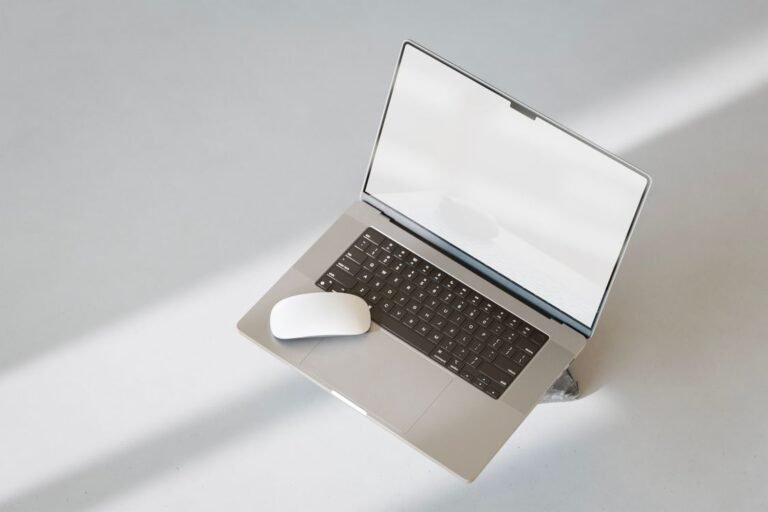
- Plug in a USB mouse: Connect it to any USB port, or use a USB-C adapter if your MacBook only has USB-C ports. The cursor should appear at once.
- Pair a Bluetooth mouse: Open System Settings, then Bluetooth, and turn Bluetooth on. Put the mouse in pairing mode, click Connect beside its name, and wait for it to pair.
- Use the keyboard to get around: Press Command plus Space to open Spotlight and launch apps by typing their names. Press Command plus Tab to switch between open apps.
- Run Apple Diagnostics: A hardware test can confirm a trackpad fault before you pay for a repair. On Apple silicon, shut down, press and hold the power button until startup options appear, then press Command plus D. On Intel Macs, shut down, press the power button, then immediately press and hold D.
- Check the battery before you keep using the Mac: If the trackpad feels raised, clicks unevenly on one side, or the bottom case looks swollen, stop using the Mac and take it to Apple or an authorised repair shop. A swollen battery presses on the trackpad from underneath, and it is a safety risk. If your battery also dies fast, our MacBook battery drain fix covers that side of the problem. If your MacBook also will not charge, our MacBook not charging fix covers that side too.
- Keep a cheap mouse in your bag: It costs little, and it turns a dead trackpad from a lost workday into a small annoyance.
Offline alternative, no internet on the Mac: Every fix in this macbook trackpad not working guide works with no internet, except the macOS update in Fix 4. If you have no Wi-Fi, skip the update for now and do the rest. Connect to a phone hotspot later to download the update, or take the Mac somewhere with Wi-Fi and run Software Update there.
Troubleshooting
Trackpad works in Safe Mode but not normally: A login item or a third party app is interfering. Go to System Settings, then General, then Login Items, and remove items one at a time, restarting after each one, until the trackpad works again.
Cursor moves but clicks do nothing: Check Force Click and the click pressure in Trackpad settings with Fix 2. If clicks still fail, delete the preference files with Fix 6.
Trackpad feels raised or clicks unevenly: That is often a swollen battery pressing from underneath. Stop using the Mac, unplug it, and take it to Apple or an authorised repair shop. Do not keep pressing a swollen trackpad.
Trackpad works only while the charger is plugged in: That points at the battery or the power system. Run Apple Diagnostics with Fix 7 and note the result, then take the Mac to a repair shop with that result in hand.
Cursor moves on its own: Clean the trackpad with Fix 1, unplug every accessory, and check for moisture. If it still wanders with clean hands and nothing plugged in, the trackpad hardware may be failing.
Trackpad died right after a macOS update: Install the next macOS update when it appears, because Apple often fixes trackpad bugs quickly. Until then, use a mouse with Fix 7. If your Mac also feels slow since the update, our Mac running slow fix can help.
Frequently Asked Questions
Why did my MacBook trackpad suddenly stop working? The most common reasons are a dirty or damp trackpad, a setting that changed, or a software glitch that a restart clears. A macOS update can also break it for a short time, and a swollen battery can press on it from underneath. Work through this macbook trackpad not working guide in order, and most cases are fixed by Fix 1, Fix 2, or Fix 3.
How do I click without a trackpad on a Mac? Plug in any USB mouse, or pair a Bluetooth mouse in System Settings, then Bluetooth. You can also press Command plus Space to open Spotlight and launch apps by typing, and press Command plus Tab to switch between apps. A mouse is the fastest way to keep working while you fix the trackpad.
How do I restart a MacBook when the trackpad is dead? Press Control plus Command plus the power button together to restart at once. If the Mac is fully frozen, press and hold the power button for about ten seconds until the screen goes dark, wait ten seconds, then press the power button once to turn it on.
Does resetting the SMC fix a MacBook trackpad? On Intel Macs, yes, it sometimes does, because the SMC controls the hardware that runs the trackpad. On Apple silicon Macs, there is no SMC reset to do, and a plain restart does the same job. Check which chip your Mac has in Apple menu, then About This Mac, before you try Fix 5.
Can a swollen battery break the trackpad? Yes. The battery sits right under the trackpad, and when it swells it pushes the trackpad up from below. The clicks feel uneven, the surface feels raised, and the trackpad stops responding properly. If you see any swelling, stop using the Mac and take it to Apple or an authorised repair shop.
Will updating macOS fix my trackpad? Sometimes, yes. If a macOS bug broke the trackpad, the next update often fixes it. Check System Settings, then General, then Software Update, and install anything waiting. If no update is waiting, the cause is more likely dirt, settings, or hardware, so work through the rest of this guide.
Final Words
This macbook trackpad not working guide works because it follows the cause. Clean the surface, check the settings, restart the Mac, test in Safe Mode, reset the SMC and NVRAM on Intel Macs, and delete the corrupt preference files. Work through the fixes in order, and most trackpads come back within half an hour, with clicks and gestures working again. If the trackpad still will not move after all of it, that is the hardware telling you it needs a repair shop, not another setting. On a Windows laptop, our touchpad not working fix covers the same problem.