

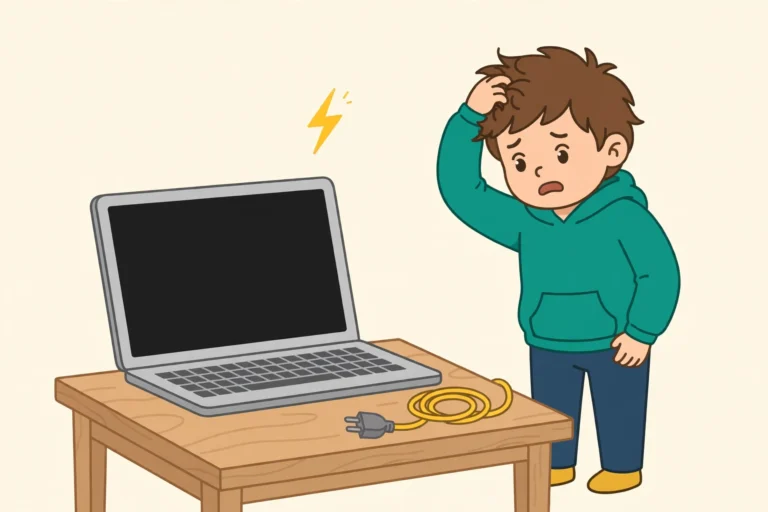

You press the power button, and nothing happe ns. No lights, no fan, no sound at all. A laptop that won’t turn on feels like a disaster, especially when your files are inside it. The good news is that most dead laptops are not really dead. A bad charger, stuck power, or a tired battery causes most cases, and you can check all of them yourself in about twenty minutes.
Work through the fixes below in order. Start with the power and the charger, then drain the leftover power, then check whether the screen is the real problem. In addition, back up your files as soon as the laptop starts again, so nothing important is lost. These steps work on any Windows laptop, on Windows 7, 8, 8.1, 10, and 11.
Quick fix: Try the hard reset first. Unplug the charger, hold the power button for 30 seconds, plug the charger back in, and press the power button once. If the laptop still shows no lights at all, check the charger and the outlet in Fix 1.
Why Your Laptop Won’t Turn On
A laptop stays dead for a few common reasons. The charger may be dead, or the wall outlet may have no power. The battery may be fully drained or worn out. Leftover power can get stuck inside the laptop after a crash or a power cut. Or the screen may be dark while the laptop itself still runs. A broken Windows startup can also stop the laptop from reaching the login screen. The fixes below take each cause in turn, from the easiest check to the deeper repair. If you have no backup yet, our simple Windows backup routine shows how to set one up before you lose anything.
You do not need any special tools for the first fixes, and you do not need to open your laptop. Everything here uses the charger, the power button, and the tools Windows already has.
Laptop Won’t Turn On Fix 1: Check the Charger and the Wall Outlet
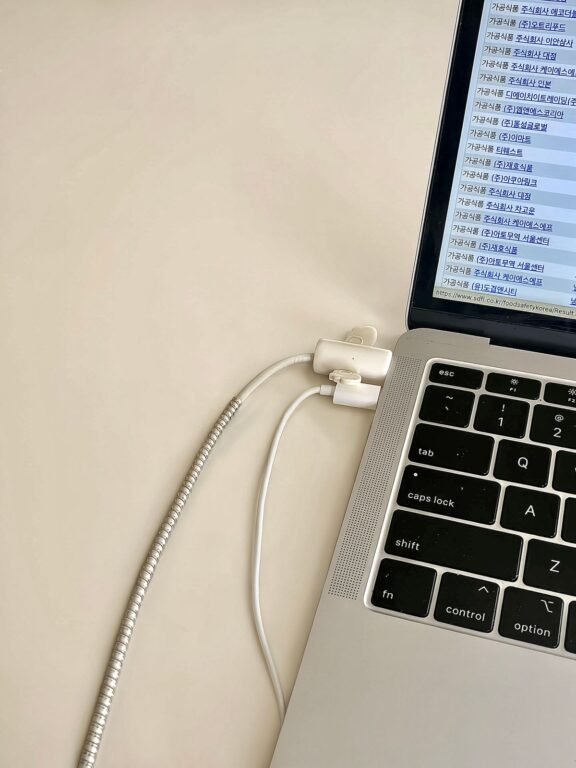
Start with the simplest cause of all. A laptop stays dead when it gets no power, and chargers fail more often than laptops do. Check the charger before you suspect the laptop itself. Once the laptop charges again, our laptop battery charge limit guide shows how to protect the battery when it stays plugged in.
- Look for the charger light: Plug the charger into the laptop and the wall. Look for a small light on the charger brick or on the laptop near the charging port. No light at all means the charger may be dead.
- Try another wall outlet: Move the charger to a different wall outlet, one you know works. A dead outlet or a tripped power strip can fool you into thinking the laptop is broken.
- Check the cable for damage: Run your fingers along the whole cable. Look for cuts, kinks, or a plug that feels loose in the laptop. A damaged cable often works only at one angle, so wiggle it gently and watch for the charging light.
- Push the plug in firmly: Push the charging plug all the way into the laptop port. Dust or a bent pin can stop the connection, so blow out the port gently and try again.
- Try another charger: If you can borrow a charger with the same plug and the same voltage, try it. If the laptop wakes up, your old charger is the problem, and a new one costs far less than a repair.
- Wait fifteen minutes: Leave the charger plugged in for at least fifteen minutes, then press the power button. A fully drained battery sometimes needs a few minutes of charge before it shows any sign of life.
If the charging light comes on but the laptop still does not start, the power is reaching the laptop. Move on to Fix 2, because stuck power is the next likely cause.
More Charger Tips for a Laptop That Won’t Turn On
- Use the charger that came with your laptop: A phone charger or a weak USB charger cannot power most laptops, even if the plug fits.
- Check the power strip switch: Many power strips have their own on and off switch. Make sure it is on, and try plugging the charger straight into the wall.
- Smell the charger: A burnt smell from the charger brick means it has failed inside. Stop using it and replace it.
Laptop Won’t Turn On Fix 2: Drain the Leftover Power
When a laptop won’t turn on after a crash or a power cut, leftover power can get stuck in its circuits. A hard reset drains that power out, and many dead laptops wake up right after it. This fix takes two minutes, and it deletes nothing.
- Unplug the charger: Disconnect the charger from the laptop and from the wall.
- Remove the battery if you can: If your laptop has a removable battery, slide the latch and take the battery out. If the battery is sealed inside, skip this step and keep going.
- Unplug everything else: Remove all USB drives, mice, and other devices from the laptop.
- Hold the power button: Press and hold the power button for a full 30 seconds. This drains the leftover power from the circuits.
- Plug the charger back in: Put the battery back if you removed it, then plug the charger into the laptop and the wall. Do not plug in anything else yet.
- Press the power button: Press the power button once, normally. If the laptop starts, let it charge for a while before you use it.
If the laptop starts after this fix, the stuck power was the problem, but if it still does nothing, the problem sits deeper, so keep going to Fix 3.
More Hard Reset Tips for a Laptop That Won’t Turn On
- Hold the button for the full 30 seconds: A quick press does not drain the power. Count slowly to 30 while you hold it.
- Try it twice: If the first hard reset does nothing, repeat the whole sequence once more. The second try sometimes works when the first one does not.
- Do not open the laptop case for this fix: A hard reset needs no tools and no screws. Save the inside work for Fix 4.
Laptop Won’t Turn On Fix 3: Check Whether the Screen Is the Problem
Sometimes a laptop won’t turn on only in the way it looks. The laptop may be running with its fan spinning, while the screen stays black. This fix tells you whether the screen is the problem, and it costs nothing to try.

- Listen and look closely: Press the power button and listen for the fan. Look for any small lights on the laptop, like the power light or the Caps Lock light. Fan noise or lights mean the laptop is on, and only the screen is dark.
- Shine a flashlight at the screen: Hold a flashlight close to the dark screen at an angle. If you can see a faint picture, the backlight has failed, and the screen needs repair. The laptop itself is fine.
- Connect an external screen: Plug a TV or a monitor into the laptop with an HDMI cable. Then press the Windows key and P together, and pick Duplicate or Second screen only. If a picture appears on the TV, your laptop works, and only its own screen is broken.
- Try the brightness keys: Press the brightness up key on your keyboard, usually Fn plus a sun key. A screen dimmed all the way down looks dead, and this brings it back in one second.
If the laptop works on an external screen, you can keep using it that way while you arrange a screen repair, but if nothing appears anywhere, the problem is not the screen, so move on to Fix 4.
More Screen Tips for a Laptop That Won’t Turn On
- Check the cable twice: A loose HDMI cable gives a black TV screen too. Push both ends in firmly before you decide the laptop is dead.
- Wait a few seconds after pressing power: Some laptops take ten seconds before the screen lights up, so do not press the button again too fast.
- Close and open the lid once: A stuck lid sensor can keep the screen dark. Close the lid, wait a few seconds, then open it and press the power button.
Laptop Won’t Turn On Fix 4: Listen, Look, and Reseat the Memory
A laptop that won’t turn on sometimes stops at its own memory. A loose memory stick can block the whole startup, and reseating it fixes the problem in minutes. Only do the inside steps if your laptop has a back panel you can open, and stop if anything feels forced.
- Count the beeps: Press the power button and listen for beeps. A pattern of beeps is a code from the laptop maker, and it often points at the memory. Write the pattern down, like three short beeps, and search it later with your laptop model name.
- Unplug everything first: Unplug the charger, remove the battery if you can, and take out every USB device. Never open a laptop while it is plugged in.
- Open the back panel: Turn the laptop over and remove the screws on the memory panel. Keep the screws in a small cup so none get lost.
- Touch metal first: Touch a metal tap or a radiator before you touch anything inside. This discharges static from your hands, so it cannot harm the parts.
- Reseat the memory sticks: Push the small clips on the sides of a memory stick, lift it out gently, then push it back in firmly until the clips click. Do the same for the second stick if your laptop has two.
- Try one stick at a time: If your laptop has two memory sticks, try starting it with only one stick in place, then swap to the other one. A single bad stick can stop the whole laptop, and this test finds it.
Put the Laptop Back Together
Put the panel and the screws back, plug the charger in, and press the power button. If the laptop starts, a loose memory stick was the problem. If it still does nothing, the fault is deeper, and the next fix repairs Windows itself.
More Memory Tips for a Laptop That Won’t Turn On
- Do not force a memory stick: It slides in at a small angle, then presses flat. If it will not fit, turn it around, because the notch only lines up one way.
- Keep the screws safe: A missing back panel screw can let the panel press on parts inside. Count the screws as they come out and as they go back in.
- Skip this fix on a sealed laptop: Some thin laptops have no panel to open. If yours does not open easily, leave it closed and move on to Fix 5.
Laptop Won’t Turn On Fix 5: Repair Windows Startup
If the laptop powers on but Windows never appears, the startup files may be damaged. Windows has its own repair tool built in, and it can fix the startup without deleting your files. The steps differ a little by Windows version, so follow the section that matches your laptop. If the problem is a desktop PC instead of a laptop, try our PC won’t turn on fix first.
Windows 11 and Windows 10: Open Startup Repair
- Force the repair screen: Press the power button to start the laptop. As soon as the Windows logo appears, hold the power button until the laptop turns off. Repeat this three times. On the third start, the Automatic Repair screen appears.
- Open Advanced options: Click Advanced options on the Automatic Repair screen, then click Troubleshoot.
- Run Startup Repair: Click Advanced options again, then click Startup Repair. Pick your account, type your password if it asks, and let the tool run. It can take a few minutes.
- Try Safe Mode if repair fails: Go back to Advanced options, then click Startup Settings, then Restart. Press 4 on the Startup Settings screen to start Safe Mode. If Windows opens in Safe Mode, uninstall any app or update you added just before the problem started, then restart normally.
Windows 8 and Windows 8.1: Open Startup Repair
- Force the repair screen: Press the power button to start the laptop. As soon as the Windows logo appears, hold the power button until the laptop turns off. Repeat this three times. On the third start, the Automatic Repair screen appears.
- Open Advanced options: Click Advanced options, then click Troubleshoot.
- Run Startup Repair: Click Advanced options again, then click Startup Repair. Let the tool run and follow anything it asks.
- Try Safe Mode if repair fails: Go back to Troubleshoot, then Advanced options, then Startup Settings, then Restart. Press 4 to start Safe Mode, remove the recent app or update, then restart normally.
Windows 7: Open Startup Repair With F8
- Press F8 at startup: Press the power button, then tap the F8 key again and again before the Windows logo appears. The Advanced Boot Options screen opens.
- Pick Repair Your Computer: Use the arrow keys to pick Repair Your Computer, then press Enter. Pick your keyboard layout and sign in if it asks.
- Run Startup Repair: Click Startup Repair in the System Recovery Options window. Let the tool run and restart the laptop when it finishes.
- Try Safe Mode if repair fails: Restart, tap F8 again, and pick Safe Mode. If Windows opens, uninstall the recent app or update, then restart normally.
If Startup Repair fixes the problem, your laptop will reach the login screen again. Back up your files right away, because a startup that broke once can break again. If the repair finds nothing to fix, the next fix uses a rescue USB drive.
More Startup Repair Tips for a Laptop That Won’t Turn On
- Let the repair finish: Startup Repair can sit still for a few minutes. Do not turn the laptop off while it runs.
- Try the repair twice: Some startup problems need two runs of Startup Repair before Windows boots again.
- Safe Mode is only a test: If Windows works in Safe Mode but not normally, a driver or an app is the cause. Remove the newest one first.
Laptop Won’t Turn On Fix 6: Boot From a Rescue USB Drive
When a laptop won’t turn on into Windows at all, a rescue USB drive can start it from the outside. You make the drive on another computer, and it lets you repair Windows or save your files. This is the offline fix for a laptop that cannot reach the internet on its own.

- Get an empty USB drive: Find a USB drive with at least 8 GB of space. Everything on it will be erased, so use one with nothing important on it.
- Make the rescue drive on another computer: On a working computer, download the free Windows Media Creation Tool from Microsoft. Open it, pick Create installation media for another PC, pick your USB drive, and let it build the drive. This takes about twenty minutes.
- Plug the drive into the dead laptop: Put the USB drive into the laptop that won’t turn on.
- Open the boot menu: Press the power button, then press the boot menu key again and again. The key is often F12, Esc, or F9, and the first screen usually shows it. Pick your USB drive from the list.
- Repair your computer: When the Windows setup screen appears, click Repair your computer in the bottom left corner. Pick Troubleshoot, then Advanced options, then Startup Repair.
- Save your files if Windows still will not start: From the same Advanced options screen, open Command Prompt. You can copy files to another USB drive from there, or use the Notepad open dialog to browse and copy them. Ask a friend for help with this step if the commands feel unfamiliar.
Keep the Rescue Drive Ready
No cloud? No problem: This rescue USB drive works with no cloud account at all. You can also keep the drive in a drawer for the next time a laptop in your home refuses to start, because the same drive works on any Windows laptop.
More Rescue USB Tips for a Laptop That Won’t Turn On
- Make the drive before trouble starts: A rescue USB made on a healthy day saves hours on a bad day. Keep one ready if you own only one computer.
- Pick the right Windows version: The Media Creation Tool asks which Windows version to build. Pick the same version your laptop already runs, like Windows 11 or Windows 10.
- Check the boot order: If the laptop ignores the USB drive, open the BIOS with F2 or Del at startup, move the USB drive to the top of the boot order, save, and try again.
Laptop Won’t Turn On Fix 7: Reset the BIOS and Know When to Get Help
If every fix so far has failed, the problem may sit in the laptop’s basic settings or its hardware. A BIOS reset takes two minutes, and it rules out a settings problem before you pay for a repair.
- Open the BIOS: Press the power button, then press F2 or Del again and again before the Windows logo appears. Some laptops use Esc or F10 instead, and the first screen usually shows the right key.
- Load the defaults: Look for Load Setup Defaults or Load Optimized Defaults, usually on the Exit screen. Pick it and confirm.
- Save and exit: Pick Save Changes and Exit. The laptop restarts with its factory settings.
- Check the boot order: If the laptop starts into the BIOS again, check that your hard drive sits first in the boot order. A wrong boot order can stop Windows from loading at all.
- Watch for a dead CMOS battery: If the date and time reset to an old year every time you unplug the laptop, the small CMOS battery inside is worn out. A repair shop can swap it cheaply.
If the laptop still shows no sign of life after the BIOS reset, the battery, the charging port, or the motherboard may have failed. Take it to a repair shop and tell them every fix you already tried. That list saves them time, and it saves you money.
More Repair Tips for a Laptop That Won’t Turn On
- Ask for a free check first: Many repair shops check a dead laptop for free, then quote the repair cost before they start work.
- Ask about your files: Tell the shop your files matter before they start. Most shops can save files from a drive even when the laptop itself is dead.
- Compare the repair cost: If the repair costs more than half the price of a similar used laptop, a replacement may be the better choice.
Final Words
Check the charger, drain the leftover power, test the screen, reseat the memory, repair Windows startup, try a rescue USB, and reset the BIOS. Work through these seven fixes in order, and a laptop that won’t turn on will often wake up at one of the early steps. The most common cause is power, so never skip Fix 1 and Fix 2. If your laptop starts again, back up your files right away, and keep a rescue USB drive ready for next time. For another common laptop problem, our guide to a laptop battery that drains too fast covers the next fixes.
Microsoft also keeps its own advice for a laptop that won’t turn on on the Microsoft Support site, and it is worth a look if the steps above do not fix it.
Frequently Asked Questions
Why won’t my laptop turn on even when it is plugged in? A laptop that won’t turn on while plugged in usually has a dead charger, a bad wall outlet, or a fully drained battery. Check the charger light, try another outlet, and leave it charging for fifteen minutes before you suspect the laptop itself.
How do I know if the charger or the battery is the problem? If the charging light comes on with the charger plugged in, power is reaching the laptop, so the battery or the laptop is more likely at fault. If no light comes on with any outlet, borrow a matching charger, and if the laptop wakes up with the borrowed charger, your charger is the problem.
Will a hard reset delete my files? No, a hard reset only drains leftover power from the circuits. It touches no files, no apps, and no settings. Your documents stay exactly where they were.
Screen and Repair Questions
My laptop turns on but the screen stays black. What does that mean? A laptop that turns on with a black screen often has a screen or backlight problem, not a dead laptop. Shine a flashlight at the screen to check for a faint picture, or plug in a TV with an HDMI cable. If a picture appears on the TV, the laptop works and only its screen needs repair.
Can I fix a laptop that won’t turn on without a USB drive? Yes, most cases need no USB drive at all. The charger check, the hard reset, the screen test, and Startup Repair fix most dead laptops. You only need a rescue USB drive when Windows itself will not start and the built-in repair cannot fix it.
When should I take my laptop to a repair shop? Take it in when the laptop shows no lights, no fan, and no sound after every fix in this guide, or when you hear beeps that point to failed hardware. Tell the shop everything you already tried, and ask them to save your files before any repair starts.