



You move your finger across the touchpad and nothing happens. The cursor stays frozen, clicks do nothing, and scrolling is gone too. When your touchpad is not working like this, the laptop suddenly feels broken. The rest of it is fine, though. In most cases the touchpad itself is fine as well. A single key press switched it off, a setting changed after an update, or a driver stopped loading. This touchpad not working fix walks through those causes in order, from the quickest check to the deeper driver fix. That way, you do not reinstall Windows for a problem one key press caused.
Why a Touchpad Not Working Happens So Suddenly
A laptop touchpad is not just a flat pad. It is a small device with its own driver and its own settings. It often has its own on and off switch on the keyboard. Because of that, several small things can stop it at once. For example, a function key can switch it off by accident while you reach for the volume keys. Meanwhile, a Windows update can replace the touchpad driver with one that does not match your laptop. In addition, a connected mouse can trigger a setting that turns the touchpad off on purpose. As a result, the touchpad can die overnight with no warning and no damage at all.
Before you change anything, note one detail. Does the touchpad fail completely, or does it move but not click or scroll? A touchpad that moves but will not scroll usually has a settings problem. On the other hand, a touchpad that does nothing at all is more often switched off. It may be disabled in Device Manager, or missing its driver. That detail points you at the right fix, so keep it in mind as you work through the steps below.
Touchpad Not Working Fix 1: Press the Touchpad Function Key
Start here. This touchpad not working fix takes five seconds, and it is the most common cause of all. Almost every laptop has a touchpad on and off key, and it is far too easy to press by accident.
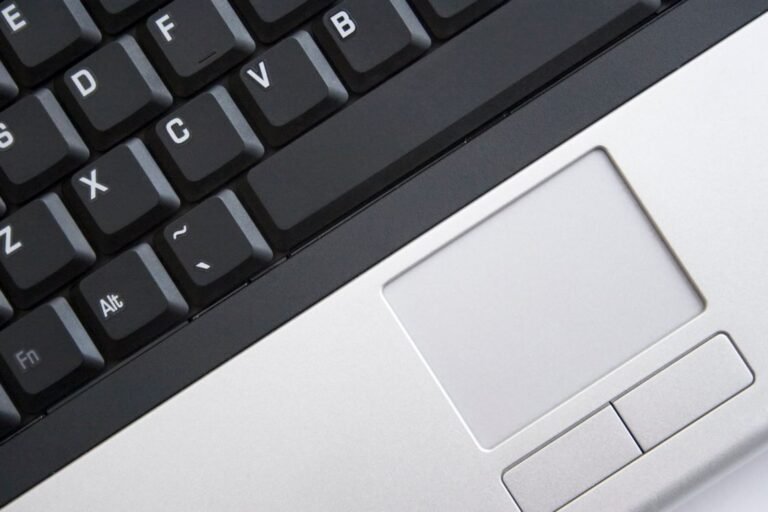
- Look for the touchpad icon on the function keys: Scan the F1 to F12 row for a small rectangle with a finger on it, sometimes with a line through it. Common keys are F5, F6, F7, and F9, but the exact key depends on your laptop brand.
- Press Fn plus that key once: Hold the Fn key, press the touchpad key, then wait a few seconds and try the touchpad again.
- Press it once more if nothing changes: The key is a toggle, so one press turns the touchpad off and the next press turns it back on. If you are unsure which state it is in, pressing it twice covers both states.
- Check for a corner tap on HP laptops: Some HP laptops have no touchpad key at all. Instead, double tap the small dot or the upper left corner of the touchpad itself to switch it on or off.
Restart and Test Again
- Restart the laptop once: If the key did not help, restart the laptop and test the touchpad again before you move on. A restart clears a stuck driver state, so do not skip this simple step.
- No mouse yet? Use the keyboard: Press the Windows key to open Start, use Tab and the arrow keys to move around, and press Space to switch a setting on or off. You can do every fix in this touchpad not working guide with the keyboard alone.
- Keep a USB mouse nearby as a backup: A cheap USB mouse gives you full control while you fix the touchpad, and it also proves the laptop itself is fine. If the USB mouse works but the touchpad does not, the problem is specific to the touchpad.
Touchpad Not Working Fix 2: Turn the Touchpad On in Windows Settings
If the function key did not help, the touchpad may be switched off in Windows itself. Check the setting for your Windows version below. Each version hides the switch in a slightly different place, so use only the steps for your version.
First, Windows 11 steps:
- Open Touchpad settings: Press Windows key plus I, click Bluetooth and devices, then click Touchpad.
- Switch the touchpad on: Set the Touchpad switch to On. If the switch is already on, switch it off, wait a few seconds, then switch it back on.
- Keep the touchpad on with a mouse connected: On the same page, tick Leave touchpad on when a mouse is connected. Without this tick, Windows may switch the touchpad off every time you plug a mouse in.
- Check the sensitivity: Set Touchpad sensitivity to Medium or High, then test again. A very low sensitivity can make the touchpad feel dead on a light touch.
Next, Windows 10 steps:
- Open Touchpad settings: Press Windows key plus I, click Devices, then click Touchpad.
- Switch the touchpad on: Set the Touchpad switch to On. If it is already on, switch it off and back on again.
- Keep the touchpad on with a mouse connected: Tick Leave touchpad on when a mouse is connected, if your laptop shows that box on this page.
- Reset the touchpad if the switch is missing: Scroll down on the same page and click Reset under Reset your touchpad. This restores the default gestures and sensitivity.
Then, Windows 8 and 8.1 steps:
- Open Mouse and touchpad settings: Press Windows key plus I, click Change PC settings, click PC and devices, then click Mouse and touchpad.
- Switch the touchpad on: Set the Touchpad switch to On if your laptop shows one on this page.
- Check the classic Mouse settings too: Open Control Panel, click Hardware and Sound, then click Mouse. If your touchpad maker installed its own tab, such as Synaptics or ELAN, open that tab and make sure the touchpad is enabled there.
Lastly, Windows 7 steps:
- Open Mouse properties: Click Start, click Control Panel, click Hardware and Sound, then click Mouse.
- Check the touchpad tab: If your touchpad maker installed a tab, such as Synaptics or ELAN, open it and click Enable. If there is no touchpad tab, the touchpad driver is missing, so jump to Fix 4.
- Check the pointer speed: On the Pointer Options tab, set the speed to the middle and untick Enhance pointer precision for a test. A strange speed setting can make the cursor feel stuck.
If the Touchpad page itself is missing on Windows 10 or 11, that is a useful clue. It usually means Windows cannot see the touchpad device at all. That points to the driver fix in Fix 4 rather than a settings problem.
Touchpad Not Working Fix 3: Unplug the Mouse and Clean the Touchpad
Next, rule out the two physical causes. A connected mouse and a dirty touchpad surface can both fake a dead touchpad. Both take a minute to check.
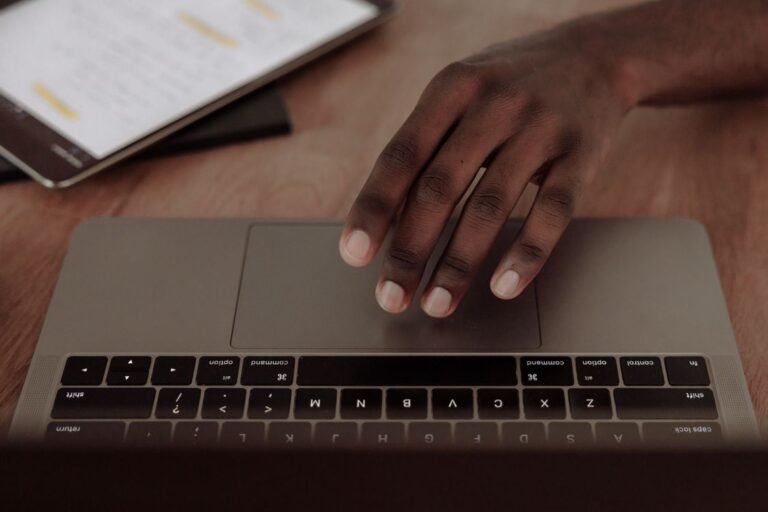
- Unplug every mouse and receiver: Remove USB mice, wireless receivers, and Bluetooth mice. Then test the touchpad on its own. If it wakes up, the mouse connected setting in Fix 2 was the cause.
- Turn Bluetooth off for a test: A paired Bluetooth mouse can count as connected even when it sits in a drawer. Switch Bluetooth off, then test the touchpad again.
- Clean the touchpad surface: Switch the laptop off, wipe the touchpad with a soft dry cloth, and remove any sticker, skin, or grime on the surface. A film of grease can block light touches, which feels exactly like a touchpad not working at all.
- Test with dry hands and one finger: Wet hands and gloves confuse touchpads. Dry your hands, then move one finger slowly across the centre of the touchpad and try a single tap.
- Test gestures separately: If the cursor moves but two finger scrolling does not work, the problem is a gesture setting, not a dead touchpad. On Windows 11, open Touchpad settings and check Scroll and zoom. On Windows 10, open Touchpad settings and check Scroll and zoom there too.
- Do not press harder: Touchpads sense light capacitance, not pressure. Pressing hard will not wake a switched off touchpad, and it can damage an older click pad over time.
Touchpad Not Working Fix 4: Update, Reinstall, or Roll Back the Driver
A broken driver is the next most common cause of a touchpad not working, especially after a Windows update. The driver is the software that lets Windows talk to the touchpad, so a bad driver breaks that conversation completely. Work through these steps in order, and test the touchpad after each one.

- Open Device Manager: On Windows 8, 10, and 11, press Windows key plus X and click Device Manager. On Windows 7, click Start, right click Computer, choose Manage, then click Device Manager.
- Find the touchpad device: Expand Mice and other pointing devices, then look for Synaptics, ELAN, or HID-compliant touchpad. Some laptops list it under Human Interface Devices instead, so check both places.
- Enable it if it is disabled: If the touchpad shows a small down arrow, right click it and choose Enable device. Then test the touchpad straight away.
- Update the driver: Right click the touchpad and choose Update driver, then choose Search automatically for drivers. Restart the laptop if an update installs.
- Reinstall the driver as a clean test: If updating does not help, right click the touchpad and choose Uninstall device. Do not tick Delete the driver software unless you already downloaded the maker driver. Restart the laptop, and Windows will reinstall the touchpad on its own.
- Roll back if the problem started after an update: In Device Manager, right click the touchpad, choose Properties, click the Driver tab, and click Roll Back Driver if that button is available. Then restart and test again.
Get the Maker Driver
- Get the maker driver if Windows finds nothing: Go to your laptop maker support site, such as Dell, HP, Lenovo, Acer, or Asus. Search for your exact laptop model, download the latest touchpad driver, and install it. Install the chipset driver first if the maker lists one, because the touchpad often needs it to work.
Offline alternative, no internet on the laptop: Download the driver on another computer or a phone from your laptop maker support site, copy it onto a USB stick, then run it on your laptop from the stick. You never need to connect the problem laptop itself to the internet for this touchpad not working fix step. If you have no second device, a USB mouse plus a phone hotspot also works for a one time download.
For extra background on the Windows 10 and 11 driver steps, see this touchpad not working guide for Windows 10 and 11, which covers the same settings and driver checks in detail.
Touchpad Not Working Fix 5: Check the BIOS and Reset the Touchpad
If Windows still cannot see the touchpad, the touchpad may be switched off before Windows even starts. That switch lives in the BIOS, which is the setup screen that runs before Windows loads.
- Restart and open the BIOS: Restart the laptop and press F2, Del, Esc, or F10 repeatedly as it starts. The exact key depends on your laptop brand, and it usually flashes on screen for a second during startup.
- Find the touchpad setting: Look under Main, Advanced, or Configuration for Internal Pointing Device, Touchpad, or Internal Touchpad. Set it to Enabled.
- Save and exit: Press F10 to save if your BIOS offers it, or choose Save and Exit. Then let Windows start and test the touchpad.
- Reset the touchpad on Windows 11: If the touchpad works but gestures are wrong, open Settings, then Bluetooth and devices, then Touchpad, and use Reset to restore the default gestures.
- Reset the touchpad on Windows 10: Open Settings, then Devices, then Touchpad, and click Reset under Reset your touchpad.
- Change nothing else in the BIOS: The BIOS controls the whole laptop, so only touch the touchpad setting. If you cannot find a touchpad setting, exit without saving and move on to the hardware checks below.
When a Touchpad Not Working Means Hardware Trouble
Most touchpads come back with the fixes above. A few signs mean the hardware itself needs help, and no setting will save it. Watch for these signs.
- The touchpad is missing from Device Manager entirely, even after a maker driver install: That pattern points to a loose internal cable or a failed touchpad, not to a setting.
- The touchpad works only when you press one corner of the laptop: That pattern points to a loose connection inside the laptop, which a repair shop should check.
- The laptop was dropped or spilled on just before the touchpad died: Liquid and impact damage can kill the touchpad while the rest of the laptop keeps working.
- The touchpad and the keyboard die together: Both parts often share one internal cable, so a fault there takes out both at once. That is a repair job, not a settings job.
If your laptop is still under warranty, contact the maker before you open the laptop yourself. Opening the base can void the warranty, and a touchpad cable repair is usually a quick shop job.
Tricks That Do Not Fix a Touchpad Not Working
- Reinstalling Windows before checking the function key: A full reinstall wipes your files and settings, and it cannot help if the touchpad key is simply switched off. Check Fix 1 first.
- Downloading a random driver fixer tool: Random driver tools often install the wrong driver and bundle unwanted software. Get the driver from the laptop maker site only.
- Buying a new laptop for a touchpad problem: A USB mouse costs very little and keeps the laptop fully usable while you work through the fixes above.
- Updating the driver before checking the settings: A new driver cannot help if Windows has the touchpad switched off. Check Fixes 1 and 2 first.
FAQ: Touchpad Not Working
Why did my touchpad stop working after a Windows update? Updates can replace the touchpad driver with a generic one that does not match your laptop, or they can reset the touchpad setting. Start with Fix 2 to check the setting, then use Fix 4 to roll back or reinstall the maker driver.
Can I use my laptop with no touchpad at all? Yes. A USB mouse gives you full control, and the keyboard shortcuts in Fix 1 cover the rest. Many people work that way for weeks while they wait for a repair, so a dead touchpad does not mean a dead laptop.
Why does my touchpad work only when no mouse is connected? Windows has a setting that turns the touchpad off when a mouse is connected. Open the Touchpad settings for your Windows version in Fix 2 and tick Leave touchpad on when a mouse is connected.
More Touchpad Questions
Is it safe to uninstall the touchpad driver? Yes, as long as you restart straight after. Windows reinstalls the touchpad on restart, and you can still use a USB mouse or the keyboard in the meantime. Only tick Delete the driver software if you already downloaded the maker driver.
What if the touchpad is missing from Device Manager? First, check the BIOS setting in Fix 5, because a touchpad switched off there never appears in Windows. If it is still missing after a maker driver install, the internal cable or the touchpad itself is the likely fault, and a repair shop is the next step.
Can I fix a touchpad not working problem without the internet? Yes, most of this touchpad not working fix works offline. The function key, the settings, the cleaning, the BIOS check, and the reinstall after a restart need no internet. Only the maker driver download in Fix 4 needs the internet, and the USB stick alternative covers that.
Final Words
This touchpad not working fix works because it follows the touchpad itself. First, check the function key that switches it off by accident. Next, check the Windows setting for your version. Then, clean the surface, unplug the mouse, and repair the driver, with the USB stick alternative if you are offline. Finally, check the BIOS if Windows cannot see the touchpad at all. Work through those steps in order, test after each change, and most touchpads come back without a repair bill. If the touchpad stays missing from Device Manager after all of it, that is the hardware telling you it needs help, and a repair shop visit early saves more frustration than another round of driver installs. If your laptop has another noisy problem too, our guide to a loud laptop fan fix quiets that one in minutes as well.